The best ways to get :emoji: shortcuts on your Mac
If you want Slack- and Discord-style colon emoji typing across Messages, Mail and the rest of macOS, you have about eight real options, including several if you are looking for a Rocket alternative. Here is an honest rundown of what each costs, what it asks your Mac for, where it runs, and how it behaves while you type, including where Comoji is not the right fit.
Prices and permissions below were checked against each product's own site: FujiMoji and Macmoji on 5 October 2026, the rest on 12 August 2026. Third-party apps change; the linked comparison pages carry the same facts with sources, and the vendor's site is always the last word.
At a glance
| Tool | Price | Permissions | Works as | Source |
|---|---|---|---|---|
| Comoji | Free | Accessibility, Input Monitoring | Inline colon autocomplete, /gif, /sticker | Closed, network hosts published |
| Rocket | Free; $10 one-time Pro | Accessibility, browser Automation | Inline colon autocomplete, GIFs and snippets in Pro | Closed |
| Mojito | Free (donationware) | Not published | Inline colon autocomplete, ::: GIF trigger | Open (AGPL-3.0) |
| FujiMoji | Free | Not published | Inline suggestions on a trigger key, custom snippets and media | Open (MIT) |
| Raycast | Free tier; Pro from $8/month | Accessibility | Launcher hotkey, then search | Closed |
| Macmoji | Free | None | Text Replacements list, exact match on Space | Open (MIT) |
| Apple Text Replacements | $0 (built in) | None | Exact match you add by hand | Built into macOS |
| macOS emoji picker | $0 (built in) | None | Floating window, mouse-driven | Built into macOS |
Comoji
Our pickBest for fast, private emoji autocomplete
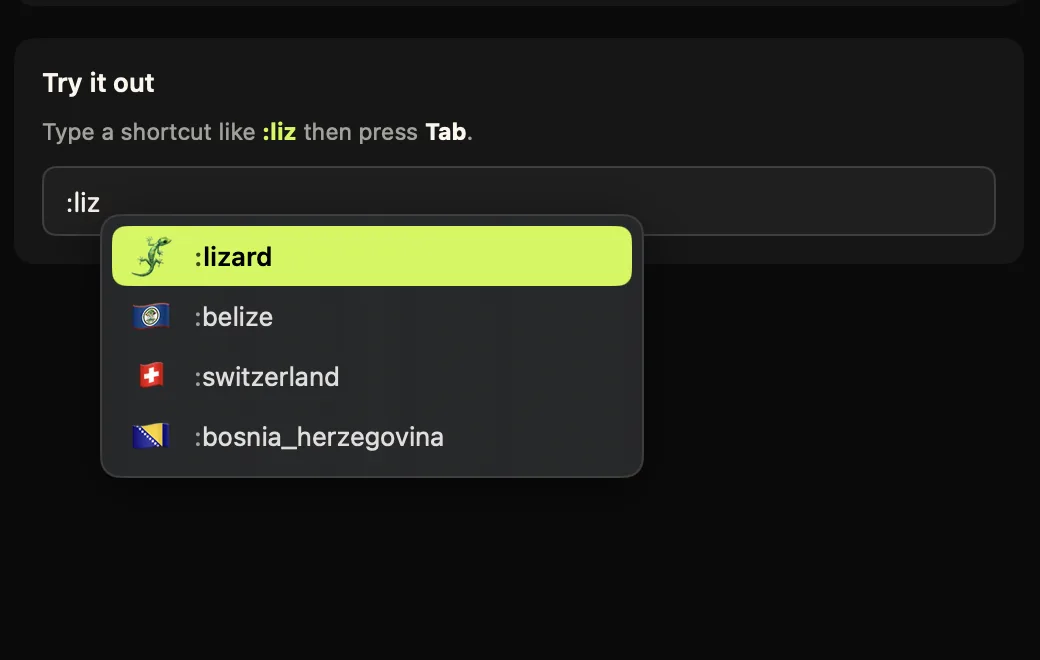
A tiny menu bar app focused on one thing: Slack- and Discord-style colon emoji autocomplete everywhere on your Mac. Type
:liz, pick from a popover next to the caret, press Tab. The full set of 1,870 emoji with aliases, skin tones, recent-use ranking, exact-match auto-replace, a configurable trigger key, and system-wide/gifand/stickerpickers.- Price: free. No paid tier, no account, no trial.
- Permissions: Accessibility and Input Monitoring. Every host the app can reach is published on /security, with commands to verify it.
- Platforms: macOS 13 Ventura or later, Apple silicon and Intel. Mac only.
- Pick it if: you want inline autocomplete everywhere, per-app and per-site control, and stickers and GIFs where you send them.
Rocket
Best if you also want text snippets
The mature, well-regarded app that brought colon emoji typing to the Mac system-wide. Same inline model: a trigger key (
:by default, or(or+), then the start of an emoji name. Pro turns it into a small text toolkit with GIFs, images, custom shortcuts and snippets that expand dates and times. A great pick if you want more than emoji in one tool.- Price: free, with a one-time $10 Pro upgrade. A purchase, not a subscription.
- Permissions: Accessibility, plus Automation access to your browsers so it can read the current URL and stand down on Slack, GitHub and Trello, plus Finder and System Events.
- Platforms: Mac only; no minimum macOS version published.
- Pick it if: GIFs, images and snippets from one app are worth $10 once, and the extra browser access does not bother you.
Mojito
Best if you want open source
A newer free Mac app in the same space: a menu bar picker with colon autocomplete, fuzzy typo-tolerant search across roughly 18 languages, and a
:::trigger that pulls GIFs from Giphy. It stands down automatically in apps and on sites that already handle shortcodes, so nothing fights over your colon. Being AGPL-3.0, it answers "what is this doing with my keystrokes?" the best way there is: you can read it.- Price: free and open source (AGPL-3.0), donationware.
- Permissions: not published. Expect Accessibility at minimum for an app that reads a colon token in another app's field.
- Platforms: Mac only; no minimum macOS version published.
- Pick it if: you want auditable source, multilingual search, or its
:::GIF trigger rather than Comoji’s/gifcommand.
Raycast
Best if you already use it as your launcher
The popular Mac launcher has emoji search built in: hit the hotkey (⌥Space by default), run Search Emoji & Symbols, type a few letters, press Return and it lands in the app you were in. It covers symbols as well as emoji and remembers what you use. It is launcher-invoked rather than inline, so there is a focus round-trip on every emoji: small once, noticeable when a message needs three.
- Price: free tier includes emoji search. Pro is $10/month monthly or $8/month annually; Advanced AI is +$8/month; Teams $15 monthly or $12 annually per user.
- Permissions: Accessibility. No Input Monitoring, because a launcher only reacts to its own hotkey rather than watching what you type.
- Platforms: macOS 13 or later, plus iOS and Windows apps and a browser extension.
- Pick it if: you want a launcher, clipboard history and extensions in one app, or you want the same tool across platforms.
FujiMoji
Best if you want free, open source and your own snippets
A lightweight, free menu bar app that listens for a trigger key, shows suggestions after a couple of characters, and pastes your pick into the active field. You choose the start and end capture keys, and you can map your own text snippets and media (images, GIFs) to tags alongside the emoji. It is MIT-licensed and runs locally, so the source is there to read if you want to see what it does with your keystrokes.
- Price: free and open source (MIT).
- Permissions: not listed on its site. A menu bar app that watches for a trigger key will need keyboard-monitoring access, so check what macOS asks for on first launch.
- Platforms: Mac only; no minimum macOS version published.
- Pick it if: you want open source, custom tags for snippets and media, or a configurable capture key, and do not need stickers or a built-in GIF search.
Macmoji
Best if you want a free Slack-style list with no app running
Not an app but a free, open source (MIT)
.plistof Slack, GitHub and Trello shortcodes that you drag into System Settings › Keyboard › Text Replacements. After that, typing:boom:and pressing Space swaps in the emoji. It is the Text Replacements mechanism pre-filled for you, so there is no autocomplete popup and you need the exact spelling. The repository has seen little activity since its last update in May 2021, so newer emoji will not be in it.- Price: free and open source (MIT).
- Permissions: none, because macOS itself does the substitution and no third-party process sees your keystrokes.
- Platforms: macOS (it rides on Apple's Text Replacements, which iCloud can sync to other Apple devices).
- Pick it if: you know your shortcodes by heart, want zero background processes, and are fine with a list frozen in 2021.
Apple Text Replacements
Best for a few favourites, zero install
Built into macOS, iOS and iPadOS, syncing over iCloud, and perfectly capable of turning
:fire:into 🔥. You add each pair by hand in System Settings › Keyboard › Text Replacements, and macOS substitutes on an exact match when you finish the word. No autocomplete, no preview, no discovery, and you maintain every entry yourself: fine for a handful of emoji, painful at scale. Coverage is also uneven: it fires reliably in Apple's own apps and often not at all in Electron apps or Terminal.- Price: $0, part of the OS.
- Permissions: none at all. Nothing third-party ever sees your keystrokes, which is the best privacy story on this page.
- Platforms: macOS, iOS and iPadOS, synced by iCloud. The only option here that reaches your phone.
- Pick it if: you use a few emoji, want them on iPhone too, or cannot grant Accessibility on a managed Mac.
The macOS emoji picker
Built-in, but slow and mouse-driven
Control-Command-Space (or the Globe/fn key) opens Apple's own picker. It is complete, it is free, it needs no permissions, and it is genuinely good for browsing when you do not know what you are looking for. What it is not is fast: it opens a floating window, takes focus, and expects the mouse for anything beyond the first row, exactly the friction colon autocomplete removes.
- Price: $0, part of the OS.
- Permissions: none.
- Platforms: every Mac, plus the equivalent keyboard on iPhone and iPad.
- Pick it if: you reach for emoji rarely enough that a window and a mouse are not worth replacing.
Our take: if you want the fastest, most private path to emoji everywhere on a Mac, start with Comoji: free, signed and notarized, and it runs entirely on your machine. If you want text snippets alongside emoji in one purchase, Rocket. If you want source you can read, Mojito or FujiMoji. If you already run a launcher, Raycast's free tier already has this covered. And if you need the same shortcuts on your iPhone, or you cannot install anything, Apple's Text Replacements (or the Macmoji list that pre-fills them) are right there and cost nothing.
Going deeper on one option? The best emoji picker for Mac covers the built-in picker alongside these, how to use the Raycast emoji picker and how to make emoji Text Replacements walk through the two tools you may already have, and free text expanders for Mac covers espanso for when you need snippets as well as emoji.
Third-party prices and permissions checked on . Every comparison page linked above lists its sources.