Everything Comoji does, and nothing it shouldn’t.
A tiny menu bar app with Slack- and Discord-style :emoji: autocomplete in the text fields you already use. Tune exactly where it runs, browse the whole set when a name escapes you, and keep every keystroke on your Mac.
Watch the 37-second demo. Nothing loads from YouTube until you press play.
Type a colon, pick, press Tab.
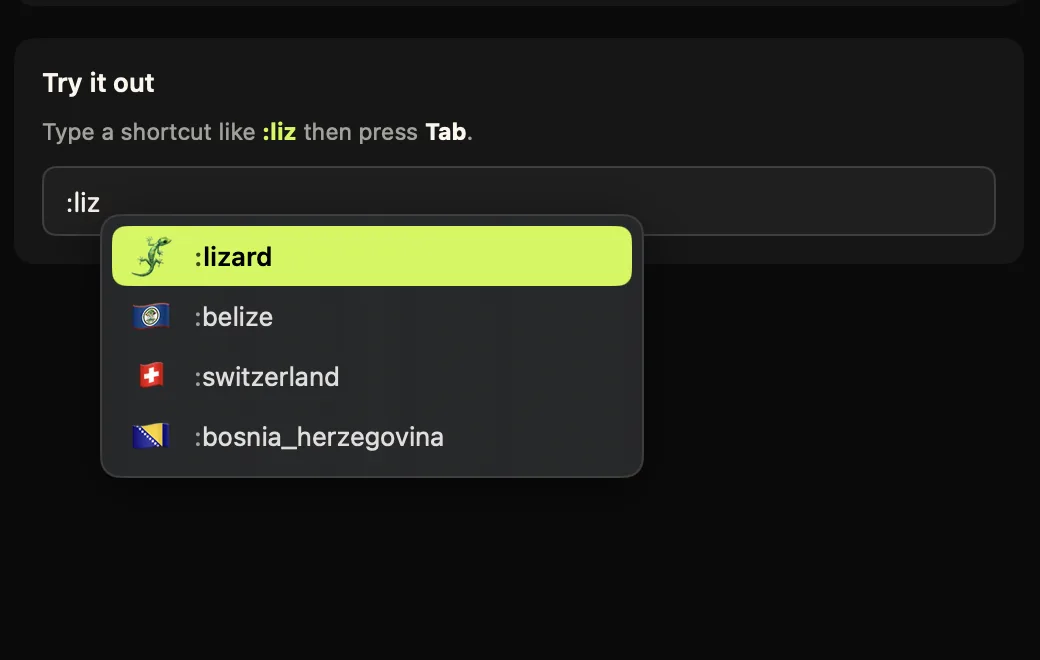
The one thing Comoji does, everywhere you type. Start any word with a colon, :liz, and a quiet popover appears at your caret with the best matches, ranked by relevance and how recently you used them. Arrow to the one you want and press Tab, or type the closing colon to drop an exact match instantly.
It works the same in Messages, Mail, Notes, Safari and most other apps, no per-app plugins, no picker, no break in your typing.
Where does it work, and how do you turn it off?
Turn Comoji off in the apps and websites where you don’t want it, browse the whole set when a name escapes you, and pick the trigger key that fits your keyboard.
Off where you don’t want it.
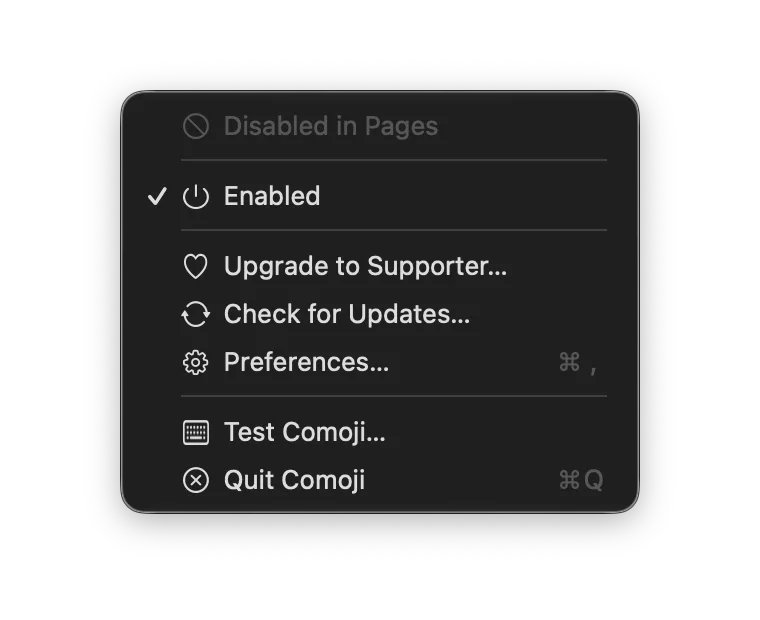
Add any app to a disabled list and Comoji stays quiet there, while still working everywhere else. The menu bar dims and reads “Disabled in <app>,” so you always know its state at a glance. Password managers, terminals and VMs are excluded by default.
Quiet on the sites you choose.
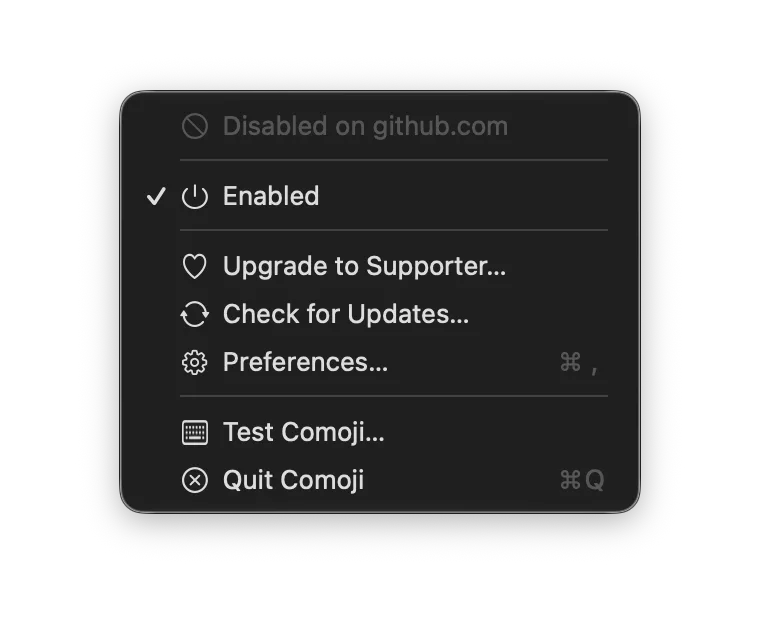
Working in a browser? Add a domain like github.com and Comoji stands down on that site, subdomains included. It detects the active page with the Accessibility permission it already has, no new access, and works across Safari, Chrome, Edge, Arc, Brave and AI browsers like Comet and ChatGPT Atlas.
Forgot the name? Type it twice.
Press your trigger key twice, :: by default, to open a large, searchable emoji browser. Arrow keys move through the grid, Return inserts, Esc dismisses. It’s an emoji picker that opens at your caret rather than over your window, so it stays the escape hatch for the moments a shortcode slips your mind, and it inserts right back into the app you were typing in. The macOS emoji picker (Control-Command-Space) still works exactly as it did; this one just saves the trip.
Your keyboard, your trigger.
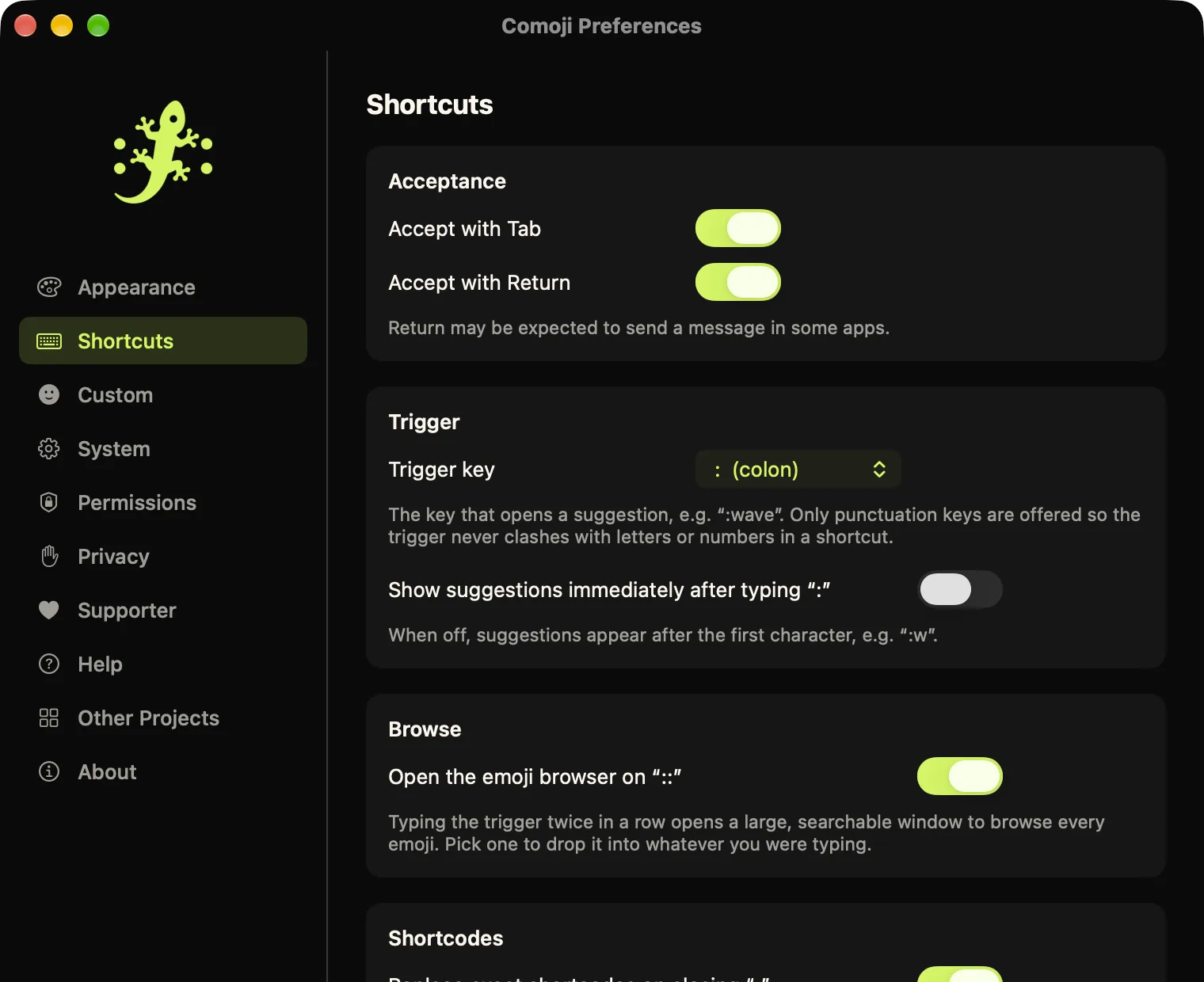
The colon is great until you’re writing code or timestamps. Pick a different token-opening key, semicolon, slash, backslash, @, #, ~ or |, in Preferences › Shortcuts. Comoji rewrites every suggestion, example and the :: browser to match the key you chose.
Make it match your Mac.
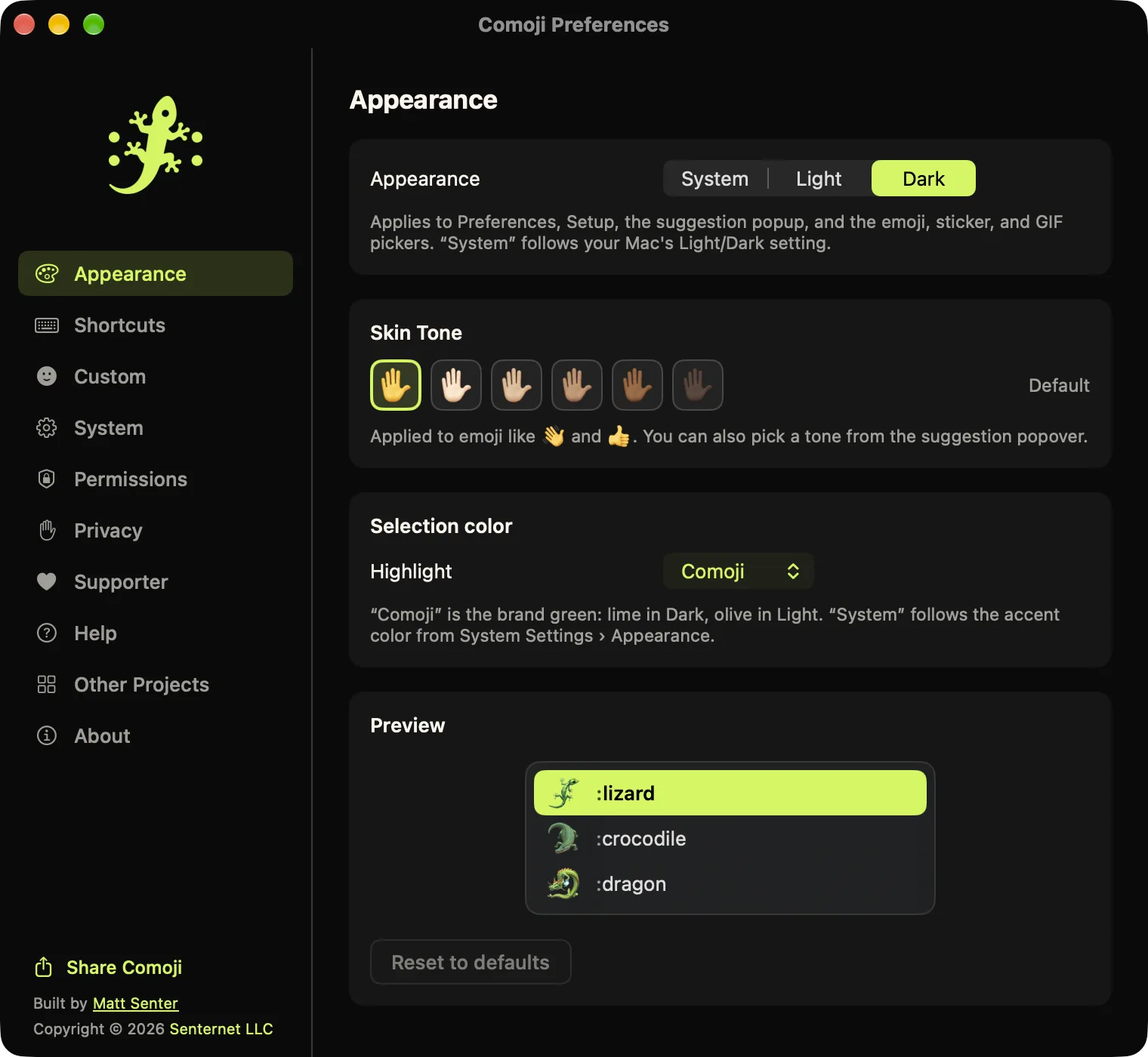
The popup shows up inside every app you type in, so it uses standard system materials and follows Light/Dark automatically instead of repainting your screen. The selection highlight is Comoji lime out of the box; switch it to your Mac’s own accent color, one of six presets, or any custom color in Preferences › Appearance. Force Light or Dark there too, if you’d rather it not follow.
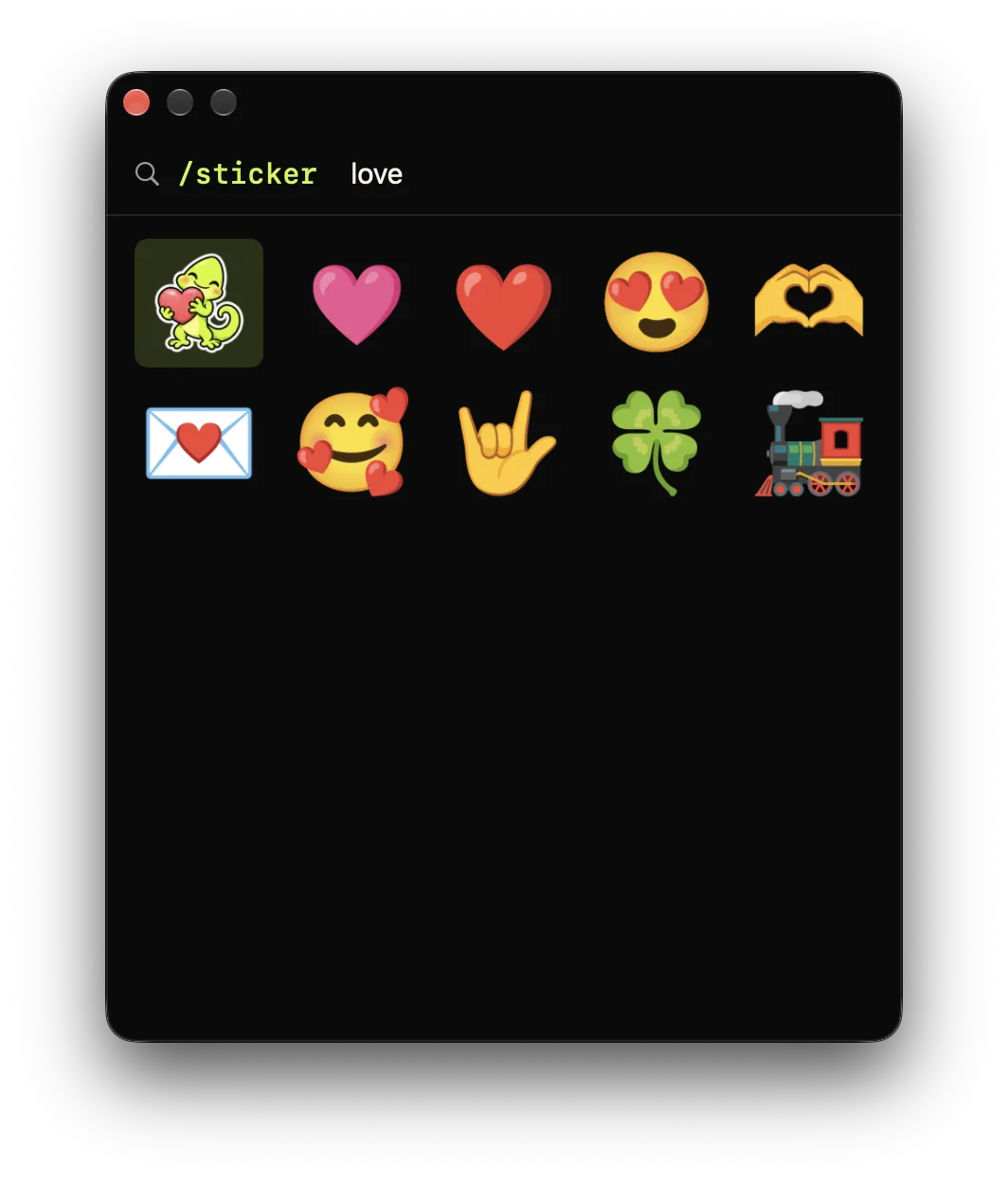
Just type /sticker.
In any supported text field, type /sticker and a search word to pull up a big library of animated stickers, then arrow over and hit Return to paste one where you were typing. It works in Messages, WhatsApp, Mail, browsers, and most other Mac apps. Twenty original Comoji lizard stickers and a handful of emoji ship with the app; the rest stream in from Google’s open Noto emoji set as you use them.
Knows when macOS has muted it, and says so.
When a password field, the lock screen or Terminal’s Secure Keyboard Entry turns on macOS secure input, keystrokes stop reaching every keyboard listener on the system, Comoji included. Instead of going silent, Comoji puts a padlock on its menu bar icon and a “Secure Input Is On” line at the top of its menu, naming the app responsible. Click it for what that means and how to clear it when an app leaves secure input stuck. It works in your favor too: Comoji never completes inside password fields, and now you can see why.
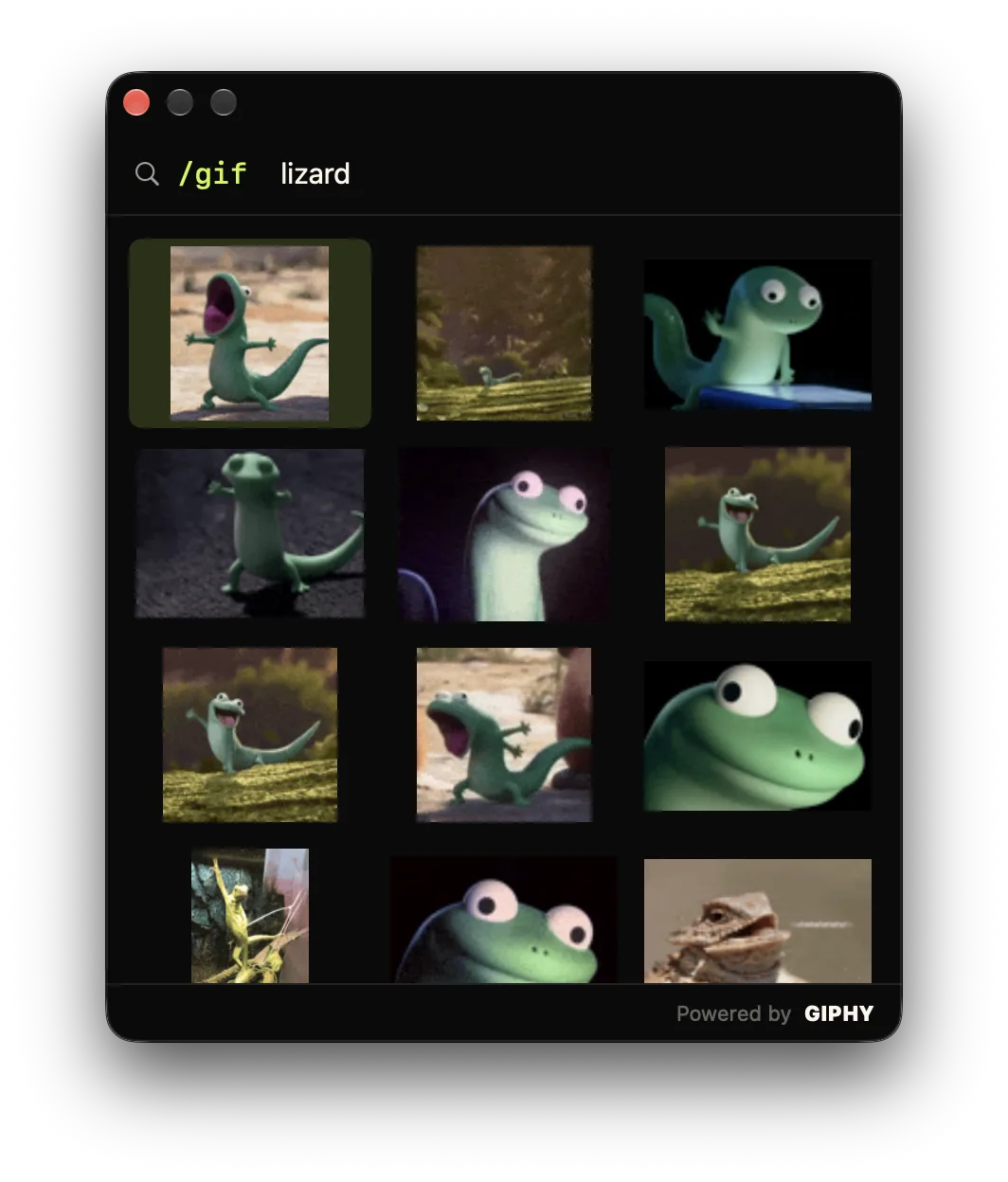
Just type /gif.
In any supported text field, type /gif and a search word to pull up animated GIFs powered by GIPHY, then arrow over and hit Return to paste one where you were typing. It works in Messages, WhatsApp, Mail, browsers, and most other Mac apps. It’s its own command, separate from /sticker and your :emoji: shortcuts.
Small app. Power-user details.
1,870 emoji, Slack & Discord aliases
The full emoji set with Slack- and Discord-style alias names, :thumbsup, :joy, :skull, :tada, so the shortcuts you already know just work.
Fast, keyboard-first
Arrow to navigate, Tab or Return to accept, Esc to dismiss. No mouse, no picker, no breaking your flow.
Type :: to browse all
Forgot the alias? Press your trigger twice to open a big, searchable emoji browser, then arrow over and hit Return.
Stickers wherever you type
Type /sticker in Messages, WhatsApp, Mail, browsers, and most other Mac apps to search animated stickers and paste one in place. Popular ones ship in; the rest stream from Google’s Noto set.
GIFs wherever you type
Type /gif in Messages, WhatsApp, Mail, browsers, and most other Mac apps to search animated GIFs powered by GIPHY and paste one in place.
Pick your trigger key
Prefer / or ; over :? Choose the key that opens a token in Preferences. Suggestions, examples and the browser all follow it.
Looks like macOS, not like us
The suggestion popup uses standard system materials and follows Light/Dark automatically. Pick the highlight color in Preferences › Appearance: Comoji lime, your Mac’s own accent color, six presets, or any custom color.
Disable in any app
Password managers, terminals and VMs are ignored by default. Turn Comoji off in any other app from Preferences › Custom.
Secure Input Detection
When macOS secure input mutes every keyboard listener, for a password field, the lock screen or Terminal, Comoji shows a padlock on its icon and names the app holding it, so silence never looks like a bug.
Disable on any website
Add a domain like github.com and Comoji stands down on that site in your browser, subdomains included.
Skin tones, remembered
Pick a Fitzpatrick tone for 👋 👍 🙏 and Comoji saves it as your default. Tone choice persists; ranking stays per emoji.
Learns your favorites
Recent-use ranking floats the emoji you actually send to the top of the list, locally on your Mac.
Exact-match auto-replace
Type a full :shortcode: and the closing colon swaps it instantly. Prefixes never auto-fire, so there are no surprises.
Updates itself, quietly
Comoji downloads new versions in the background and installs them while you’re away from the keyboard. Never an interrupting pop-up, never a restart mid-sentence. Every update is signed and verified before it installs. Turn it off anytime.
Add :emoji: to your whole Mac.
Free, signed, and built to stay out of your way.
macOS 13 Ventura or later · Free