Secure Input Is On: What the Lock on Comoji’s Icon Means
If you opened Comoji’s menu because typing :fire suddenly did nothing, and the first line reads Secure Input Is On with a small padlock on the menu bar icon, this page is the explanation. The short version: macOS has stopped delivering keystrokes to Comoji, on purpose, and Comoji is telling you rather than sitting there silently. Most of the time the lock clears on its own within seconds. Occasionally it gets stuck, and when it does there is one fix that always works: log out of your Mac and log back in. The details are below. One thing to say up front, because the padlock sits on our icon: this is not a bug in Comoji! It is a bug in Apple’s secure text entry! Comoji only reports the state; it cannot cause it or clear it.
What secure input is
Secure input, which Apple also calls Secure Keyboard Entry or secure event input, is a mode of the macOS window server. While it is on, keystrokes go to the app that asked for it and to nothing else. Every keyboard event tap on the system goes quiet: emoji autocomplete, text expanders, clipboard managers, key remappers, screen readers’ typing echo, all of them. It is the mechanism that keeps a password you type into Safari from being visible to any other software, and it is a good design.
Apps turn it on when a password field takes focus, and turn it off when focus leaves. The lock screen turns it on while you unlock. Terminal and iTerm2 have a Secure Keyboard Entry menu item that leaves it on for as long as that window is frontmost. Password managers switch it on around their unlock prompts.
Why Comoji shows a lock for it
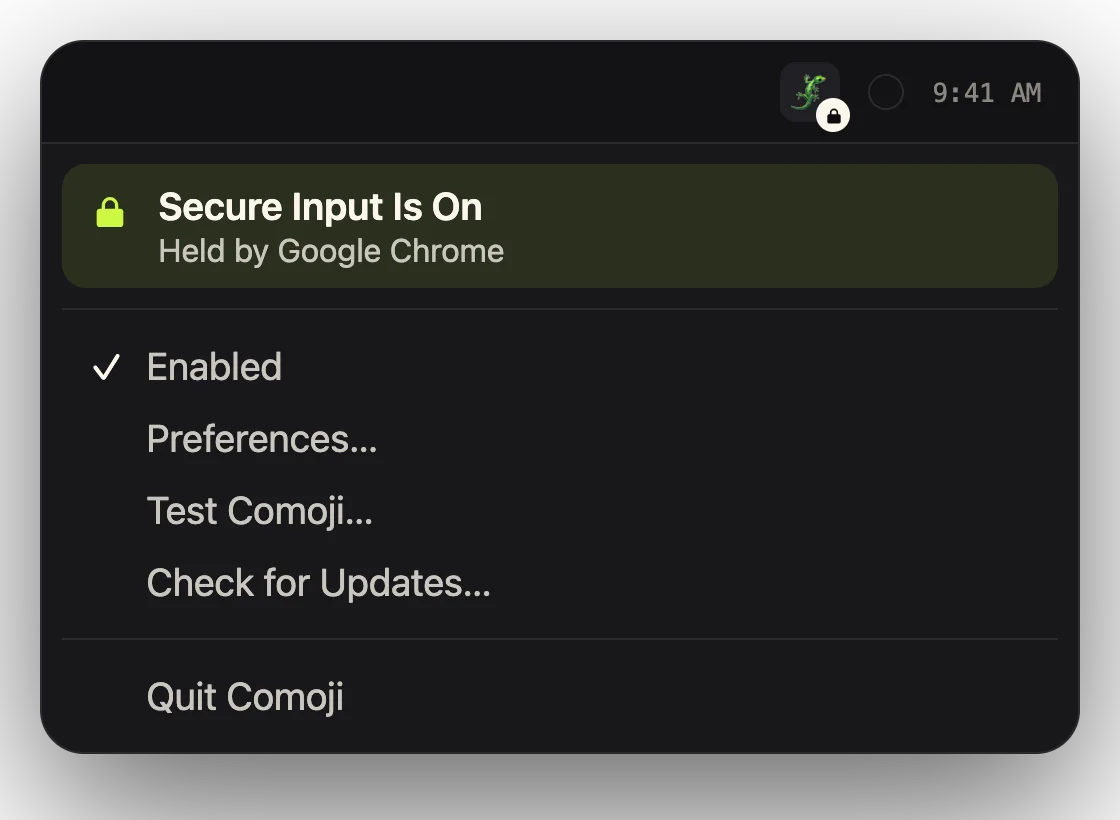
Comoji works by listening for a colon followed by a few letters, then offering completions at the caret. With secure input on, the listening part receives nothing, so no popup can appear no matter what you type. Before this release that silence was indistinguishable from Comoji being broken, disabled in the current app, or missing a permission, and people understandably restarted the app, re-granted permissions, or wrote in. Now the icon carries a padlock badge for exactly as long as secure input is on, and the top item of the menu names the app holding it, so the state is visible instead of mysterious.
The badge is also a reminder of something Comoji does deliberately: it never completes inside password fields. That was true before the badge existed. Comoji checks whether the focused field is a secure text field and stays out of it, in addition to the system-level block. The lock is not a change in behavior, only a change in what you can see.
The normal case: the lock comes and goes
Click into a password box in your browser and watch the menu bar: the padlock appears. Click into the username box or the page body and it disappears. Open Terminal with Secure Keyboard Entry enabled, and the lock stays on until you switch to another app or turn the option off. In all of these cases nothing is wrong, the menu item is only telling you which app is responsible, and Comoji resumes the moment the app releases it.
The stuck case: the lock never clears
Sometimes the lock stays on while you are typing into a perfectly ordinary field, or the menu says secure input is held by an app you have already quit, or by loginwindow minutes after you unlocked the screen. That is a stuck secure input, and it is a macOS bug rather than anything Comoji or the named app can undo from the outside.
This is not a bug in Comoji! It is a bug in Apple’s secure text entry! Comoji has no way to turn secure input on, and no app, Comoji included, can turn it off on another app’s behalf. Everything that listens to the keyboard goes quiet at the same moment, and Comoji is simply the one that tells you.
Here is what goes wrong. The window server keeps a count per process: each time an app enables secure input the count goes up, each time it disables it the count goes down, and the session stays in secure mode until every app’s count is back to zero. An app that enables it more often than it disables it, or that quits while its count is still positive, leaves the whole login session locked. We have watched Chrome do this after restoring tabs that contained a password field, and we have watched the lock screen do it on a recent macOS build, enabling secure input several times per unlock and disabling it once. No other app can lower a count it does not own. That is the security guarantee working as intended, which is exactly why it is so awkward when the count leaks.
How to clear it, cheapest first
- Read the app name under Secure Input Is On in Comoji’s menu (or hover the menu bar icon). If it is a browser, click into a normal text field in that browser, or switch tabs. Often that alone releases it.
- If it is Terminal or iTerm2, open that app’s own menu and turn Secure Keyboard Entry off.
- Quit the named app fully with
Command-Qand reopen it. If its count was positive when it exited, the lock may survive this; move on to the next step. - If the menu says the holder has already quit, or names loginwindow while your screen is unlocked, log out and log back in from the Apple menu. Logging out ends the session that holds the leaked count; a restart works too but takes longer. Avoid locking the screen in the meantime, since each lock and unlock can leak again.
You can confirm the state from Terminal before and after. The first command prints the process the session records as the owner, and the second turns that number into a name:
ioreg -l -w 0 | grep -o '"kCGSSessionSecureInputPID"=[0-9]*'
ps -p <that number> -o comm=
No output from the first command means secure input is off and Comoji is receiving keystrokes again. A number belonging to a process that ps cannot find is the stuck case in its purest form.
The fix that always works: log out and log back in
Every step above is a shortcut that sometimes works. Logging out is the one that always does, because the leaked count lives in your login session and logging out ends that session. Save your work, choose Log Out from the Apple menu, sign back in, and the lock is gone; Comoji starts with your login items and responds immediately. It took us a stuck Chrome, a stuck lock screen, and a morning of prodding to arrive at that, so if the lock has outlived the app that caused it, skip straight here. A full restart does the same thing and takes longer.
What Comoji does and does not do about it
Comoji polls the flag once a second, a query that costs nothing measurable, and looks up the owning process the same way ioreg does. It cannot turn secure input off, and it would be a serious security problem if it could. It also cannot see anything you type while the lock is up, which is the whole point of the mode. What it can do is stop the silence from looking like a fault, and hand you the name of the app to go and prod.
If you are curious what Comoji does with the two permissions it holds, the security page publishes the entire network surface and the tests that enforce it. Secure Input Detection on the features page is the short version of all this; the same tour covers the per-app and per-site off switches, which are a different thing from the lock: those are your choice, while the lock is macOS’s.
One badge, one menu line, and a login cycle when the system misbehaves. Comoji would rather tell you plainly than let you blame the wrong thing.
Frequently asked questions
Why does Comoji show a lock icon in the menu bar?
The padlock means macOS secure input is on, so keystrokes are being delivered only to the app that requested it and Comoji cannot see them. It appears while a password field or the lock screen has focus, or while Terminal has Secure Keyboard Entry enabled, and disappears as soon as that app releases it. The Secure Input Is On menu item names the app responsible.
How do I turn off Secure Keyboard Entry on a Mac?
In Terminal or iTerm2, open the app menu and uncheck Secure Keyboard Entry. For a browser or password manager, click into a non-password field or quit the app. If the setting stays on after the responsible app has quit, log out of macOS and log back in, which resets the session that holds the leaked state.
Why is secure input stuck on after I quit the app?
The macOS window server keeps a per-process count of secure input requests, and an app that quits while its count is still positive leaves the session locked with nobody able to release it. Chrome after restoring a tab with a password field and the lock screen on some macOS builds are known to do this. Logging out and back in clears it.
Does Comoji work in password fields?
No, by design. macOS blocks every keyboard listener while a password field has focus, and Comoji independently checks whether the focused field is a secure text field and stays out of it. The lock badge simply makes that system state visible so a quiet popup is not mistaken for a broken app.
Try Comoji
Slack- and Discord-style :emoji: autocomplete, everywhere on your Mac. Free.