macOS Emoji Picker Not Working: 8 Things to Check
Comoji adds free Slack-style :emoji: autocomplete to every app on your Mac.
You press Control-Command-Space, and nothing happens. Or the panel appears and the emoji never lands. The macOS emoji picker (Apple ships it as Emoji & Symbols, and expanded it becomes the Character Viewer) is a system service rather than an app you can quit and relaunch, so when it misbehaves there is no obvious thing to restart. This page walks the causes in the order they are worth ruling out, cheapest first.
1. The caret is not in something that takes text
The picker is summoned into an insertion point, so it declines to appear when there is not one. A window that merely has focus is not enough: click into the field, watch for the blinking caret, then press the combo. This accounts for a surprising share of “it stopped working” reports, particularly in apps whose search bars and canvases look editable but are not.
2. Something else has claimed Control-Command-Space
Global hotkeys are first come, first served, and a launcher, window manager, screenshot tool or clipboard utility grabbing that combo will swallow it silently, with no error and no picker. Look through System Settings › Keyboard › Keyboard Shortcuts for a conflicting binding, then through the shortcut preferences of whatever utilities you run at login. Quitting your launcher for ten seconds and pressing the combo again is the fastest way to identify the culprit.
3. The Globe key is assigned to something else
If you have been tapping 🌐 rather than the three-key combo, the setting behind it may have moved. System Settings › Keyboard › Press 🌐 key to offers Show Emoji & Symbols, Change Input Source, Start Dictation and Do Nothing, and installing a new input source is enough to nudge it off the emoji option. The full tour of entry points, and the setting behind this one, lives in opening the emoji keyboard on a Mac.
4. Use the Edit menu to split the problem in two
Almost every app carries Edit › Emoji & Symbols, and it is the diagnostic that saves you guessing. If the menu item opens the panel, your keyboard shortcut is the broken part and steps 2 and 3 apply. If the menu item is greyed out or does nothing either, the app itself is refusing, which is common in non-native software that draws its own text fields: some Electron, Java and remote-desktop windows never wire up the system service at all.
5. Secure input is on (password fields, Terminal, VPN and security clients)
Password boxes, lock screens, and any field an app has marked as secure input will not accept a character from the picker. That is macOS working correctly, not a bug to route around. The trap is secure input that stays on after the prompt is gone, because then ordinary fields elsewhere stop cooperating too. Three usual holders: a browser or password manager that left it on after an unlock; Terminal or iTerm2 with Secure Keyboard Entry ticked in the app menu, which holds it for as long as that window is frontmost; and VPN or security clients, which can switch it on around their sign-in prompts. Check those first if nothing else explains it. Secure input on a Mac explains how to see which app holds it and clear it.
6. It opens, and your search comes back empty
The picker matches Apple’s own names for each glyph, so a word you learned in a chat app will often return nothing. “whis” finds no whiskey, because Apple calls 🥃 a *tumbler glass*; “thumbs” is *thumbs up* but “+1” is nothing at all. Two habits help: search the plainest noun you can think of, and expand the panel to the full Character Viewer so its sidebar and symbol categories are available. Where those names come from is covered in colon emoji shortcodes on a Mac.
7. Everything works, and it is still the slow path
A category worth naming separately, because no amount of troubleshooting fixes it: the picker is behaving exactly as designed and the design is a detour. Open a panel, aim at a grid, click, come back. For a symbol you need once a month that is fine. For the fifteen emoji you actually send, it is a mouse trip per emoji, every day, forever.
8. The last resorts, in order
- Quit and reopen the app that is refusing, which clears a stuck secure-input state along with it.
- Log out and back in, which restarts the per-user services the picker rides on.
- Restart the Mac. This is genuinely the fix when the panel opens blank or draws at the wrong size.
- Check System Settings › General › Software Update, since picker regressions do get patched in point releases.
The alternative: a picker that comes to the caret
Every fix above restores a panel you then have to travel to. The other option is to stop travelling: type :fire, read four ranked candidates at your cursor, press Tab, keep writing. It is the model Slack and Discord already taught most people, and Comoji brings it to whatever field the caret is in.
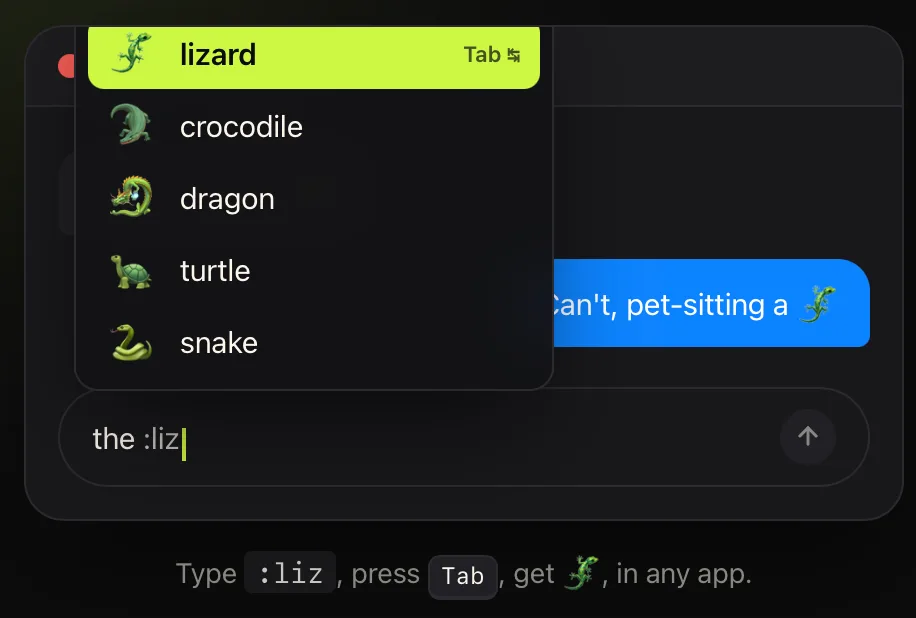
It carries the gemoji aliases the system panel lacks, so :whis does find 🥃, and a double tap of the trigger opens a searchable browser at your cursor for the times a name escapes you entirely. The features tour has the rest, install and setup covers the download and the two permissions, the best emoji picker for Mac weighs the built-in panel against ten other options, and how to type emoji on a Mac covers the other built-in routes.
Eight checks, and the honest summary is that seven of them are about a panel you would rather not open in the first place.
Frequently asked questions
Why is Control-Command-Space not opening the emoji picker on macOS?
The three usual causes are that the caret is not in an editable text field, that another app has claimed the same global hotkey, or that the app you are in never wires up the system service. Open Edit › Emoji & Symbols in the same app to tell them apart: if the menu works, the shortcut is being intercepted; if it does not, the app is the problem.
Do I need to restart my Mac to fix the emoji picker?
Only as a last resort. The picker is a system service rather than an app you can quit, so work through the caret, hotkey conflicts, the Globe setting and secure input first. If none of those apply, logging out and back in restarts the per-user services it rides on, and a full restart fixes a panel that opens blank or at the wrong size.
Why does the macOS emoji picker not insert into password fields?
Secure text entry blocks it on purpose, so password boxes and lock screens will not take a glyph from the picker. If ordinary fields start behaving the same way, an app has probably left secure input switched on: a browser or password manager after a prompt, Terminal or iTerm2 with Secure Keyboard Entry ticked, or a VPN or security client. Quitting that app, or unticking the option, usually clears it; see the secure input guide on this site for the log-out fix.
Why does searching the emoji picker return no results?
The picker matches Apple’s own name for each glyph, not the shortcode names chat apps use, so 🥃 answers to tumbler glass rather than whiskey and :+1: matches nothing. Search the plainest noun for the image you want, and expand the panel to the full Character Viewer when you need symbols rather than emoji.
Download Comoji free for Mac
Slack- and Discord-style :emoji: autocomplete, everywhere on your Mac. Free.