Mac Emoji Shortcuts: The Complete List
Comoji adds free Slack-style :emoji: autocomplete to every app on your Mac.
On a Mac, “emoji shortcut” means two unrelated things. One is a key combo that summons Apple’s emoji panel. The other is a typed shortcode like :fire: that becomes 🔥 as you write. Which one you want depends entirely on the app you are in, so this page lists both and marks where each is available.
The system emoji shortcut: Control-Command-Space
One combo covers the whole system. Put the caret anywhere text goes, press Control-Command-Space, and Apple’s Emoji & Symbols panel appears next to it. Everything in this list opens that same panel, so the choice is only about which is nearest your hands.
Control-Command-Space: the universal one. Works on every macOS from Ventura through macOS 26 Tahoe, Apple silicon and Intel alike.- Globe (or
fn): a single tap on most modern keyboards. Assign it under System Settings › Keyboard › Press 🌐 key to. - Edit › Emoji & Symbols: the menu route, present in nearly every app, for when the combo slips your mind.
- Input menu in the menu bar: a permanent click target, worth turning on if you work at a desk with a mouse.
- With the panel open: type to filter,
Returnto take the top hit,Escapeto back out.
When none of those do anything, the entry-point-by-entry-point walkthrough is in opening the emoji keyboard on a Mac, and the fuller diagnosis is in macOS emoji picker not working.
The other kind: colon emoji shortcodes
Shortcodes are the habit chat apps taught you: a colon, a few letters, then a ranked list you accept without leaving home row. :fire: is 🔥, :+1: is 👍, :tada: is 🎉. The names come from the gemoji set rather than Apple’s, which is why :whis lands on 🥃 where the panel’s own search for “whis” finds nothing at all. The shortcode naming rules go deeper.
Which emoji shortcut works where
Key combos are universal. Shortcodes are not: one only fires where that particular app chose to build it. Roughly how the ground lies:
- Slack and Discord: colon autocomplete, built in and complete. You can have the same shortcuts outside those apps.
- Notion: an editor-level shortcut, covered in Notion emoji shortcuts on a Mac.
- Google Docs: type
:and a name, or@emoji; covered in Google Docs emoji shortcuts. - Outlook: new and classic differ; see Outlook emoji shortcuts on a Mac.
- X (Twitter): a smiley button in the composer, but no typed shortcut; see emoji shortcuts on X.
- Messages, Mail, Notes, Safari, TextEdit: key combo only. Nothing you type is treated as a shortcut.
That last line is the whole problem in one sentence. The shortcut you learn somewhere rarely travels: Slack drills the colon reflex into you, Messages ignores it, and you are back at the panel.
Rolling your own with Text Replacements
Apple ships exactly one way to make a typed emoji shortcut with nothing installed: System Settings › Keyboard › Text Replacements, one entry per emoji, synced to your iPhone over iCloud. It is real and it is free. It also stops scaling past a handful, because there is no autocomplete and nothing to remind you what you named things. Text Replacements versus live autocomplete weighs them side by side, and free text expanders for Mac covers the other free options.
One set of shortcuts for every app
The gap in the table above is a system-wide shortcode layer, and that is what Comoji is: a menu bar app that makes the colon habit work in whatever field the caret happens to be in, whether or not that app ever heard of shortcodes.
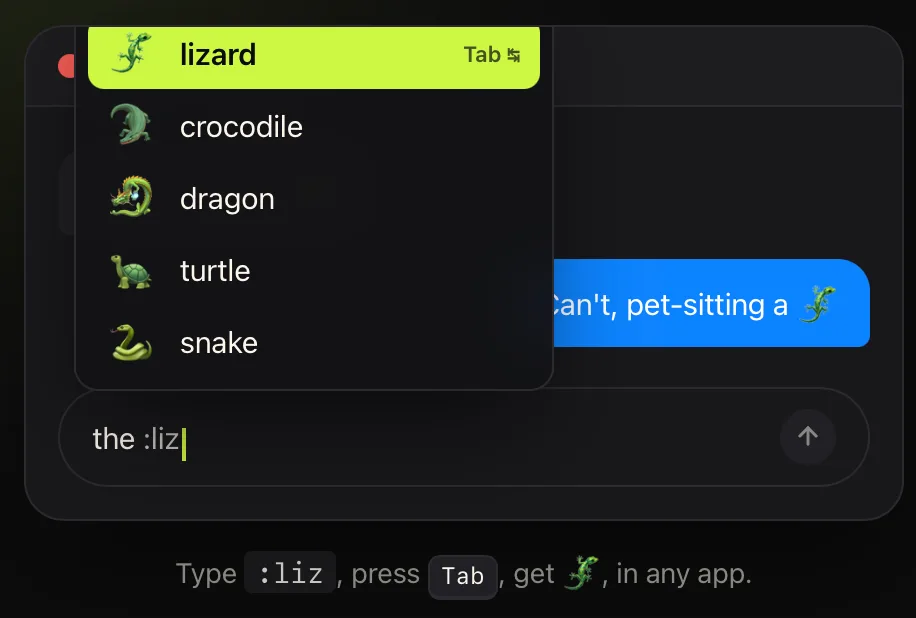
:liz then Tab, in Messages, Mail, Notes or anywhere else.It ranks by what you actually send, remembers a skin tone after you choose one, and gives you a searchable browser on a double tap of the trigger when a name escapes you. The features page has the rest, Comoji is a free download, and install and setup covers the download and the two macOS permissions any keyboard utility needs.
Picking one
- A few emoji a week: learn
Control-Command-Spaceand search by name. Nothing to install. - The same five emoji constantly: add Text Replacements, and get them on your iPhone too.
- Emoji all day, across many apps: a system-wide shortcode layer, so one reflex covers everything.
Two kinds of shortcut, and only one of them ever becomes automatic. Pick the kind that matches how often you reach for emoji, not the one that sounds fastest on paper.
Frequently asked questions
What is the fastest emoji shortcut on a Mac?
Of the built-in options, Control-Command-Space is the fastest: it opens the Emoji & Symbols panel beside your cursor in any text field, and typing filters it so Return inserts the top match. A single tap of the Globe key does the same thing if you assign it in System Settings › Keyboard. Faster still is not opening a panel at all, which is what typed colon shortcodes give you.
What is the difference between an emoji shortcut and an emoji shortcode?
A shortcut is a key combo such as Control-Command-Space that opens Apple’s emoji panel, and it works in every app on macOS. A shortcode is a typed name such as :fire: that an app converts into an emoji as you write. Shortcuts are universal but need a panel; shortcodes need no panel but only work in apps that implement them, such as Slack and Discord.
Which emoji shortcut works in every Mac app?
Only the key combo is truly universal: Control-Command-Space opens Apple’s emoji panel in any app that accepts text. Typed colon shortcodes are a per-app feature, present in Slack and Discord and absent from Messages, Mail, Notes and Safari, unless a menu bar utility such as Comoji supplies them system-wide.
Can I make my own emoji shortcut on a Mac without installing anything?
Yes, with Apple’s Text Replacements. Open System Settings › Keyboard › Text Replacements, click the plus button, put a trigger such as :fire: in the Replace field and the emoji itself in the With field. Entries sync to your iPhone and iPad over iCloud. The limit is that each emoji needs its own entry and there is no autocomplete to help you recall the trigger.
Download Comoji free for Mac
Slack- and Discord-style :emoji: autocomplete, everywhere on your Mac. Free.