How to Type Emoji on a Mac: 4 Ways (Shortcuts Included)
Comoji adds free Slack-style :emoji: autocomplete to every app on your Mac.
To type emoji on a Mac, press `Control-Command-Space` (or tap the Globe/fn key) in any text field, type the emoji’s name to search, and press `Return`. That works in every app on every recent macOS with nothing installed, and it is only the first of four ways.
The four are: the system emoji panel, Apple’s type-a-word-then-swap trick, Text Replacements, and colon autocomplete like Slack’s. They suit different amounts of emoji, so this page is the map. If you are only after the mechanics of opening the panel, how to open the emoji keyboard on a Mac owns that topic, and if you want the shortcuts as a lookup table, every Mac emoji shortcut is the reference.
1. The emoji panel: Control-Command-Space
Put the caret in any text field, Messages, Mail, Notes or a browser, and press Control-Command-Space. Apple’s Emoji & Symbols panel appears beside the caret. Click an emoji to insert it, and the panel usually stays open so you can add a few in a row. You can also reach it from Edit › Emoji & Symbols in the menu bar of almost any app.
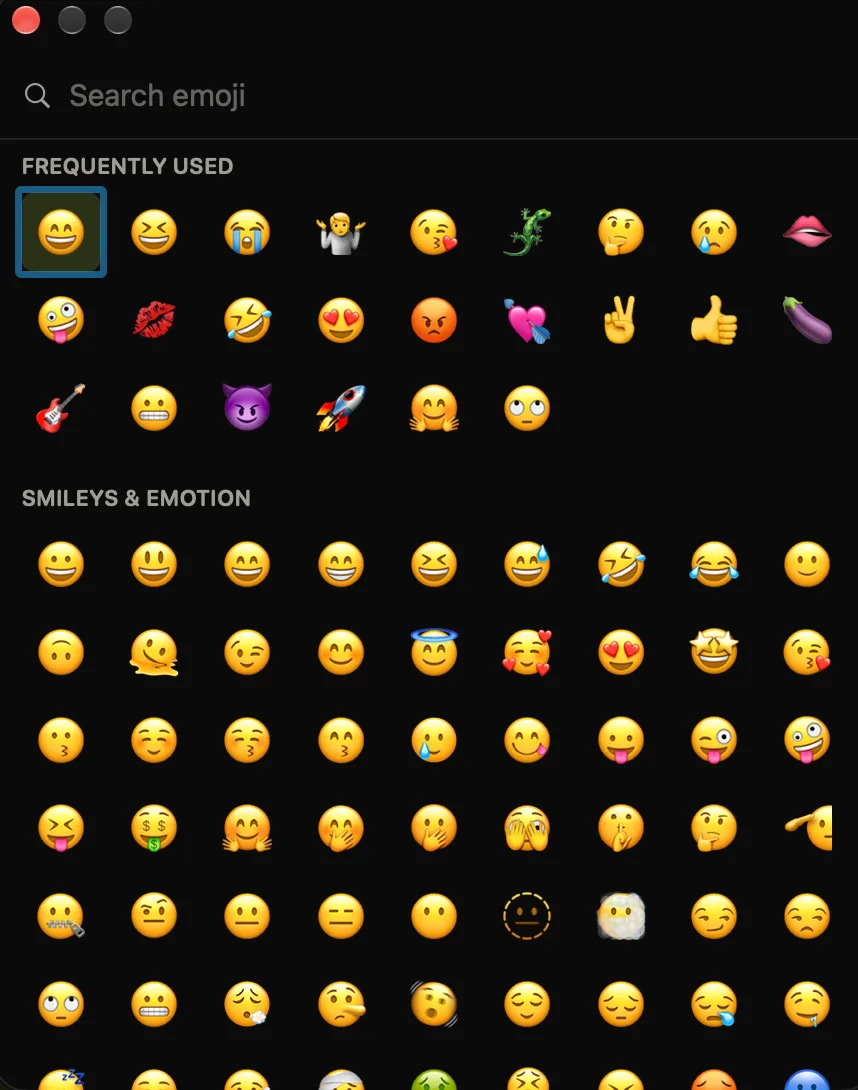
Control-Command-Space: type in the search field to filter, then press Return.The habit that makes this tolerable is to type instead of scrolling. The search field at the top filters as you go, so lizard, party or fire narrows the grid and Return takes the first hit. The Globe key, the menu bar icon and the other entry points are covered on the opening-the-emoji-keyboard page, and if the panel will not appear at all, the not-working checklist is the place to start.
2. Type a word, then press Globe-E
Apple documents a second route that most people never find. In Apple’s guide to emoji and symbols on Mac, you type a common word such as “heart” or “thumbs up” and then press fn-E (the Globe key and E on keyboards that have one). macOS offers matching emoji to swap in, so you start from the word you were already typing rather than opening a grid. Results depend on the app and the word, and it is a prompt-and-pick flow rather than live autocomplete, but it is built in and costs nothing to try.
3. Text Replacements for the handful you send most
If a few emoji account for most of what you send, map a shortcode to each one with Apple’s Text Replacements, no extra app required:
- Open System Settings › Keyboard › Text Replacements.
- Click the
+button. - In Replace, type a trigger like
:fire:. - In With, paste the emoji (grab it from the panel).
- Press
Return. Repeat for each emoji you want.
These sync over iCloud to your iPhone and iPad too. The catch is that they do not scale: there is no autocomplete and no discovery, so you add every emoji by hand and remember each trigger exactly. Ten entries is fine; a hundred is a maintenance job. The full comparison of Text Replacements and live autocomplete covers where they stop being worth it, and free text expanders for Mac covers the other free options.
4. Colon autocomplete, the Slack way
Every method above is something you open or prepare. This one is something you type: a colon, a few letters, Tab. That difference matters more than it sounds, because a method you open stays a decision each time, while a method you type stops being a method and becomes part of how you write.
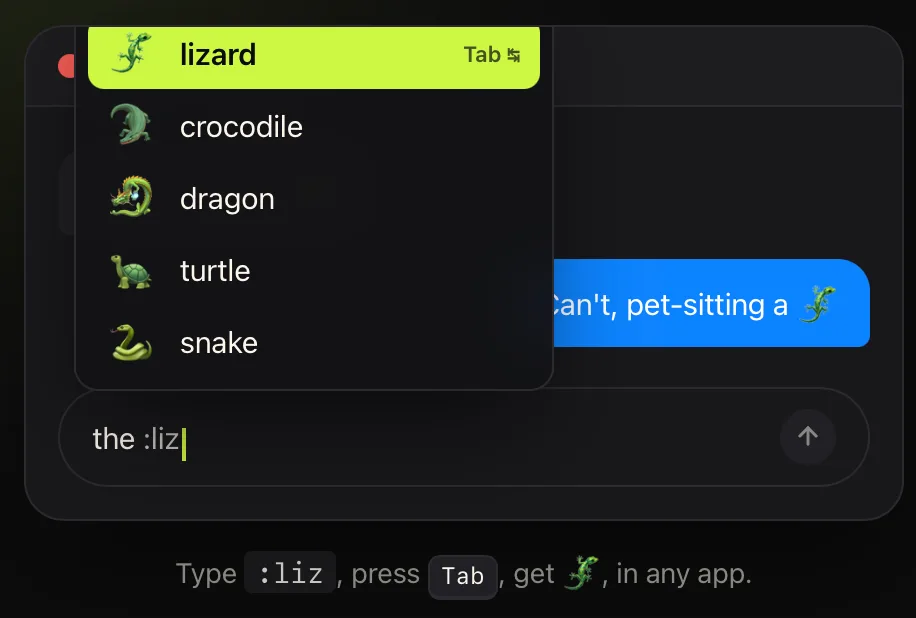
:liz, the popover ranks matches, press Tab to insert, the same flow as Slack and Discord.Comoji is the free menu bar app that adds it to every text field. It understands the gemoji alias names, so :whis finds 🥃 where the panel’s search for “whis” comes up empty; it reorders by what you send; and it remembers a skin tone once you pick one. Where Text Replacements need an entry per emoji, this needs none. It is an app rather than a system setting, so it needs a download and two permissions; the install and setup page is the step-by-step version. Everything stays local, there is no account, and password fields are ignored on purpose.
Which way should you type emoji?
For the occasional emoji, Control-Command-Space plus a name search is all you need, and it is already on your Mac. For a few favorites you send constantly, add Text Replacements so they sync to your iPhone too. And if you type emoji all day and want Slack- and Discord-style speed across your whole Mac, with ranking and skin tones, colon shortcuts are the faster habit; what Comoji adds on top of the built-in panel is on the features page.
Whichever you land on, pick one method and let it become automatic. The slow part was never the emoji, it was deciding how to reach for it.
Frequently asked questions
What is the keyboard shortcut for emoji on a Mac?
Press Control-Command-Space in any text field to open the macOS emoji panel (the Emoji & Symbols viewer). Apple also documents fn-E (Globe-E), and on most modern keyboards a tap of the Globe key does the same once you set it under System Settings › Keyboard.
How do I type an emoji on a Mac by typing a word?
Type a common word such as heart, then press fn-E or Globe-E, as Apple describes in its guide to emoji and symbols on Mac. macOS offers matching emoji to replace the word. For live suggestions as you type, a colon-autocomplete app such as Comoji is the other route.
How do I type emoji on a Mac without opening the picker?
Use colon shortcuts. With an app like Comoji you type a colon and a few letters, such as :fire, and accept the match with Tab, the same way you would in Slack or Discord, without touching the mouse. Text Replacements can also swap a trigger for an emoji, but you define each one by hand.
Do these emoji methods work on every version of macOS?
The panel shortcut and Text Replacements work the same across Ventura, Sonoma, Sequoia and macOS 26 Tahoe, on Apple silicon and Intel. Comoji needs macOS 13 Ventura or later.
Download Comoji free for Mac
Slack- and Discord-style :emoji: autocomplete, everywhere on your Mac. Free.