How to Open the Emoji Keyboard on a Mac
Comoji adds free Slack-style :emoji: autocomplete to every app on your Mac.
To open the emoji keyboard on a Mac, put your cursor in a text field and press `Control-Command-Space`, or tap the Globe (fn) key. If neither works, use Edit › Emoji & Symbols in the app’s menu bar.
The emoji keyboard on a Mac (Apple calls it the Emoji & Symbols viewer) can be opened in four ways, and which one you want depends on whether your hands are on the keyboard or the mouse. This page covers the opening and the settings behind it. For every way to get an emoji into a document once it is open, including Text Replacements and autocomplete, see how to type emoji on a Mac.
1. The keyboard shortcut: Control-Command-Space
Put your cursor in any text field and press Control-Command-Space. The emoji keyboard opens right next to your cursor. This is the fastest method and it works system-wide, in Messages, Mail, Notes, Safari and almost every other app, on every recent macOS (Ventura, Sonoma, Sequoia and macOS 26 Tahoe), on Apple silicon and Intel.
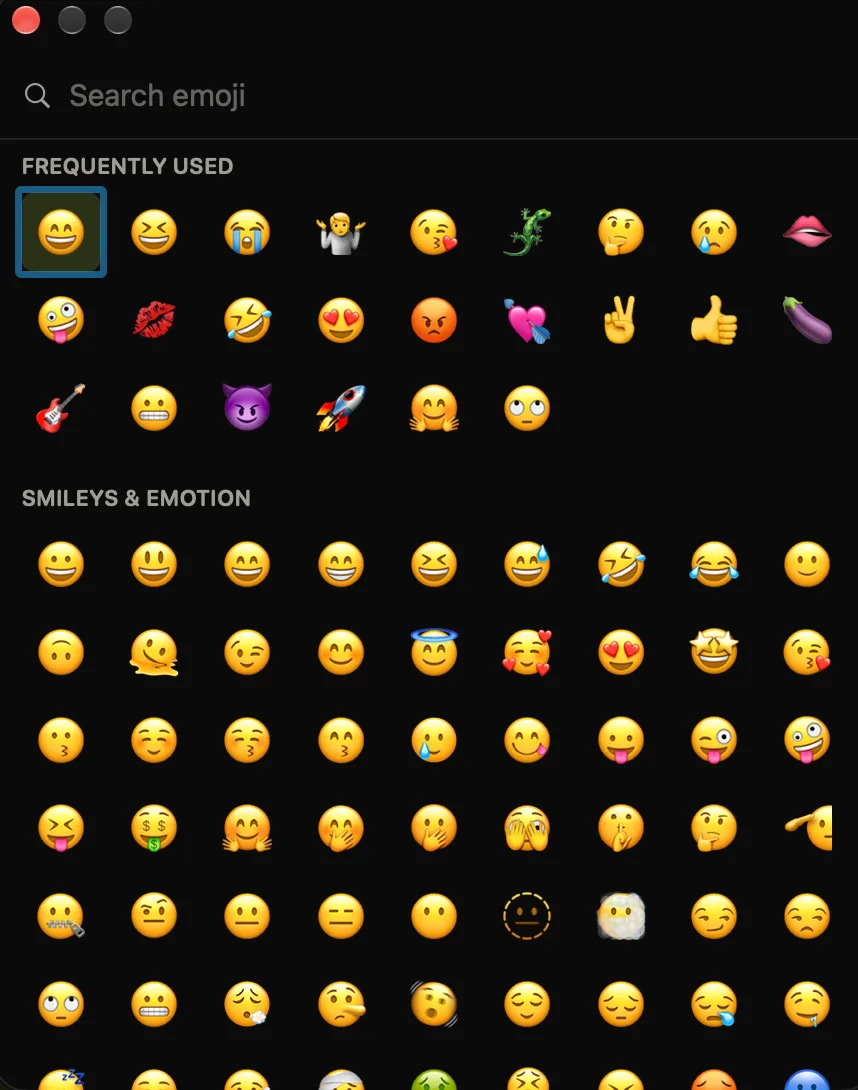
2. The Globe (or fn) key
Many Mac keyboards have a Globe key; on built-in laptop keyboards it shares the bottom-left key with fn. On a lot of Macs, a single tap of it opens the emoji keyboard. If yours doesn’t, open System Settings › Keyboard, find Press 🌐 key to, and choose Show Emoji & Symbols. A one-key tap is a little easier than the three-key chord. Apple also lists fn-E as an equivalent in its guide to emoji and symbols.
3. From the menu bar
Prefer a click target that is always visible? You can add an emoji button to your menu bar:
- Open System Settings › Keyboard.
- Under Input Sources, turn on Show Input menu in menu bar.
- Click the new input menu icon in the menu bar and choose Show Emoji & Symbols.
From then on the emoji keyboard is one click away, handy on a desktop Mac where your hand is already on the mouse.
4. From the Edit menu
Most Mac apps expose it directly: with your cursor in a text field, open the app’s Edit menu and choose Emoji & Symbols at the bottom. It is slower than the shortcut, but it is a reliable fallback when you cannot remember the key combo, and it is the one that tells you whether the panel works in an app at all.
Changing the shortcut
The Control-Command-Space combo is not among the editable system shortcuts, but you can add your own. Open System Settings › Keyboard › Keyboard Shortcuts › App Shortcuts, click +, choose All Applications, type the menu title exactly as it appears under Edit (Emoji & Symbols), and press the keys you want. That gives you a second shortcut that calls the same menu item in any app that has it. To make a single tap of the Globe key the trigger instead, use the Press 🌐 key to setting from step 2.
Once it is open: search, then expand
However you open it, do not scroll the grid, just start typing. The search field at the top filters as you go, so lizard, fire or party narrows the results and Return inserts the top match. Click the expand icon in the panel’s top-right corner and it grows into the full Character Viewer for symbols, arrows and accented characters; the best emoji picker for Mac explains the difference in more detail.
If it will not open
Nothing happening when you press the combo is common enough to have its own page: the macOS emoji picker not working checklist walks through the caret, claimed hotkeys, the Globe setting, secure input and the last resorts, in order. A quick split to start with: if Edit › Emoji & Symbols opens the panel, the shortcut is the broken part; if it does nothing either, the app is refusing.
A faster alternative: your own keyboard, opened with a keystroke
The built-in emoji keyboard is mouse-driven and floats over your text. If you open it dozens of times a day, there is a faster habit, the one Slack and Discord trained into you: type a colon and a few letters, see ranked matches, and accept with Tab, without ever opening a panel.
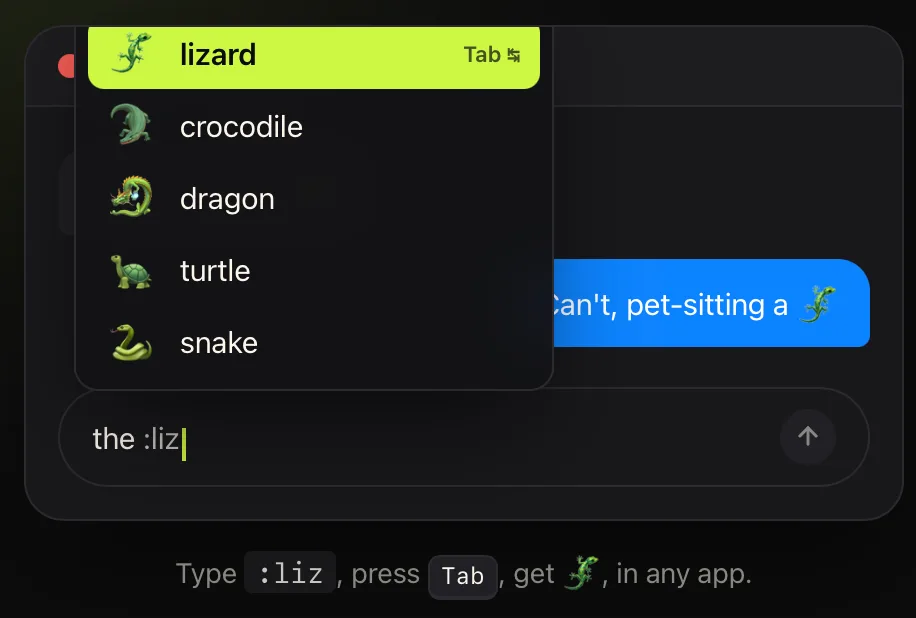
:liz and press Tab, no picker to open, no mouse.Comoji is a tiny menu bar app that adds this everywhere on your Mac. And when you do want a full, searchable emoji keyboard, you open your own by double-tapping the trigger (:: by default): it pops up at your cursor, you search or arrow to an emoji, and Return drops it straight back into the field you were typing in. The features page covers what Comoji adds on top of the built-in picker, and every Mac emoji shortcut is the reference list. If your muscle memory comes from chat apps, the Slack-style emoji shortcuts guide walks through setup.
Four ways to open a keyboard, or one way to never open it. Worth trying the second for a week before you decide.
Frequently asked questions
How do I open the emoji keyboard on a Mac?
Put your cursor in any text field and press Control-Command-Space. The emoji keyboard opens right next to your cursor. You can also tap the Globe (or fn) key, click the input menu in the menu bar, or choose Emoji & Symbols from an app’s Edit menu.
What is the Globe key on a Mac, and does it open emoji?
The Globe key sits in the bottom-left of most modern Mac keyboards, sharing the key with fn on laptops. On many Macs a single tap opens the emoji keyboard. If it does not, set System Settings › Keyboard › Press the Globe key to › Show Emoji & Symbols.
How do I add an emoji button to the Mac menu bar?
Open System Settings › Keyboard, turn on Show Input menu in menu bar under Input Sources, then click the new menu bar icon and choose Show Emoji & Symbols. The emoji keyboard is then one click away.
Can I change the emoji keyboard shortcut on a Mac?
You can add a second one. In System Settings › Keyboard › Keyboard Shortcuts › App Shortcuts, add a shortcut for All Applications with the menu title Emoji & Symbols and the keys you prefer. You can also make a tap of the Globe key open it under Press the Globe key to.
Download Comoji free for Mac
Slack- and Discord-style :emoji: autocomplete, everywhere on your Mac. Free.