How to Send GIFs in Messages on a Mac: 2 Ways
Comoji adds free Slack-style :emoji: autocomplete to every app on your Mac.
GIFs are half of how people actually talk in Messages, and on the Mac there are two good ways to send one. Messages has a built-in GIF search called #images, and it works well once you know where it lives. If you send GIFs often, a keyboard-driven search that opens where you’re typing is quicker. This guide covers both.
Short version: click the Apps button to the left of the text field, choose #images, search, and click a GIF. Or, with Comoji installed, type /gif and a search term and press Return.
The built-in way: #images in Messages
Apple ships GIF search inside Messages on the Mac, the same #images library you get on iPhone. It sits behind a button rather than in the compose field, which is why many people never find it:
- Open a conversation in Messages.
- Click the Apps button to the left of the text field (a
+on recent macOS versions, an App Store icon on older ones) and choose#images. - Type a search term, such as
celebrate, and click the GIF you want to add it to your message. - Add a comment if you like, then press
Returnto send.
It’s free, built in, and needs nothing installed. The trade-off is that it’s mouse-driven: every GIF is a trip to the button, a click into the search field, and another click on the result. And it only exists in Messages, so it’s no help in WhatsApp, Slack or Mail. One thing not to do is copy a GIF link from a browser: a pasted link arrives as a preview card rather than an inline, looping GIF.
The faster way: type /gif, then search
In a Messages conversation, type /gif followed by what you’re looking for, e.g. /gif lizard, and a picker opens right where you’re typing. Results stream in from GIPHY as a grid you can move through with the arrow keys. It works just like the /sticker picker, only tuned for landscape, animated GIFs.
- Type
/gifand a search term in a Messages conversation, e.g./gif celebrate. - Matching GIFs appear in a grid; keep typing to refine the search.
- Use the arrow keys to move through the results.
- Press
Returnto drop the GIF into your conversation (orEscto dismiss).
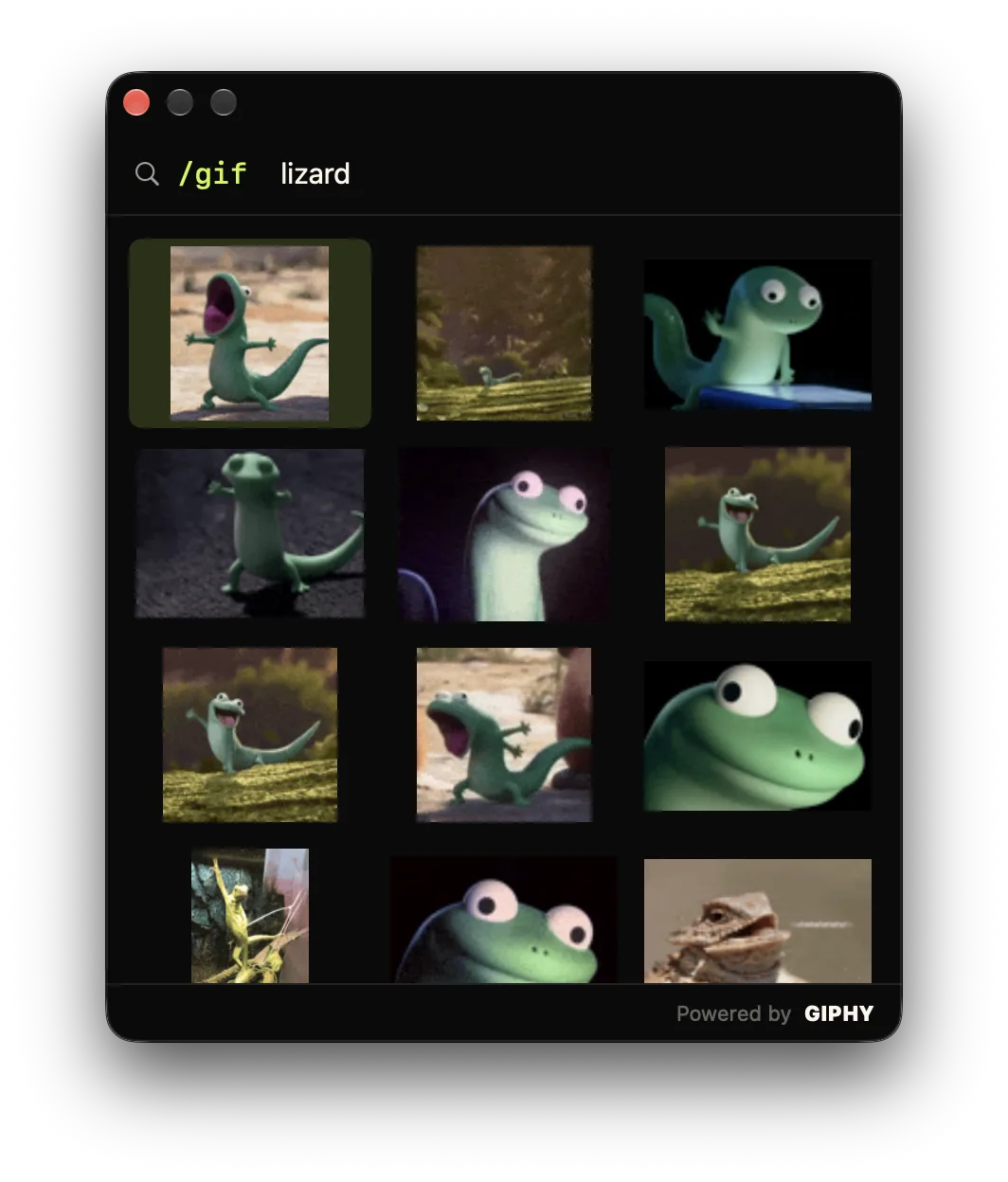
/gif lizard and animated results stream in from GIPHY, pick one with the keyboard.Because the GIF is inserted as a file, the animation is preserved: you’ll see a still thumbnail in the compose field, and it plays once the message is sent. That’s the part the browser copy-paste route gets wrong, a pasted link is just a link, while Comoji hands Messages the actual GIF so your recipient sees it loop the way you meant it to.
Getting better results out of the search
GIF search rewards short, punchy queries. A few habits that help:
- Search the reaction, not the scene:
/gif eye roll,/gif facepalm,/gif mind blownland better than a long description. - Keep typing to refine, the grid re-queries as you go, so
/gif dog→/gif dog typingnarrows in real time without starting over. - Name the show or character if you have one in mind,
/gif michael scott no, GIPHY’s catalogue is heavily tagged by source. - If nothing fits,
Esccancels cleanly and leaves your typed text alone.
A separate command from emoji and stickers
The /gif command is its own trigger, independent of the colon key you use for :emoji: autocomplete and separate from /sticker. So your emoji shortcuts keep working as normal, and /gif only ever fires when you explicitly type it. Animated stickers and GIFs live side by side: reach for /sticker when you want a clean illustrated reaction, and /gif when you want a clip from a show or a meme.
Works wherever you type
Like /sticker, /gif activates in supported text fields across your Mac, including WhatsApp, Mail, browsers, and Messages. Per-app and per-site exclusions still apply, and you can turn either command off in Preferences › Shortcuts.
Which Macs it works on
Comoji runs on macOS 13 Ventura or later, which covers Ventura, Sonoma, Sequoia and the latest macOS 26 Tahoe, on both Apple silicon and Intel Macs. The /gif picker uses the same Accessibility and Input Monitoring permissions as the rest of the app (more on those below); there’s no separate setup for GIFs beyond an internet connection for the search itself.
Troubleshooting: /gif isn’t opening
If typing /gif does nothing, run through these in order, it’s almost always one of the first two:
- Is the current app or website disabled?
/giffollows the per-app and per-site exclusions in Preferences › Custom. - Is the command enabled? Check Preferences › Shortcuts and confirm
/gifis turned on. - Permissions: Comoji needs Accessibility and Input Monitoring in System Settings › Privacy & Security. If you recently updated macOS or Comoji, toggle Comoji off and back on in both lists, then relaunch the app.
- No results, but the picker opens? That’s a network issue, GIF search needs a connection to reach GIPHY. Emoji and bundled stickers still work offline; live GIF search doesn’t.
Does the recipient need Comoji? What about group chats?
No, the recipient needs nothing. The GIF goes out as a normal file attachment, so it plays for anyone on the thread, and it works in group conversations just like a one-on-one. As with stickers, a blue-bubble iMessage thread carries the animated GIF intact; a green-bubble SMS thread will treat it like any other attachment and may compress or downgrade it, that’s an SMS limitation, not a Comoji one.
GIF, sticker, or emoji?
Three tools, three jobs. Reach for :emoji: autocomplete for a quick reaction inside a sentence, /sticker for a clean illustrated reaction (the Noto set, searchable by keyword), and /gif when you want a clip, a show, a meme, a reaction shot. They’re separate triggers, so they never collide, and after a day the choice becomes muscle memory. New to the other two? See the guides to emoji autocomplete and the sticker picker, or the short version of GIF and sticker search, covered in Features.
Why GIPHY, and what that means for privacy
GIF search needs a library, and GIPHY has the deepest one, so search results are powered by GIPHY (you’ll see the “Powered by GIPHY” mark in the picker, as their terms require). When you type a /gif query, that search text goes to GIPHY to fetch matching results, along with Comoji’s language code (such as fr) when it isn’t running in English. That’s all that leaves your Mac, and it only happens while you’re actively searching for a GIF. No message contents, no information about you, and nothing about your :emoji: or /sticker use is ever sent. Everything else Comoji does stays entirely on your machine.
Happy with #images? Keep using it. Want GIF search you never have to click your way to, in Messages and everywhere else you type? Download Comoji, open a conversation, and type /gif.
Frequently asked questions
How do I search for a GIF in Apple Messages on a Mac?
Messages has a built-in GIF search: click the Apps button to the left of the text field, choose #images, type a search term, and click a GIF to add it. For a keyboard-only route, Comoji lets you type /gif and a search term, for example /gif celebrate, arrow through the results, and press Return to drop one into the chat.
Why does a pasted GIF link arrive as a preview card instead of an animation?
Because a pasted link is only a link, so Messages renders it as a link preview. Comoji hands Messages the actual GIF file instead: you see a still thumbnail in the compose field and it plays once the message is sent, looping the way you meant it to.
Does /gif work outside Messages?
Yes. /gif works in supported text fields across your Mac, including WhatsApp, Mail, browsers, and Messages. Per-app and per-site exclusions still apply, and Preferences › Shortcuts can turn the command off without touching your :emoji: shortcuts.
What does GIPHY see when I search for a GIF?
Only the search text you type, and only while the picker is open. If Comoji runs in a language other than English, the request also carries that language’s code (such as fr) so GIPHY ranks results for it. GIF search needs a library and GIPHY has the deepest one, so the query goes to GIPHY to fetch matches. No message contents, nothing about you, and nothing about your :emoji: or /sticker use is ever sent.
Download Comoji free for Mac
Slack- and Discord-style :emoji: autocomplete, everywhere on your Mac. Free.