How to Use Slack-Style Emoji Shortcuts Anywhere on Your Mac
Comoji adds free Slack-style :emoji: autocomplete to every app on your Mac.
To use Slack-style `:emoji:` shortcuts outside Slack on a Mac, install a system-wide colon autocomplete app such as Comoji (free), Mojito (free, open source) or Rocket (free, Pro is $10 once), then type `:fire` in any text field and press `Tab`. macOS has no such feature of its own; the built-in route is the Control-Command-Space panel.
Colon emoji shortcuts are a typing habit rather than a Slack feature, built on the same colon shortcodes GitHub and Discord use. This page is for the case where Slack trained your fingers to reach for :fire:, :joy: and :+1:, and then Messages or Mail did not respond. Here is how to bring the habit to every text field on your Mac.
Why Messages and Mail ignore your Slack reflexes
The built-in macOS emoji panel is fine for browsing, but slow for the handful of emoji you actually send. It steals focus, it is mouse-driven, and it does not know that “whiskey” means 🥃. Apple’s Text Replacements can map one alias at a time, but maintaining a giant replacement table by hand is nobody’s idea of fun, and it has no autocomplete, so you have to remember every trigger exactly.
Colon autocomplete in every app
What you actually want is autocomplete: start typing a colon token, see matching emoji ranked by relevance, and accept the one you want with Tab. That is what Comoji adds, system-wide.
- Type a colon and the start of an alias, e.g.
:whis. - A small popover appears next to your cursor with the best matches.
- Use the arrow keys to move the selection (recent picks rank higher).
- Press
TaborReturnto insert the emoji and keep typing.
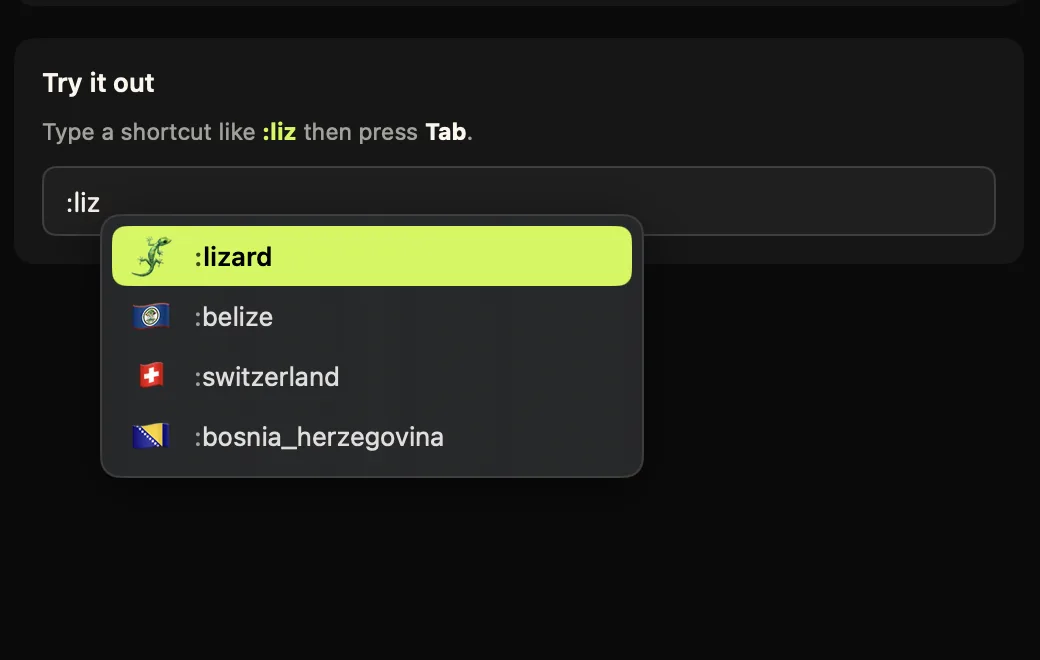
:liz, the popover ranks matches, press Tab to insert, just like Slack.Because Comoji works at the keyboard level, the same shortcuts work in Messages, Mail, Notes, TextEdit, Safari, Chrome, Notion and most other apps, not just one. It ships with the full Unicode emoji set and the gemoji aliases Slack itself uses, so the names already in your head, :tada:, :eyes:, :rocket:, just work. Download Comoji to try it.
Your workspace’s custom emoji stay in Slack
Worth flagging before you get your hopes up: a Slack workspace is really two emoji sets stacked on top of each other. The standard ones, :tada:, :eyes:, :rocket:, are Unicode characters from the same gemoji list Discord and GitHub also use, and Comoji ships all of them. Custom emoji your workspace has uploaded, a team mascot, a :this-is-fine: reaction, an inside joke that started in #general three years ago, are images tied to that one Slack workspace. They are not Unicode, so there is no character for Comoji, or any Mac utility, to insert outside Slack. If :parrot: means your workspace’s spinning party parrot rather than the plain 🦜, that reflex only works inside Slack itself. Comoji covers the standard set, the part of your muscle memory that travels.
Three other routes to Slack-style shortcuts
Comoji is not the only way to take Slack’s colon habit system-wide. Prices below were checked on 2026-10-05 against Rocket’s page and Mojito’s page:
- Rocket (free, Pro is $10 once): the long-standing Mac app for colon emoji, with GIFs and text snippets in Pro. It also asks for Automation access to your browser. See Comoji vs Rocket.
- Mojito (free, open source): a newer colon autocomplete app under the AGPL-3.0 license, for macOS 14 Sonoma or later. See Comoji vs Mojito.
- Apple Text Replacements (built in): works for a handful of exact tokens like
:tada:, but you enter every emoji by hand and get no suggestions. See Comoji vs Text Replacements.
All of them are compared on one page in the Mac emoji autocomplete alternatives, and the best emoji picker for Mac widens the field to eleven.
Installing it: two permissions
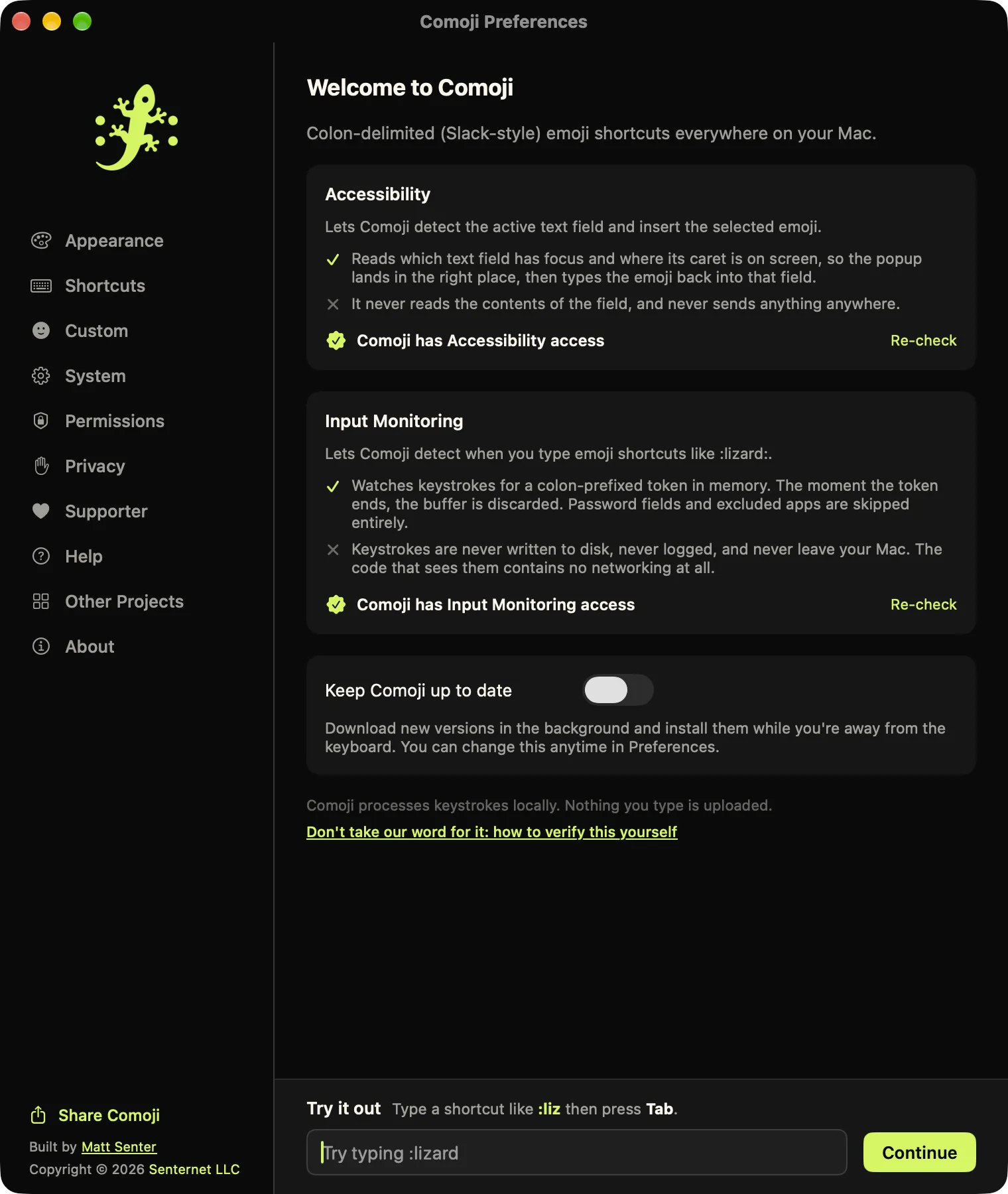
Comoji is a small menu bar app. Download the DMG, drag it to your Applications folder (do this before granting permissions, more on why below), and launch it. On first run it walks you through the two permissions macOS requires for any keyboard utility, both in System Settings › Privacy & Security (the install and setup page is the reference version, with troubleshooting):
- Input Monitoring, lets Comoji notice when you type a colon token like
:fire. - Accessibility, lets it read the active text field and insert the emoji.
macOS versions
Comoji supports macOS 13 Ventura or later, which means Ventura, Sonoma, Sequoia and the latest macOS 26 Tahoe, on both Apple silicon and Intel Macs. The behavior is identical across versions; the only thing that changes between macOS releases is the exact wording and layout of the Privacy & Security pane.
If :fire stays literal text
It is nearly always a permission that did not stick. Work through these:
- Confirm both toggles are on in System Settings › Privacy & Security, under both Input Monitoring and Accessibility. One without the other is not enough.
- Re-grant after an update. macOS sometimes drops permissions when you update the OS or the app. The fix: select Comoji in each list, remove it with the
−button, then add it back (or just toggle it off and on), and relaunch Comoji. - Do not move the app after granting. If you granted permissions and then moved Comoji to a different folder, macOS treats it as a new app. Keep it in
/Applications, which is why we grant after moving it there. - Check your disable list. In Preferences › Custom you can turn Comoji off per app or per website. If it works everywhere except one app, it is probably on that list.
- Dead everywhere, with a padlock on the icon? That is macOS secure input, not a permission problem; what the lock means explains it.
- Password fields stay quiet on purpose. Comoji ignores secure input fields, so shortcuts will not fire in a password box or password manager. That is expected.
Writing code or timestamps? Move the trigger
The colon is perfect until you are writing code, JSON or 12:30-style timestamps, where a stray popover is annoying. In Preferences › Shortcuts you can swap the colon for another token-opening key: semicolon, slash, backslash, @, #, ~ or |, and Comoji rewrites every suggestion and example to match. You can also add the specific apps where you do not want it firing at all to the per-app disable list.
Which apps and sites it covers
Because Comoji acts at the keyboard level, it works in native apps (Messages, Mail, Notes, TextEdit) and in web text fields too, so the same :emoji: flow works in Slack’s web app, Gmail, Notion, Linear and most sites, across Safari, Chrome, Edge, Arc and Brave. A handful of web editors that fully take over text input can be hit or miss, since they do not expose a normal text field. Google Docs is the usual one, and it has a colon picker of its own, described here. For the others, the :: browser still inserts reliably. The features page has the full picture of every app and site Comoji works in.
Why it will not interrupt your typing
A tool like this only works if it disappears. Comoji is conservative by design: it only intercepts Tab/Return while the popover is visible, resets aggressively on clicks and app switches, and never fires on a partial match unless you ask it to. If it is not sure you are typing a shortcut, it does nothing. It also follows your Light/Dark setting, and the popup theme guide covers changing its highlight color if the lime is not your thing.
What it does with your keystrokes
A tool that watches for a colon while you draft a status update or a DM to your manager had better be precise about what it does with that access: detection only, locally, nothing uploaded, secure fields skipped, no account. The full breakdown, including how to verify it yourself from Terminal, lives on /security.
Bring your Slack reflexes everywhere. The install and setup page has the three-minute version, permissions included.
Frequently asked questions
Can I use Slack-style emoji shortcuts outside Slack on a Mac?
Yes. Colon shortcuts are a typing habit rather than a Slack feature. Comoji works at the keyboard level, so :fire: and :joy: resolve in Messages, Mail, Notes, TextEdit, Safari, Chrome, Notion and most other apps, drawing on the same gemoji alias set Slack itself uses.
Do I have to import my Slack emoji aliases first?
No. Comoji ships the full Unicode emoji set with those alias names already attached, so :tada:, :eyes: and :rocket: work from first launch. There is no table to build, nothing to import, and nothing to keep in sync.
Do custom Slack emoji work outside Slack?
No, and no Mac utility can make them. A custom emoji your workspace uploaded is an image tied to that one Slack workspace, not a Unicode character, so there is nothing for Comoji or any other app to insert elsewhere. The standard set, :tada:, :eyes:, :rocket:, is Unicode drawn from the gemoji alias list, and Comoji ships all of it.
The colon gets in my way when I write code. Can I change the trigger?
Yes. Preferences › Shortcuts swaps the colon for another token-opening key: semicolon, slash, backslash, @, #, ~ or |. Every suggestion and example rewrites to match. You can also add specific apps to the per-app disable list in Preferences › Custom.
Why do the shortcuts stay quiet in my password manager?
Comoji ignores secure input fields on purpose, so nothing fires in a password box. That is expected rather than a bug. If shortcuts are dead everywhere instead, it is nearly always a permission that did not stick; the install page has the re-grant steps.
Download Comoji free for Mac
Slack- and Discord-style :emoji: autocomplete, everywhere on your Mac. Free.