How to Use Discord-Style Emoji Shortcuts Anywhere on Your Mac
Comoji adds free Slack-style :emoji: autocomplete to every app on your Mac.
Spend enough time in Discord and :fire:, :joy: and :100: stop being something you think about; they are reflexes. Then you tab over to Messages, Mail or a Notes doc, type the same colon token out of habit, and nothing happens. The reflex hits a wall.
Colon emoji shortcuts were never really a Discord feature. They are a typing habit built on shared colon shortcodes, and there is no reason it should stop when you leave the app. If you came from Slack instead, the Slack version of this guide covers the same ground for that app.
Where Discord’s colon menu ends
Type a colon and a few letters in Discord’s message box and it offers matching emoji you can pick with the keyboard. macOS has an emoji panel (Control-Command-Space), and it is perfectly good for browsing. But browsing is the opposite of what you do in Discord, where you fire off the same dozen emoji all day without lifting your hands. The panel steals focus, wants your mouse, and has no idea that “joy” means 😂. Apple’s Text Replacements can hard-code one alias at a time, but there is still no autocomplete to fall back on.
The same flow in every Mac text field
What you want is the inline autocomplete Discord gives you, available outside Discord. That is what Comoji adds to your whole Mac.
- Type a colon and the start of an alias, e.g.
:joy. - A small popover pops up next to your cursor with the closest matches.
- Arrow up or down to move the selection; the emoji you use most float to the top.
- Hit
Tab(orReturn) to drop in 😂 and keep typing.
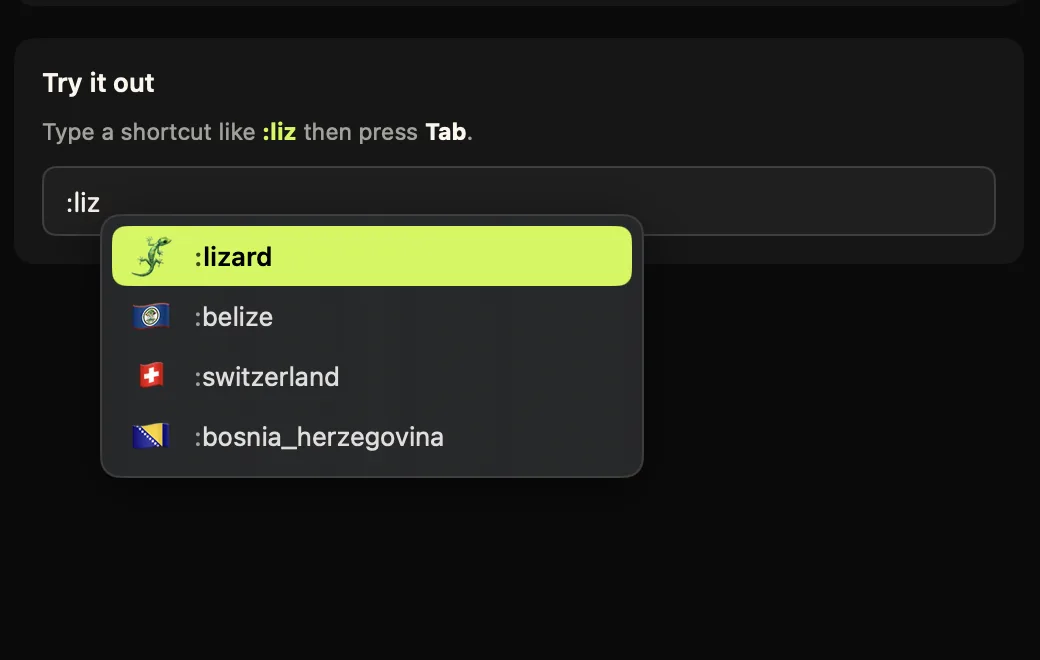
Nothing about this is chat-specific. Comoji reads the keyboard rather than hooking into an app, so the reflex you built in Discord fires in a Mail draft, a Notes page, a Linear ticket or a TextEdit scratch file just as readily. The alias set is the one Discord itself draws on, so :fire:, :eyes: and :100: resolve correctly from the first launch, with nothing to import. You can download Comoji free.
Server emoji, Nitro, and what travels
Discord has two kinds of emoji, and only one of them can leave. The standard ones, :fire:, :joy:, :thumbsup:, are Unicode characters drawn from the same gemoji alias set Slack and GitHub use, and Comoji ships all of them. Custom per-server emoji like :catjam: are uploaded images that belong to a server. Even inside Discord they are limited: Discord’s own help says that without Nitro, custom emoji only work in the server they were uploaded to, and with Nitro they work across your other servers and DMs. Either way they are images rather than Unicode, so no Mac utility can carry one into Messages or Mail, because there is no character to insert. Comoji covers the standard set, which is the part of your muscle memory that works everywhere else.
Install in two steps
Comoji is a menu bar app for macOS 13 Ventura or later: Ventura, Sonoma, Sequoia and macOS 26 Tahoe, on Apple silicon and Intel. Drag it to Applications, launch it, and grant two permissions in System Settings › Privacy & Security: Input Monitoring (to notice your colon tokens) and Accessibility (to insert the emoji). The setup window shows live status and links straight to each pane; the install page has the full walkthrough.
When it does not fire
- Both permissions enabled? Input Monitoring *and* Accessibility; one alone will not do it.
- After a macOS or Comoji update, remove Comoji from each Privacy & Security list and re-add it (or toggle off and on), then relaunch. Updates occasionally invalidate the grant.
- Grant from the final location. Move Comoji to Applications before granting; macOS treats a moved app as new.
- Works in some apps but not one? Check the per-app disable list in Preferences › Custom.
Developers: put the trigger somewhere else
Discord users are often developers, and the colon shows up constantly in code and timestamps. If a popover keeps appearing where you do not want it, open Preferences › Shortcuts and switch the trigger to a key you do not use mid-line: semicolon, slash, backslash, @, #, ~ or |. Everything, the popover, the examples and the :: browser, updates to the new key. Or just add your editor to the per-app disable list.
Desktop app, browser tab, or neither
Comoji does not care whether you are in the Discord desktop app, Discord in a browser tab, or a totally different app. It works at the keyboard level, so the same :joy: flow fires in all of them, plus Messages, Mail, Notes, Notion, Gmail and the rest. The features page lists every app and site Comoji works in, along with the controls for turning it off where you do not want it. The one class of exceptions is web editors that fully hijack text input; there the :: browser still inserts reliably, and you can add any app or site to the disable list.
Quiet by default
A tool like this earns its place by being invisible. Comoji only intercepts Tab/Return while its popover is showing, resets the moment you click away or switch apps, and never fires on a half-typed token unless you opt in. When in doubt, it does nothing. If the lime highlight clashes with your setup, the popup theme guide shows how to recolor it.
Nothing leaves your Mac
Reading keystrokes deserves a precise answer: Comoji inspects input locally for one purpose, spotting a colon token. It does not log what you type, never uploads message contents, and skips secure password fields entirely. No account, no telemetry, no cloud; the emoji path makes no network calls at all.
Take your Discord reflexes everywhere. Setup is a download and two permissions, walked through on the install page.
Frequently asked questions
Can I use Discord-style :emoji: shortcuts in other Mac apps?
Yes. Comoji reads the keyboard rather than hooking into an app, so the reflex fires in a Mail draft, a Notes page, a Linear ticket or a TextEdit scratch file. It makes no difference whether you are in the Discord desktop app, Discord in a browser tab, or somewhere else entirely.
Do custom Discord server emoji like :catjam: work outside Discord?
No, and no Mac utility can make them. Custom per-server emoji are uploaded images that exist only inside Discord, and without Nitro only in the server that uploaded them, so there is no Unicode character to insert anywhere else. The standard ones, :fire:, :joy:, :100:, are Unicode drawn from the gemoji alias set, and Comoji ships all of them.
I write code all day and the colon triggers constantly. What can I do?
Switch the trigger in Preferences › Shortcuts to a key you do not use mid-line: semicolon, slash, backslash, @, #, ~ or |. The popover, the examples and the :: browser all follow the new key. Adding your editor to the per-app disable list is the blunter option.
Emoji shortcuts stopped working after a macOS update. How do I fix it?
An update can invalidate the permission grant. Remove Comoji from both Input Monitoring and Accessibility in System Settings › Privacy & Security with the − button, add it back, and relaunch Comoji. Grant from its final location in /Applications, since macOS treats a moved app as a new one.
Download Comoji free for Mac
Slack- and Discord-style :emoji: autocomplete, everywhere on your Mac. Free.