Raycast Emoji Picker: How to Use It (and When to Skip It)
Comoji adds free Slack-style :emoji: autocomplete to every app on your Mac.
If you already use Raycast, you have probably found its emoji picker: hit a hotkey, type a name, and the emoji lands in whatever you are writing. It is a genuinely good picker, and if Raycast is already your launcher it costs you nothing extra. This guide covers what the Raycast emoji picker does, how to set it up, and the specific situations where an inline colon autocomplete tool like Comoji suits better. If you are choosing between the two apps outright, skip to Comoji vs Raycast, which compares pricing, permissions and platforms side by side and is the page that owns the comparison.
Short version: Raycast’s emoji picker is a command you summon, search, and paste from, bundled inside a larger launcher app. Comoji does one thing instead, colon autocomplete as you type, so :fire becomes 🔥 without opening a separate window. Read on for how the Raycast picker works and where it stops.
What the Raycast emoji picker does
Raycast is a keyboard-first launcher for the Mac, the kind of tool many people set up in place of Spotlight. Alongside app launching, clipboard history, window management, and a large library of extensions, it ships a built-in Search Emoji and Symbols command. You invoke Raycast, run that command, type the name of the emoji you want, and press Return to drop it into the app you were just in. It keeps a recently used section, understands keyword aliases, and handles skin-tone variants, so as a picker it is fast and well made. Raycast’s own page for the emoji picker describes it as a core feature that works with apps like Gmail and GitHub.com.
It is also free to start: the emoji picker is part of the free tier, with paid plans listed on Raycast’s pricing page for the advanced features. The catch, if you can call it that, is that the emoji picker is one feature inside a much larger app. If you already run Raycast as your launcher, that is a bonus. If all you want is faster emoji, you are installing a lot of surface area to get one picker.
How to use the Raycast emoji picker
- Install Raycast and open it with its hotkey (
Option-Spaceby default, orCommand-Spaceif you set it to replace Spotlight). - Type
emojito find the Search Emoji and Symbols command, or give that command its own global hotkey or alias so it opens directly. - Search by name, for example
fire,party, orcheck, and use the arrow keys to move through the results. - Press
Returnto insert the selected emoji into the text field you were typing in.
Setting a dedicated hotkey for the emoji command is the single change that makes it feel quick, because it saves the trip through the root search every time. Once it is bound to a key, the flow is hotkey, type, Return.
The colon trigger only works inside Raycast
Raycast’s page also mentions typing : to bring up emoji, and this is the detail people most often misread. That trigger works in Raycast’s own text areas, not in Messages, Mail or your browser. In other apps you are back to the hotkey-and-paste flow. If what you want is a colon that works in every text field on the Mac, that is a different category of tool, and the one Comoji sits in.
Where the Raycast picker slows you down for emoji
As a picker, Raycast is excellent. For firing off the same handful of emoji while you write, the summon-and-paste model still adds steps that inline autocomplete does not:
- It is a separate window you summon, so your emoji flow leaves the sentence you are typing, opens Raycast, and comes back, rather than staying inline.
- It is one feature inside a full launcher, so getting emoji means installing and running an app that also does clipboard history, window management, and extensions you may not want.
- There is no as-you-type colon autocomplete outside Raycast itself: you do not get 🔥 offered while you type
:firein Messages, you open the command and search first. - The picker’s recents live in Raycast, not in your typing, so ranking by what you send does not follow the
:codehabit you may already have from Slack.
When inline colon autocomplete fits better
The interesting difference is not speed, it is that there is nothing to summon. Comoji watches for a colon token in whatever field already has focus, so your emoji never becomes a detour: you are three words into a sentence, you type :fire, and you finish the sentence. And the app behind it is a menu bar icon with a single job, not a launcher you have to adopt.
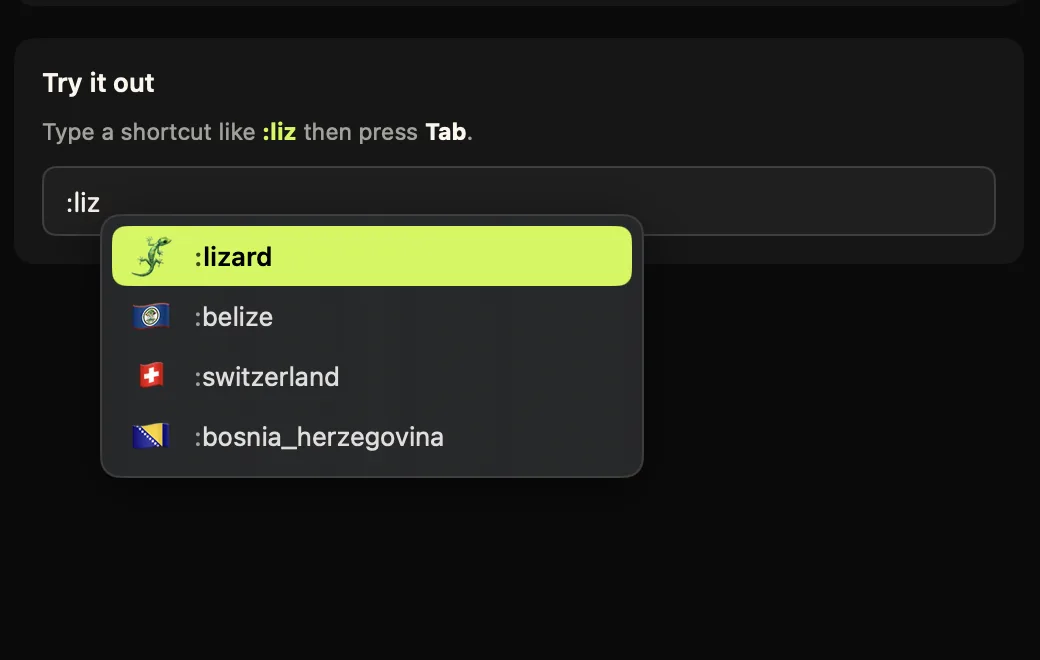
:fire and press Tab, the suggestions come to your cursor, no separate window to summon.Where Raycast gives you one command among hundreds, this gives you one behavior: :party offers ranked matches at the caret, Tab or Return accepts, and recent picks climb the list, so the emoji you actually send get shorter to type over the first week. Skin tones are remembered. When a name escapes you there is still a full searchable grid, a double-tap of the trigger away, which is the Raycast experience without the trip through a launcher. Everything runs locally. For more on the syntax itself, see colon emoji and shortcodes on a Mac.
Raycast and Comoji together
Nothing here asks you to give up Raycast. Comoji answers to a colon token rather than a global hotkey, so the two never contend for the same keystroke, and Raycast keeps doing the launching, clipboard and window work you already rely on. Setup takes about three minutes and is written out once, on the install and setup page, including the ordering detail that trips people up: move the app into Applications before you grant anything. The detailed feature-by-feature version, with the facts checked against both products, is Comoji vs Raycast. For the wider field of Mac pickers, the best emoji picker for Mac lists eleven, and how to type emoji on a Mac covers every native way.
Should you skip it?
If Raycast is already your launcher and you are happy summoning a command, its emoji picker is a fine, free choice, and binding it to a hotkey is worth doing. Skip it, or at least supplement it, when emoji is most of what you reach for and you want :fire to autocomplete inline the way it does in Slack: one small menu bar app, colon autocomplete in every text field, ranked by what you actually send. The two are not mutually exclusive either, plenty of people keep Raycast for launching and let Comoji handle emoji.
Keeping Raycast? Add the colon habit next to it and see which one your fingers reach for after a week.
Frequently asked questions
Does Raycast have an emoji picker?
Yes. Raycast includes a built-in Search Emoji and Symbols command. You open Raycast, run the command or its assigned hotkey, type a name like fire or party, and press Return to insert the emoji into the app you were in. Recently used emoji and skin tones are supported.
Does the Raycast colon trigger work in other apps?
No. Typing a colon to search emoji works in Raycast’s own text areas. In Messages, Mail or a browser you use the picker command and its hotkey instead. A system-wide colon trigger needs a separate tool such as Comoji.
Is there a lighter alternative to Raycast just for emoji?
Yes. Raycast is a full launcher whose emoji picker is one feature. Comoji is a single-purpose menu bar app that adds Slack-style colon autocomplete to every text field on your Mac, so you get fast emoji without installing a launcher. Type a colon and a few letters, such as :fire, then press Tab. The full comparison is at /compare/raycast.
Is the Raycast emoji picker free?
Yes. Raycast is free to download, and the emoji picker is part of the free tier; paid plans add other advanced features. Comoji is a separate, single-purpose app focused only on emoji, stickers, and GIFs.
Download Comoji free for Mac
Slack- and Discord-style :emoji: autocomplete, everywhere on your Mac. Free.