Colon Emoji and Shortcodes on a Mac: The :fire: Syntax
Comoji adds free Slack-style :emoji: autocomplete to every app on your Mac.
Type :fire: in Slack and 🔥 appears. That text, a name between two colons, is a colon emoji shortcode, and it is the quickest way to enter an emoji without touching a picker. The catch on a Mac is that it only works in the apps that chose to build it. This page explains where the names come from, which ones trip people up, and how to get the same codes working in Messages, Mail and everything else.
Short version: a shortcode is the emoji’s name between colons, apps that support them swap the code for the emoji as you type, and macOS does not do this system-wide on its own. Comoji adds it everywhere. The rest of this page is the detail.
What counts as a shortcode
The colons are the signal. fire on its own stays as the word; :fire: becomes the flame. Multi-word names join with underscores, so ✅ is :white_check_mark: and a plain ✔️ is :heavy_check_mark:, and getting that one wrong is the classic reason a shortcode seems not to work. Because the codes are plain ASCII, they pass through any keyboard and any text field untouched, and the receiving app decides whether to draw the emoji or leave the code as written.
There are two behaviours. Some apps expand the code the moment you type the closing colon. Others autocomplete while you type: :fir opens a menu, you pick, and the closing colon never gets typed. The second is what most people mean by “colon emoji”, and it is faster because you only need the first few letters.
Where the names come from
Not Apple, and not Unicode. The colon syntax grew out of developer tools: GitHub published a set of named codes called gemoji so issues and commit messages could carry emoji as plain text, and Slack, Discord and others adopted the same list. That shared vocabulary is why :100: is 💯 on GitHub and in Slack alike. Comoji ships that gemoji alias set, which is also why the codes you already know carry over unchanged.
Gemoji gives many emoji more than one name, and which one you remember depends on where you learned it. 👍 is both :+1: and :thumbsup:. 💥 is :boom: and :collision:. 👊 is :facepunch: and :punch:. 💩 is :hankey:, :poop: and :shit:, and :hankey: is the one nobody guesses. Apple’s own picker knows none of these, which is why searching it for “boom” or “hankey” gets you nowhere useful. If your muscle memory comes from a chat app, the Slack-style guide and the Discord guide cover the specifics of each.
Where colon shortcodes work on a Mac
Colon shortcodes are an app feature, not a macOS feature, so whether :fire: becomes 🔥 depends entirely on where you are typing:
- Slack, Discord, Notion and GitHub understand the codes, so
:partyand:checkautocomplete inside them. Google Docs has its own colon picker as well; that is covered here. - Messages, Mail, Pages and most native Mac apps do not, so
:fire:just sits there as literal text. - macOS itself has no system-wide colon autocomplete. The built-in route is the
Control-Command-Spacepanel, a grid you open rather than a code you type.
The failure mode is specific: you write a Slack message with four emoji, switch to Messages to send the same thought to a friend, and the four codes arrive as literal :tada: text. For the built-in ways to enter emoji on a Mac, see how to type emoji on a Mac.
How to get colon shortcodes in every app
Comoji is a free menu bar app that brings colon autocomplete to every text field on your Mac. Type a colon token like :party and a popover shows the best matches; arrow to one and press Tab or Return.
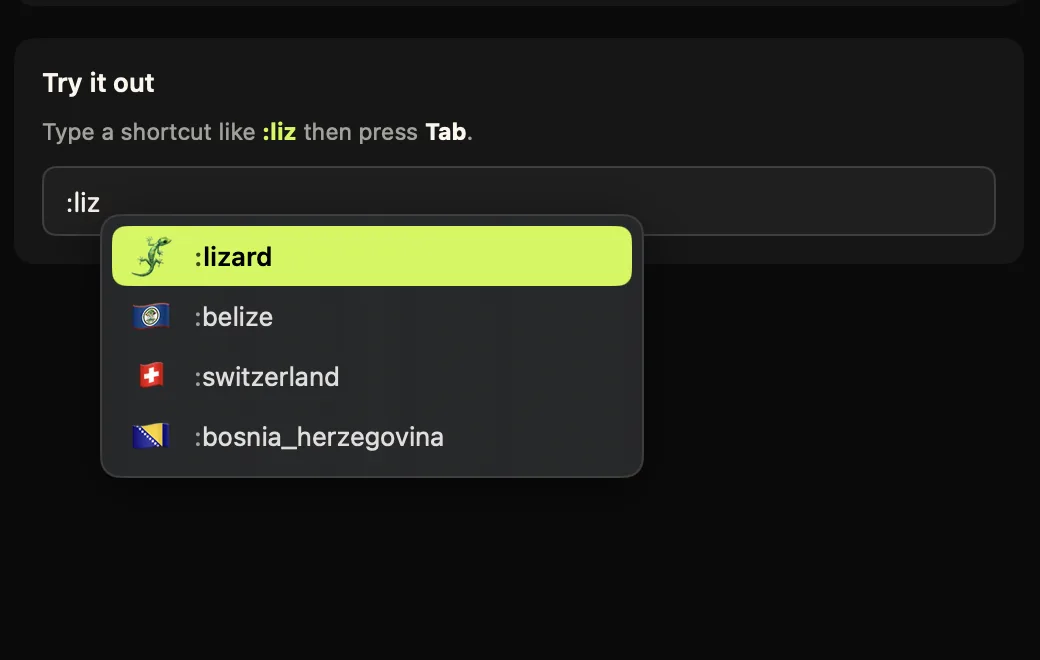
:liz and press Tab, the shortcode turns into an emoji at your cursor in any app.It uses the same gemoji names, ranks by recent use so your most-typed emoji climb the list, handles skin tones, and works in Messages, Mail, Notes, Safari, Chrome, Notion and most other apps. Forgot a name? Double-tap the trigger (:: by default) to open a large, searchable browser of the full set at your cursor. Everything is processed locally, so nothing you type is uploaded.
Ten shortcodes that earn their keystrokes
You do not need to memorize codes to use autocomplete, since a few letters and a pick from the list is the whole point. But some come up so often that they become one-shot muscle memory:
:fire:🔥,:100:💯 and:tada:🎉 for approval and celebration.:eyes:👀 and:thinking:🤔 for “I am looking at this” and “not sure about this”.:rocket:🚀 and:sparkles:✨ for shipping and polish.:joy:😂,:pray:🙏 and:shrug:🤷 for the everyday ones.:+1:👍 and:white_check_mark:✅ for acknowledging and closing out.
With Comoji you can type just :roc and accept 🚀, so even the longer names take only a few keystrokes. If you currently keep a short list as Text Replacements, Text Replacements vs. emoji autocomplete shows where that approach stops scaling.
Setting it up
The only thing between the codes you already know and every text field on your Mac is a three-minute install: the app, and the two permissions macOS requires of any keyboard utility. The steps, the order they go in, and what to do when a shortcode stubbornly refuses to fire live on the install and setup page.
Should you bother?
If you live in Slack, Discord or Notion, their built-in colon menus are already there and free, so use them. The moment your typing spreads across Messages, Mail, browsers and native apps, the codes stop working and the friction returns. That is the gap Comoji fills, with the :fire: syntax you already know.
The :fire: you type in Slack should not stop working when you switch to Mail. Make it a habit rather than an app feature.
Frequently asked questions
What is a colon emoji shortcode?
A colon emoji shortcode is the text name of an emoji wrapped in colons, such as :fire: for 🔥 or :tada: for 🎉. Apps that support the syntax swap the code for the emoji as you type, so you can enter emoji by name instead of opening a picker.
Do colon emoji shortcodes work everywhere on a Mac?
Not by default. Colon shortcodes are an app feature, so they work in Slack, Discord, Notion, and GitHub but not in Messages, Mail, or most native Mac apps. Comoji adds the same colon autocomplete to every text field on your Mac so the codes work everywhere.
Where does the :fire: emoji syntax come from?
The named codes grew out of developer tools. GitHub popularized a set called gemoji so people could add emoji to issues and commits as plain text, and Slack, Discord, and others adopted the same names. Comoji ships with that gemoji alias set, so the codes match what you know.
Why does one emoji have several shortcodes?
Gemoji lists aliases for many emoji: 👍 answers to both :+1: and :thumbsup:, 💥 to :boom: and :collision:, and 💩 to :hankey:, :poop: and :shit:. Autocomplete matches any of them, so you do not have to remember which name a particular app used.
Do I have to memorize emoji shortcodes to use them?
No. With colon autocomplete you type a colon and a few letters, such as :roc, and pick the emoji from a ranked list with Tab or Return. You never have to remember the exact name, which is what makes it faster than defining shortcuts by hand.
Download Comoji free for Mac
Slack- and Discord-style :emoji: autocomplete, everywhere on your Mac. Free.