macOS Emoji Picker: Built-In vs 10 Alternatives
Comoji adds free Slack-style :emoji: autocomplete to every app on your Mac.
The macOS emoji picker is built in: press Control-Command-Space in a text field to open Emoji & Symbols. You do not need to install an app for occasional emoji or symbols. This comparison covers that free option and ten alternatives, including colon autocomplete, launcher search and Text Replacements, so you can choose by typing style.
Below are eleven options with prices and requirements taken from each product’s own page (sources and the date checked are in the box further down), then the parts of the built-in picker most people miss. If you only want to know how to open it, opening the emoji keyboard on a Mac is the page for that.
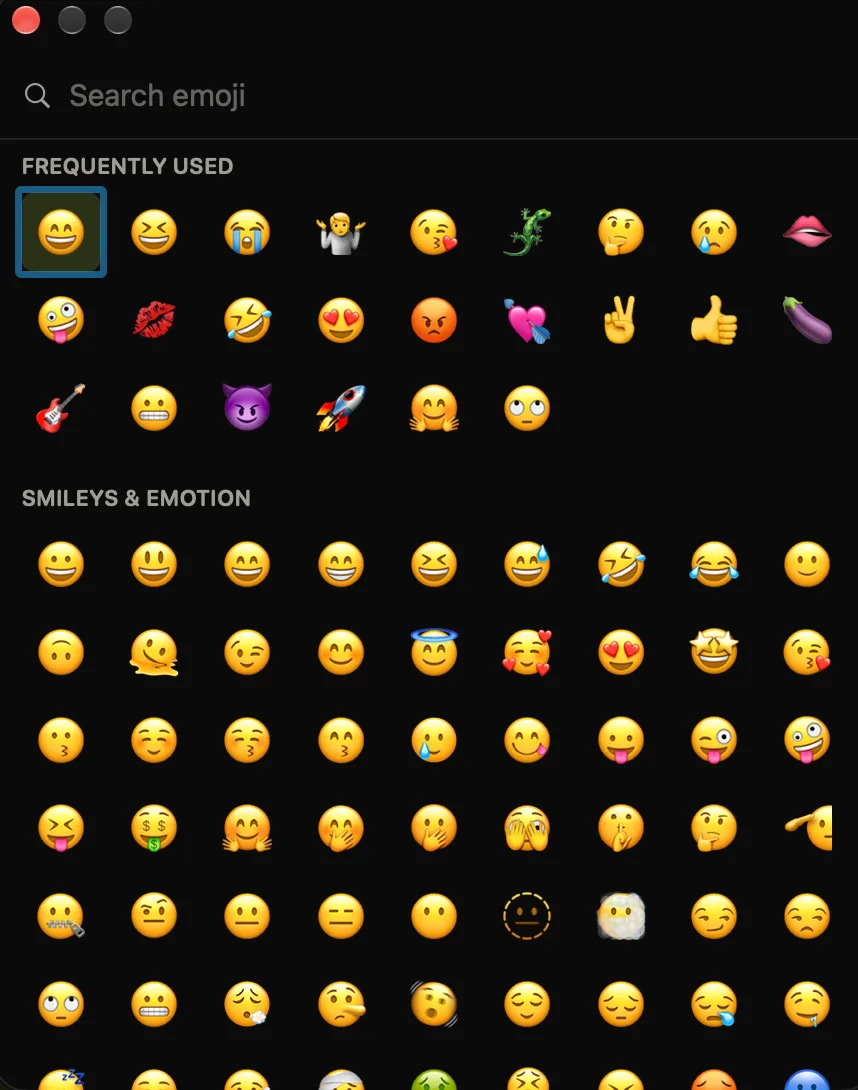
Every emoji picker for Mac, compared
There are two shapes of emoji picker on a Mac. A grid picker opens a window you search and click in. An inline picker watches what you type and offers matches at your caret when you type a trigger such as a colon, the way Slack and Discord do. The six most people end up choosing between:
- macOS Emoji & Symbols (built in, free). A grid picker:
Control-Command-Spaceor the Globe key opens it, and it expands into the full Character Viewer. Nothing to install and no permissions, but no autocomplete and no GIFs. - Comoji (free). An inline picker: type
:fireand pressTab, in every text field on your Mac. It also adds system-wide/gifand/stickerpickers, runs locally, and needs Input Monitoring and Accessibility. macOS 13 Ventura or later. - Rocket (free, Pro is $10 once). The long-standing inline colon picker for Mac. GIFs, images, custom shortcuts and text snippets sit behind Pro, and it asks for Automation access to your browser as well. Comoji vs Rocket goes through the differences.
- Mojito (free, open source). A newer inline colon picker under the AGPL-3.0 license, with GIF search on a triple colon and an interface in 19 languages. It needs macOS 14 Sonoma or later. Comoji vs Mojito compares them.
- Raycast (free tier). A launcher with an emoji search command rather than inline autocomplete: you open Raycast, search, and paste. It also covers symbols, and it comes with a whole productivity suite around it. How to use the Raycast emoji picker walks through it, and Comoji vs Raycast is the side-by-side.
- Text Replacements (built in, free). Not a picker, but it can turn a fixed token like
:tada:into 🎉 in apps that honor it. You set up each emoji by hand, and there is no suggestion list. Comoji vs Text Replacements covers where it falls short, and free text expanders for Mac covers the rest of the free options.
Five more worth knowing
These turn up in the same searches, and each is a different trade-off:
- Emoji Picker for macOS (from inndevs; free, Pro is $5 once). An inline picker triggered by
;by default, changeable in Settings, with custom shortcodes and saved text replies in the free tier. macOS 13 or later. - FujiMoji (free, open source under MIT). A menu bar app that listens for a trigger key (
/by default, configurable) and pastes the match you pick, covering emoji, text snippets and media. - Macmoji (free). Not an app so much as a set of Slack-style text substitutions you import into macOS Text Replacements, so it inherits their limits: no suggestion list, and you type the full code.
- Mowji (price not shown yet). A keyboard-first native picker whose site lists it as coming in October; we have not used it, so treat it as announced rather than reviewed.
- TextPal (discontinued). A
\nameinline picker whose developer now points people to Raycast’s picker instead; listed here because it still ranks for the search.
Facts checked on 2026-10-05 against Rocket, Mojito, Raycast, Emoji Picker for macOS, Mowji, TextPal, FujiMoji and Macmoji. Prices and release status change, so check the product page before you buy.
If you only reach for an emoji now and then, the built-in picker is enough. If you type the same dozen all day, pick an inline one: Comoji if you also want GIFs and stickers everywhere for free, Rocket if you want text snippets and are happy to pay once, Mojito or FujiMoji if open source matters most to you. The full side-by-side of the six main tools is on the Mac emoji autocomplete alternatives page.
The built-in emoji picker: Emoji & Symbols
macOS ships an emoji picker in every text field. Put your cursor where you want the emoji and press Control-Command-Space; a compact panel opens next to it with a searchable grid, recently used at the top, then categories. It works the same across Ventura, Sonoma, Sequoia and macOS 26 Tahoe, on Apple silicon and Intel, and needs nothing installed. The entry points and the setting behind the Globe key are on the opening page, and typing a word and pressing Globe-E is one of four ways to type emoji on a Mac.
What Apple calls it, version by version
There is no product named “the macOS emoji picker”, which is why searching for one turns up four different names. The panel is Emoji & Symbols; expanded it is the Character Viewer; older documentation and a few menu items still say Character Palette; and Apple’s own menu wording is Edit › Emoji & Symbols. All four point at the same system service, and it has behaved the same way from Ventura through macOS 26 Tahoe on both Apple silicon and Intel. When it stops behaving that way, the macOS emoji picker troubleshooting checklist works through the causes in order.
The Character Viewer: the full picker
The small panel is actually a condensed view. Click the little expand icon in its top-right corner and it grows into the full Character Viewer, the complete picker Apple provides. Here you get the entire Unicode emoji set plus symbols, arrows, currency, math signs and accented letters, a category sidebar, skin-tone variants on a long-press, and a font-variation panel for symbols. It is the picker to reach for when you want more than a face or a hand, say a ™, an arrow, or a Greek letter. Nothing in the list above replaces it.
Where the built-in picker slows you down
For browsing and the occasional symbol, the macOS picker is genuinely good. For firing off the same dozen emoji all day, it works against you:
- It is mouse-driven at heart: you open it, then click. Your hands leave the home row every time.
- It floats over your text and steals focus instead of flowing with what you are typing.
- There is no autocomplete: it will not surface 🥃 while you type
whis, you have to open the picker and search first. - Recents live inside the picker, not in your typing, so the emoji you send most are never one keystroke away.
A faster emoji picker: inline colon autocomplete
Turn the picker around. Rather than you travelling to a grid, the shortlist comes to your caret: type :fire, glance at four or five ranked candidates, press Tab. It is the Character Viewer’s search field without the window, the mouse trip, or the focus change, and it is the model Slack and Discord have already trained most people on.
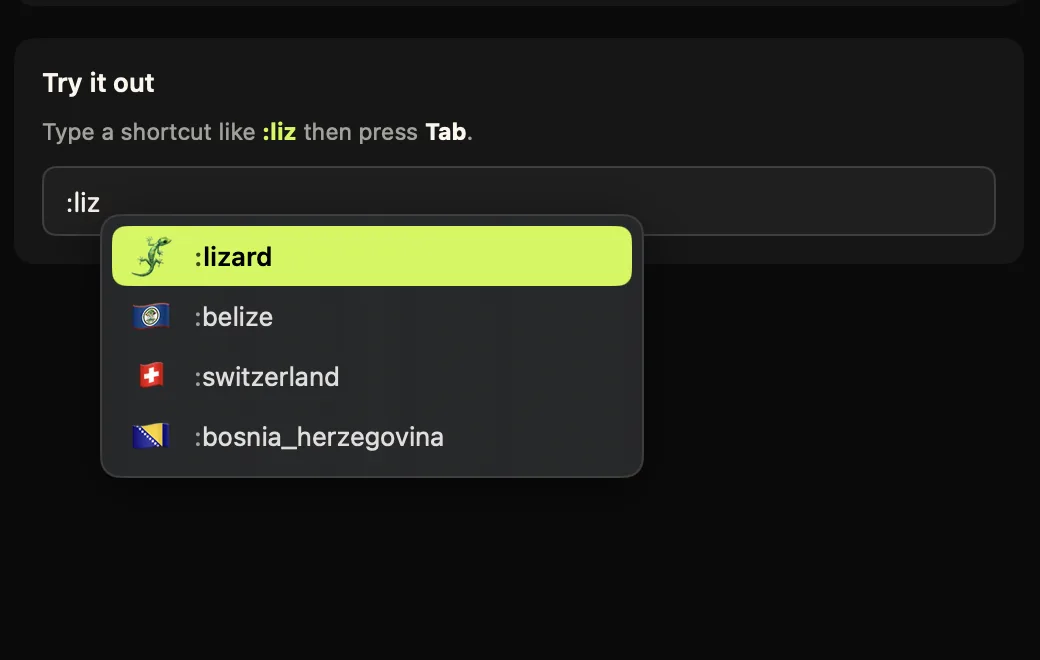
:liz and press Tab, the picker comes to your cursor instead of the other way around.Comoji covers the same catalogue the system picker does, the full Unicode set, plus the gemoji aliases that mean :whis finds 🥃 where a search for “whis” in the grid finds nothing. Ranking is the real upgrade over a picker: recents follow your typing rather than living in a panel, so the dozen emoji you send become progressively fewer keystrokes. And the double-tap browser (:: by default) is, honestly, a picker again, just one that opens at your caret and closes back into your sentence.
What installing an inline picker involves
Unlike the built-in picker, these are apps, so there is a setup cost: a download and, for Comoji, two macOS permissions, about three minutes in total. The permissions are the same pair every Mac keyboard utility asks for, and what each is used for is spelled out on the install and setup page. Download Comoji if you want to try it; if your muscle memory comes from chat apps, the Slack-style emoji shortcuts guide covers changing the trigger key, and the popup theme guide covers making it match your Mac. Emailing a lot from Outlook? There is a guide for that too.
Which emoji picker should you use?
These are not really competitors, they are tools for two different tasks. Browsing, hunting a symbol, checking what a glyph looks like: that is the Character Viewer, expanded, and nothing replaces it. Sending the same dozen faces and hands all day: that is a typing problem, and a grid is the wrong shape for it. Most people who install an inline picker keep Control-Command-Space bound and simply stop reaching for it except when they want a ™.
The best picker is the one you never have to open. That is the whole pitch for going inline.
Frequently asked questions
Is there a macOS emoji picker app to install?
No, and you do not need one: the macOS emoji picker is a built-in system service, not an app in your Applications folder. Control-Command-Space opens it in any text field, and Edit › Emoji & Symbols opens the same thing from an app menu. Third-party pickers such as Comoji are add-ons that sit alongside it rather than replacements for it.
What is the difference between Emoji & Symbols and the Character Viewer?
They are the same tool at two sizes. Control-Command-Space opens the compact Emoji & Symbols panel; clicking the expand icon in its top-right corner grows it into the full Character Viewer, which adds symbols, arrows, currency, accented letters and a category sidebar alongside the complete emoji set.
What are the alternatives to the built-in Mac emoji picker?
Inline colon pickers such as Comoji, Mojito and Rocket, a semicolon-triggered Emoji Picker for macOS from inndevs, the open-source FujiMoji, Raycast’s emoji search command, and Text Replacements for a fixed set of shortcuts. Each trades setup effort against speed; the comparison above lists prices and requirements.
Which emoji picker for Mac is free?
The built-in picker, Comoji, Mojito and FujiMoji are free. Rocket and Emoji Picker for macOS have free tiers with paid Pro upgrades ($10 and $5 one-time, per their sites), and Raycast’s emoji command is part of its free tier.
Is there a faster emoji picker for Mac?
Yes. Instead of opening a picker and clicking, Comoji adds Slack-style colon autocomplete to every text field on your Mac: type a colon and a few letters, such as :fire, and press Tab to insert the emoji. The suggestions appear right at your cursor, ranked by recent use, so common emoji are one keystroke away.
Download Comoji free for Mac
Slack- and Discord-style :emoji: autocomplete, everywhere on your Mac. Free.