How to Use Emoji Shortcuts on X (Twitter) on a Mac
Comoji adds free Slack-style :emoji: autocomplete to every app on your Mac.
To add an emoji to a post on X from a Mac, click the smiley button in the composer toolbar, or press `Control-Command-Space` with your cursor in the compose box and search by name. Both work in any browser. The third route, typing a colon and a few letters, needs a small helper app, and it is the only one that never takes your hands off the keyboard.
The composer’s own emoji button
The x.com composer has a smiley button in its toolbar. Click it and a grid of emoji opens under the box; click one and it lands at the caret in your post. DMs carry their own emoji button in the message field too. It is a perfectly good picker, and it needs nothing installed, but it is mouse-driven: every emoji is a reach for the trackpad, a scroll to the right category and a click, then back to the text.
The macOS panel: Control-Command-Space
With your cursor in the compose box, press Control-Command-Space to open Apple’s Emoji & Symbols viewer, type fire, heart or party to filter it, and press Return. It works in the compose box, replies, quote posts and DMs alike, because to the Mac they are all just text fields in a browser. Its advantage over the button is that you can search by name instead of scrolling. If the combo does nothing, opening the emoji keyboard on a Mac covers the Globe key and the Edit menu.
Colon shortcuts: no panel at all
If your muscle memory comes from Slack or Discord, you already know the third way: type : and a few letters, pick from ranked matches, accept with Tab. X does not do this on its own, and macOS does not either. Comoji adds it to every text field on your Mac, including the X composer in Safari, Chrome, Arc and other browsers. Type :fire, press Tab, and 🔥 lands in your post.
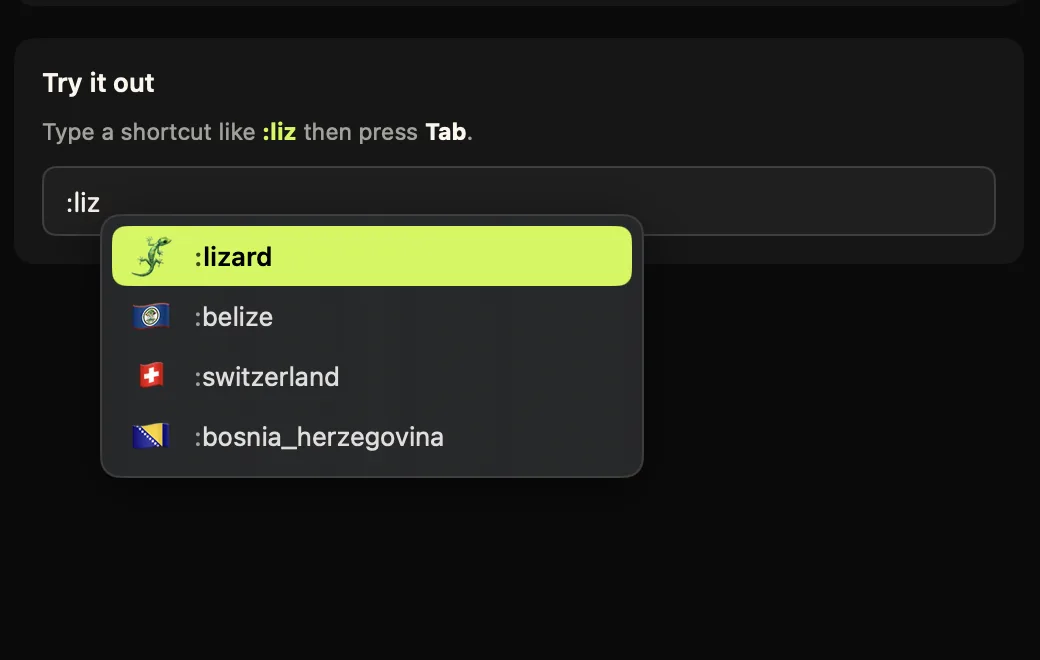
: and a few letters, press Tab. The popover appears at the caret, wherever the compose box sits on screen.It works everywhere you type on X: the main compose box, replies, quote posts and DMs. Everything is processed locally, so a draft that never gets posted never leaves your Mac either.
Emoji and the character count
One X-specific detail that changes how you use emoji: they are expensive. X’s developer documentation on counting characters says it weights every emoji as 2 characters toward the 280 limit, whatever its complexity, so a skin-toned or multi-part emoji costs the same as a plain one. A post of nothing but emoji tops out at 140. If a draft is a few characters over, swapping a trailing emoji for a word is sometimes the cheapest cut.
Why the popover lands in the right place on X
Web text fields like X’s composer are trickier than native Mac apps: some report the cursor position in a way that used to place the suggestion popover off in a corner of the screen instead of next to your text. As of Comoji 1.1.1, the popover anchors to your caret in the X composer, so the ranked matches show up right where you are typing.
Set it up in under a minute
- Install Comoji and grant the two permissions; the install and setup page has the full walkthrough.
- Open x.com and click into the compose box.
- Type
:and a few letters, then pressTab.
If you want a searchable keyboard too, double-tap the trigger (:: by default) to pop your own emoji browser open at your cursor, search or arrow to an emoji, and Return drops it back into the post. The Slack-style emoji shortcuts guide explains how to change the trigger key, and the same shortcuts work in Messages. For where each method applies across other apps, every Mac emoji shortcut is the reference list.
Which one to use on X
For one emoji in a post now and then, the smiley button is fine. For a thread of replies where you reach for the same few emoji repeatedly, the colon shortcut saves the trip to the toolbar each time. The macOS panel sits in between: nothing to install, and searchable.
A post gets 280 characters, and each emoji spends two of them. The least you can spend on getting it there is a few keystrokes.
Frequently asked questions
Can you use emoji shortcuts on X (Twitter) on a Mac?
Yes. macOS does not offer Slack-style colon shortcuts on its own, but Comoji adds them to every text field on your Mac, including the X web composer in Safari, Chrome and other browsers. Type a colon and a few letters, such as :fire, then press Tab to insert the emoji.
Does the X (Twitter) web app have an emoji button on desktop?
Yes. The x.com composer has a smiley button in its toolbar that opens an emoji grid, and DMs have one too. It is mouse-driven. On a Mac you can instead press Control-Command-Space to search by name, or type colon shortcuts with Comoji.
How many characters does an emoji use on X?
Two. X’s documentation weights every emoji as 2 characters toward the 280-character post limit, regardless of complexity, so a post made only of emoji can hold at most 140.
How do I add an emoji to a post without using the mouse?
Put your cursor in the compose box and press Control-Command-Space, type to search, and press Return. Or, with Comoji installed, type a colon shortcut like :heart and press Tab. Both keep your hands on the keyboard.
Does Comoji work inside the browser and the X web app?
Yes. Comoji works in every text field on your Mac, including web text fields like the X composer in Safari, Chrome and Arc. As of Comoji 1.1.1 the suggestion popover appears right at your cursor in web fields like X, not off in a corner.
Download Comoji free for Mac
Slack- and Discord-style :emoji: autocomplete, everywhere on your Mac. Free.