How to Add :emoji: Autocomplete to Apple Messages
Comoji adds free Slack-style :emoji: autocomplete to every app on your Mac.
Messages is where most of us actually talk, and it’s also where emoji shortcuts are most painful. There’s no :colon: autocomplete in iMessage on the Mac, so you’re left with the picker or a memorized set of Text Replacements. Here’s how to add real colon shortcode autocomplete to Messages in a couple of minutes.
Step 1: Install Comoji
Comoji is a tiny menu bar app. Download the DMG, drag it into your Applications folder, then launch it from there. Moving it to Applications *before* you grant permissions matters, macOS ties the two permissions below to the app’s location, so granting first and moving later forces you to re-grant. On first run Comoji opens a short setup window. (The install and setup page is the fuller version of these steps, with troubleshooting.)
Step 2: Grant two permissions
macOS gates keyboard utilities behind two permissions, both in System Settings › Privacy & Security:
- Input Monitoring, lets Comoji notice when you type a shortcut like
:lizard. - Accessibility, lets Comoji read the active text field and insert the emoji.
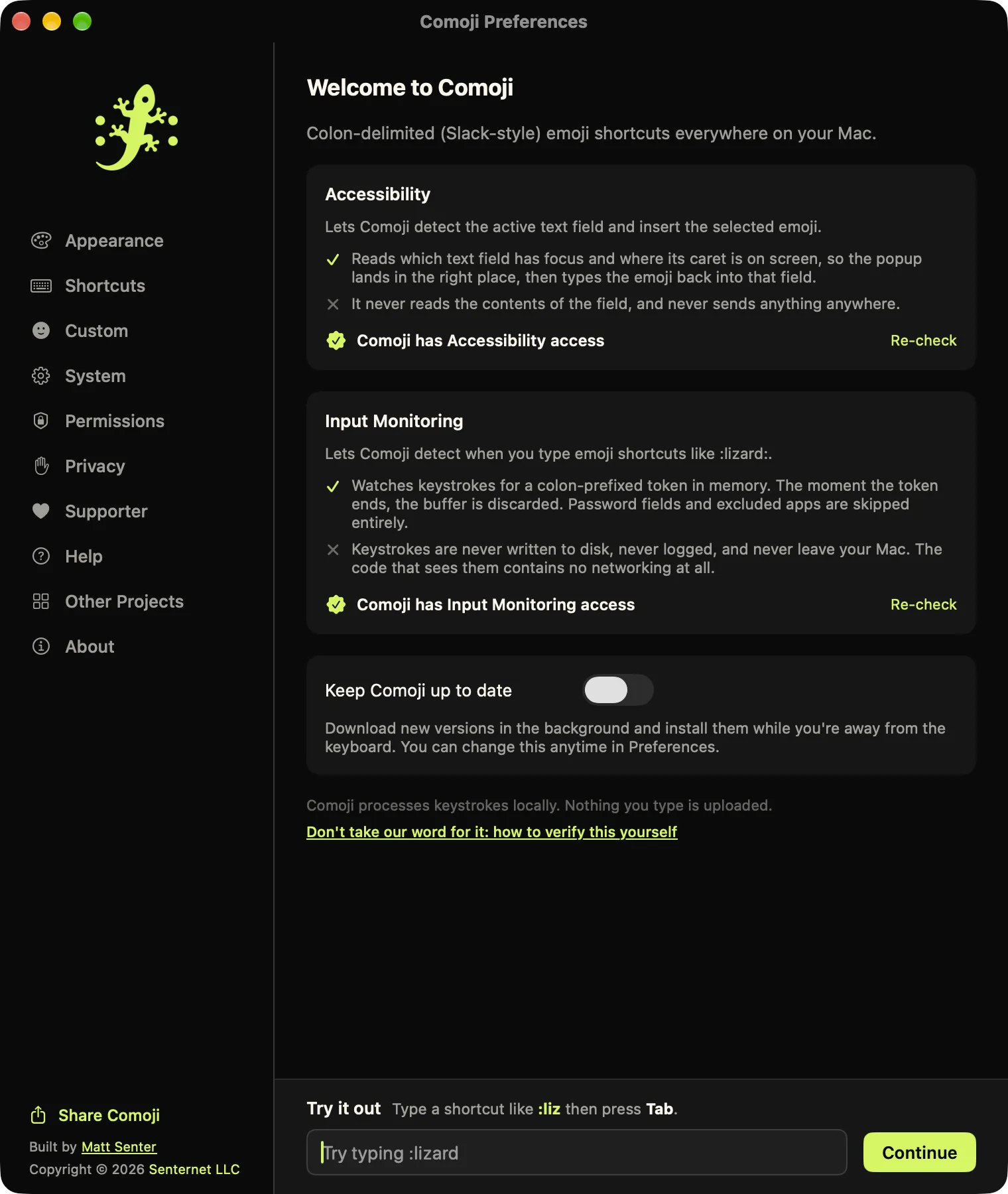
Comoji shows live grant status and links straight to the right settings panes. After you grant them, the autocomplete starts within a couple of seconds, no restart of Messages required.
Step 3: Type a colon token in Messages
Open a conversation and type :liz. A popover appears with 🦎 lizard, 🐊 crocodile, 🐉 dragon and more. Press Tab to drop in 🦎 and keep going. Type a full :whiskey: with the closing colon and it replaces instantly, no popover needed.
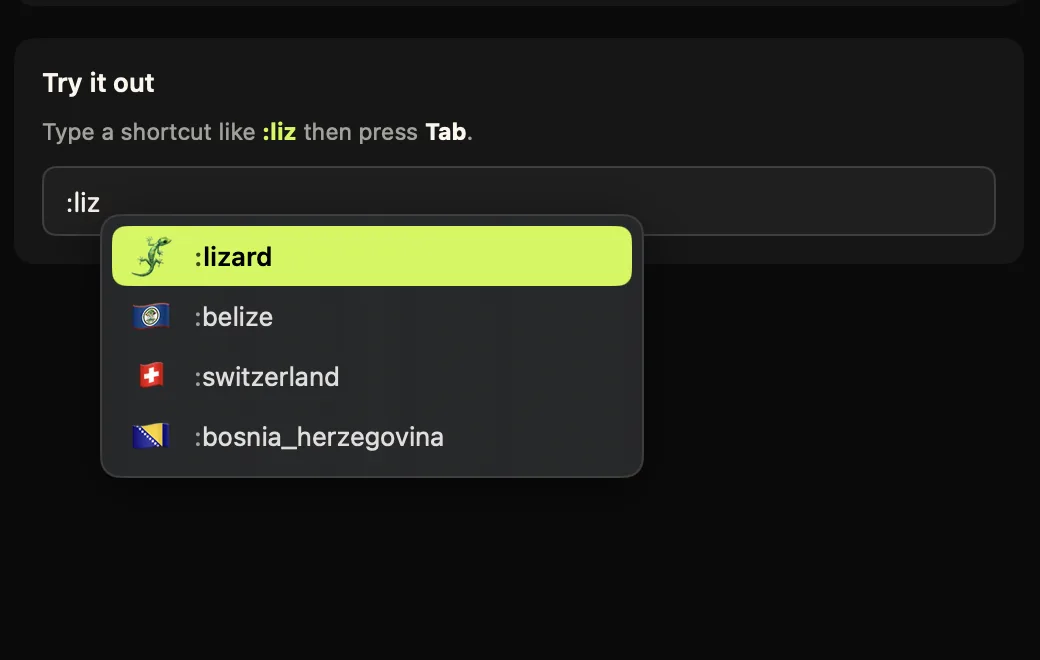
Tab.A note on the Return key
In Messages, Return sends. Comoji only intercepts Return while the popover is open, and you can turn off Return-to-accept in Preferences › Shortcuts and use Tab exclusively if you prefer. The token buffer also resets the moment you click elsewhere or switch apps, so it won’t get in the way of a normal conversation, if the popover isn’t showing, Return sends exactly as it always did.
Forgot the shortcode? Double-tap to browse
Can’t remember whether it’s :smile: or :grin:? Press your trigger key twice (:: by default) to open a large, searchable emoji browser. Search or arrow through the full set, press Return, and the emoji drops back into the Messages field you were typing in. It’s the escape hatch for the moments a name slips your mind. If the popup’s look is the sticking point, the popup theme guide covers light, dark and highlight color.
Which versions of macOS and Messages
Comoji works on macOS 13 Ventura or later, Ventura, Sonoma, Sequoia and macOS 26 Tahoe, on Apple silicon and Intel Macs. Because it operates at the keyboard level rather than as a Messages plugin, it isn’t tied to any particular Messages version. Both /sticker and /gif work in supported text fields across your Mac and are covered in their own guides for stickers and GIFs.
Troubleshooting: nothing happens when I type a colon
- Both permissions on? Check Input Monitoring and Accessibility in System Settings › Privacy & Security. Autocomplete needs both.
- Just updated macOS or Comoji? Permissions can drop on an update. Remove Comoji from each list with
−and re-add it (or toggle off/on), then relaunch. - Moved the app? If you granted permissions before moving Comoji into Applications, re-grant from its final location.
- It works elsewhere but not Messages? Check the per-app disable list in Preferences › Custom in case Messages got added.
Two more things worth knowing
Once it’s working, a couple of details make it feel even faster. Exact-match auto-replace: type the full alias with both colons, :whiskey:, and Comoji swaps in 🥃 the instant you type the closing colon, no popover, no Tab. It’s the fastest path when you already know the name. Skin tones: emoji that support Fitzpatrick tones remember your choice, so once you pick 👍🏽 it keeps ranking that tone for you.
And recent use quietly reorders the list, the emoji you actually send float to the top, so after a day or two :t is probably already showing the 🎉 you reach for most.
Does the person I’m texting need Comoji?
No. Comoji inserts standard Unicode emoji (and, for /sticker and /gif, ordinary image and file attachments). To everyone on the other end it’s just a normal message, they don’t need Comoji or anything else installed, on any device. It works the same in one-on-one and group conversations. One caveat: emoji are universal, but if a chat falls back to SMS (a green-bubble conversation), stickers and GIFs can degrade the way any attachment does over SMS; in iMessage (blue) everything arrives intact.
Why not an iMessage extension?
iMessage extensions live inside the app drawer and can’t provide inline, keyboard-driven autocomplete as you type, that’s simply not something the extension API allows. Comoji works at the system level instead, so the same :emoji: shortcuts you use in Messages also work in Mail, Notes, Safari, Outlook and the rest of your Mac. One habit, everywhere.
That’s it, Messages now speaks fluent :emoji:.
Frequently asked questions
Does Apple Messages have emoji autocomplete?
Not on its own. macOS gives you the emoji picker (Control-Command-Space) and Text Replacements, but Messages has no Slack- or Discord-style colon autocomplete. Comoji adds it: type :liz in a conversation and a popover offers 🦎 lizard, 🐊 crocodile, 🐉 dragon and more, Tab to insert.
Will autocomplete interfere with Return sending my message?
Comoji only intercepts Return while the popover is open, and the token buffer resets the moment you click elsewhere or switch apps. With no popover showing, Return sends exactly as it always did. You can also turn off Return-to-accept in Preferences › Shortcuts and use Tab exclusively.
What if I cannot remember the shortcode?
Press your trigger key twice (:: by default) to open a large, searchable emoji browser. Search or arrow through the full set, press Return, and the emoji drops back into the Messages field you were typing in.
Why is Comoji not an iMessage extension?
iMessage extensions live inside the app drawer, and the extension API cannot provide inline, keyboard-driven autocomplete as you type. Working at the system level instead means the same :emoji: shortcuts also work in Mail, Notes, Safari and the rest of your Mac.
Download Comoji free for Mac
Slack- and Discord-style :emoji: autocomplete, everywhere on your Mac. Free.