Insert Emoji in Outlook for Mac: Shortcut & Menu
Comoji adds free Slack-style :emoji: autocomplete to every app on your Mac.
To insert emoji in Outlook for Mac, click in the message body and press Control-Command-Space. Search for an emoji and click it to insert. If the shortcut does not respond, choose Edit › Emoji & Symbols from the menu bar. You do not need an Outlook add-in.
Microsoft lists this shortcut for Outlook for Mac. Keep your cursor in the draft while opening the picker, search for the emoji you need, and select it to return to writing.
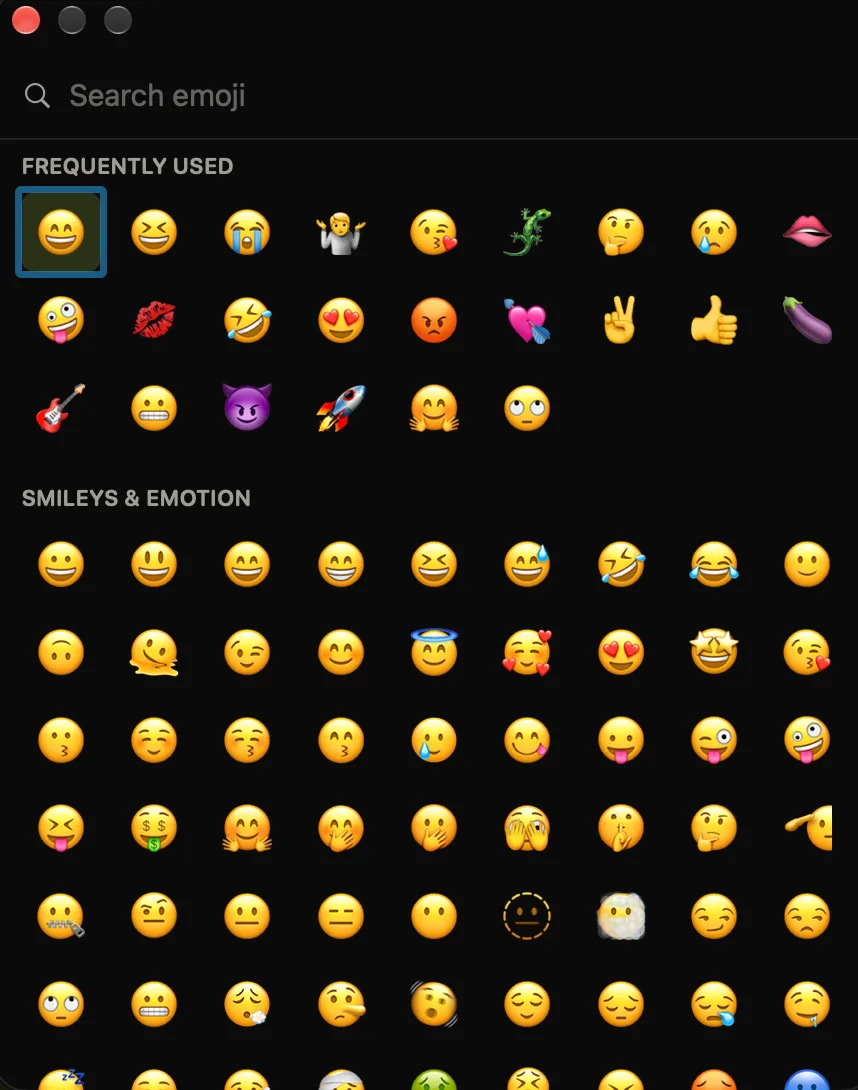
The built-in way: Control-Command-Space
macOS puts an emoji picker in every text field, and an Outlook compose window is just another text field. Click into the body of a new message, put your cursor where you want the emoji, and press Control-Command-Space. A compact panel opens next to your cursor with a searchable grid, recently used at the top, then categories. Click an emoji to insert it. This is the one method worth memorizing, because it behaves the same in new Outlook, classic Outlook, and everywhere else you type on your Mac. If the shortcut does not open it, our guide to opening the emoji keyboard on a Mac covers the Globe key, the menu bar, and the Edit menu as alternatives.
New Outlook vs classic Outlook for Mac
Microsoft ships two Outlook apps on the Mac, and the emoji story differs a little between them:
- New Outlook for Mac (the redesigned app Microsoft now installs by default, with the toggle in the top-right corner) also offers an emoji button in the message formatting toolbar, so you can click your way to a picker without the keyboard shortcut. The system
Control-Command-Spacepicker works here too. - Classic Outlook for Mac leans on the macOS picker: put your cursor in the message body and press
Control-Command-Space. There is no need to hunt for an app-specific button, the system picker inserts a standard Unicode emoji that travels fine in email.
In both apps the emoji you insert is plain Unicode, so it renders for your recipient whether they read it in Outlook, Gmail, Apple Mail, or on a phone. You are not embedding an image, just a character.
Search by name instead of scrolling
One habit halves the time this takes: once the panel is open, type instead of scrolling. It filters live, so party or check narrows the grid immediately and Return takes the first hit. Email is repetitive enough that the same three or four searches come up daily, which is worth noticing, because a search you repeat every day is a shortcut you have not made yet. For every built-in entry method, see how to type emoji on a Mac.
Why this drags over a day of email
For the occasional emoji, both the macOS picker and the new Outlook toolbar button are perfectly fine. Email is where the cost compounds, because you are writing dozens of short messages rather than one long document:
- Every emoji costs a round trip out of the draft and back. Twenty replies before lunch and that is twenty interruptions to a sentence you were mid-way through.
- The toolbar button exists only in new Outlook, so the habit breaks the moment you are on the classic app, a colleague’s machine, or Outlook on the web.
- Neither offers autocomplete: nothing surfaces 🔥 while you type
fire, you open a picker and search first. - Email has a much shorter emoji vocabulary than chat, perhaps a dozen you actually send, and none of them is ever one keystroke away.
The faster way: Slack-style colon shortcuts
Email gets written in bursts, so what you want is a shortcut that never breaks the burst. A colon and a few letters put the candidates beside your caret, Tab drops one in, the sentence carries on, and your hands never leave the keys. It is a typing habit rather than a mail-client feature, which is why it behaves identically in new Outlook, in classic Outlook, and in the browser tab you read mail in on someone else’s machine.
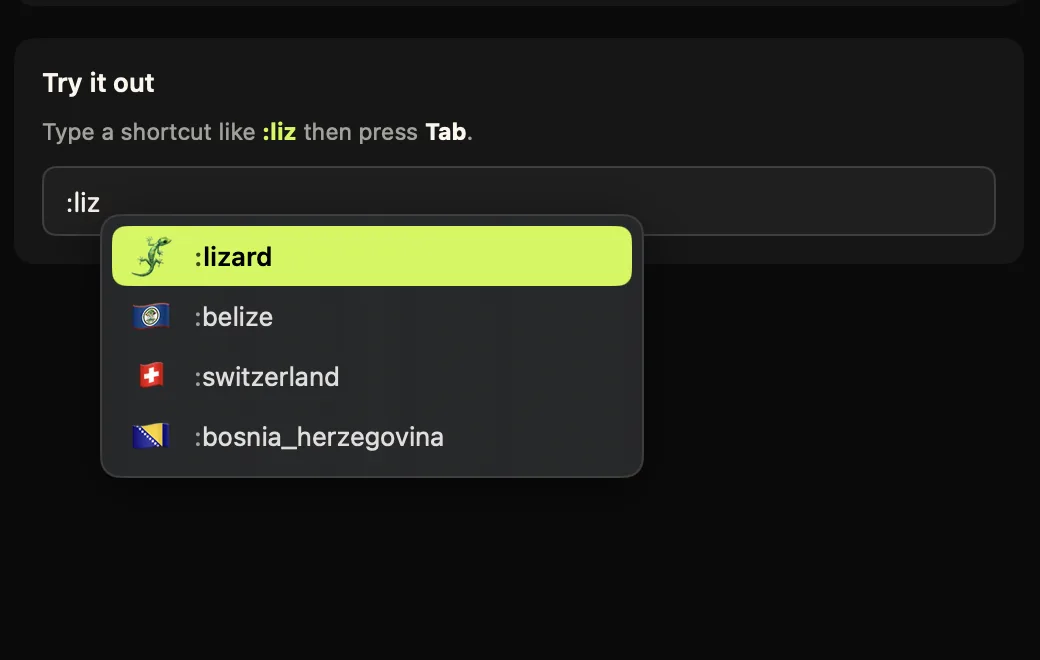
:liz and press Tab, the picker comes to your cursor instead of the other way around.Type :party in the message body and a popover shows ranked matches at your caret; Tab or Return inserts and you keep writing. Because email tends to reuse a small set, the recent-use ranking pays off quickly: after a day, :th is usually already showing the 🙏 you close half your replies with. Skin tones are remembered, and a forgotten name is a double-tap of the trigger (:: by default) away from a searchable browser of the full set.
Getting it working in Outlook
Comoji is not an Outlook add-in, so there is nothing to install into Outlook itself and no admin approval to request. It is a menu bar app that types into whatever field has focus, which is why it behaves identically in new and classic Outlook. Install it and grant the two macOS permissions using the install and setup page, then just start writing. Comoji is free, and if you also want to see how it stacks up, the Mac emoji autocomplete alternatives compare the options. If your muscle memory comes from chat apps, the Slack-style emoji shortcuts guide covers changing the trigger key.
Which should you use?
Volume decides it. A few emails a day and Control-Command-Space plus a name search is genuinely fine, and it costs nothing. Fifty a day and the picker becomes a tic you perform dozens of times, at which point a shortcut that keeps your hands in the message pays for its setup inside a week, and keeps paying in Mail, Messages and every browser tab as well.
Count how many times you open the picker over one morning of email. That number is the whole argument.
Frequently asked questions
How do I add an emoji in Outlook on a Mac?
Put your cursor in the message body and press Control-Command-Space to open the macOS emoji picker, then type to search and press Return to insert. This works in both new and classic Outlook for Mac. New Outlook for Mac also has an emoji button in the message formatting toolbar.
What is the difference between new and classic Outlook for Mac for emoji?
Both support the system Control-Command-Space emoji picker. New Outlook for Mac additionally offers an emoji button in the compose toolbar, while classic Outlook for Mac relies on the macOS picker. In either case the emoji is inserted as standard Unicode that renders for any recipient.
Can I use Slack-style colon emoji shortcuts in Outlook on a Mac?
Yes. macOS does not offer colon autocomplete on its own, but Comoji adds it to every text field on your Mac, including the Outlook compose window in the new and classic apps. Type a colon and a few letters, such as :fire, then press Tab to insert the emoji.
Will the emoji show up correctly for the person I email?
Yes. Both the macOS picker and Comoji insert standard Unicode emoji, not images, so they render correctly whether your recipient reads the message in Outlook, Gmail, Apple Mail, or on a phone.
Download Comoji free for Mac
Slack- and Discord-style :emoji: autocomplete, everywhere on your Mac. Free.