How to Add Emoji in Google Docs: 3 Built-In Ways
Comoji adds free Slack-style :emoji: autocomplete to every app on your Mac.
To add emoji in Google Docs, type :cat to find cat emoji, type @emoji to browse, or choose Insert › Symbols › Emoji. These three built-in methods work in your document without an extension. Choose an emoji from the results to insert it. Google’s Docs help documents all three methods.
This guide covers each method, the setting that switches the colon shortcut on and off, how the macOS emoji panel fits in, and what to do about the fact that the same habit stops working the moment you leave the browser tab.
Type : and a name (the fastest built-in way)
Click where you want the emoji and type a colon followed by a few letters of its name: :cat, :fire, :party. Docs opens a short list of matching emoji under the caret. Press Enter to take the match Google highlights, or arrow or click to a different one. You never leave the keyboard, and it is the same gesture Slack and Discord taught a lot of people, which is why it feels immediately familiar.
The @emoji menu
Docs also has an @ menu that inserts people, dates, files and building blocks. Type @emoji and press Enter and it opens the emoji picker. It is a useful second route if the colon shortcut is switched off, but because @ is shared with so many other things, the colon is the quicker way to reach a specific emoji.
Insert › Symbols › Emoji
The menu route: open Insert, then Symbols, then Emoji, and choose from the picker. It is mouse-driven, so it is the slow option for a 🎉, but it is the one to use when you want to browse by category. For a ™, an arrow or an accented letter rather than an emoji, Insert › Special characters gives you a searchable grid with a drawing pad that guesses what you sketch.
Control-Command-Space, the macOS panel
Click into the document and press Control-Command-Space and the macOS Emoji & Symbols panel opens at the caret, as it does in any browser text field. Search by name, press Return, done. It is the one method that is not specific to Docs, which makes it worth knowing; if the shortcut does nothing on your Mac, how to open the emoji keyboard on a Mac covers the Globe key, the menu bar and the Edit menu.
Colon shortcut not working? Check Tools › Preferences
The colon shortcut is a setting, and it can be switched off. In Docs open Tools › Preferences and look for Insert emojis using the colon character. Tick it to turn the shortcut on; untick it if you would rather a typed colon stayed a colon. Google’s help page describes exactly this checkbox. If the box is ticked and nothing appears, try the @emoji route or the Insert menu to rule out a problem with the document rather than the setting.
The same colon shortcut in every other Mac app
Here is the honest comparison. Inside Google Docs, the built-in colon shortcut is good, and you should use it; Comoji does not improve on it there. The problem is everything else you type in a day. Messages, Mail, Notes, Pages and most native apps ignore a typed colon, so the habit you built in Docs stops working the moment you switch windows.
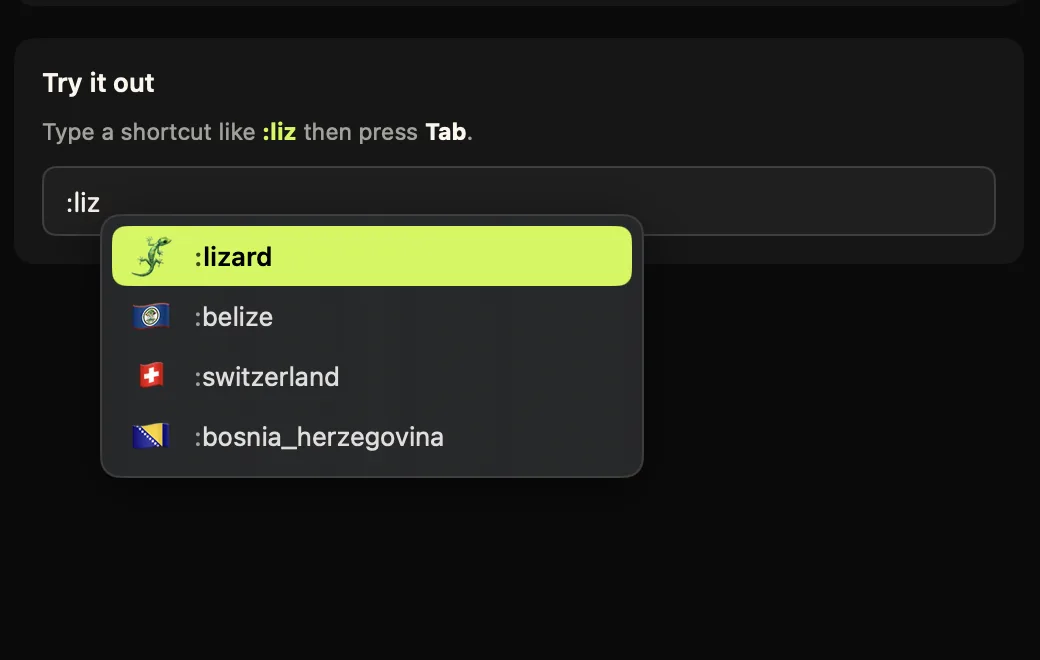
:liz, shown in its own test field rather than in Google Docs.Comoji is a free menu bar app that also triggers on : and brings that same gesture to Messages, Mail, Notes and the rest of your Mac, with matches ranked by what you send, remembered skin tones, and system-wide /gif and /sticker pickers that Docs has no equivalent for. Since Docs already answers a colon itself, the sensible setup is to let Docs handle its own tab: if you ever see both popups at once, add docs.google.com to Comoji’s per-site disable list under Preferences › Custom. Setup is a download and two macOS permissions, written out once on the install and setup page. If you are weighing it against other tools, the Mac emoji autocomplete alternatives compare them.
Which should you use?
Inside Docs, type the colon. Learn @emoji as the fallback and Insert › Symbols › Emoji for browsing. Add a Mac-wide colon shortcut only if your day runs from Docs to Gmail to Slack to Messages and back, where every tool has a different answer for a 🎉. For the full rundown of ways to enter emoji on a Mac, see how to type emoji on a Mac, and for how the same colon idea behaves in other apps, Notion has its own version too.
Docs already speaks colon. The only open question is whether the rest of your Mac should.
Frequently asked questions
How do I insert an emoji in Google Docs on a Mac?
Type a colon followed by a name, such as :cat, and press Enter or pick from the list. You can also type @emoji and press Enter, open Insert › Symbols › Emoji, or press Control-Command-Space to use the macOS emoji panel.
Does Google Docs have a colon emoji shortcut?
Yes. Typing a colon and a name, such as :cat, brings up matching emoji in the document. Google documents it on its Docs help page alongside the @emoji menu and the Insert menu route.
How do I turn the colon emoji shortcut on or off in Google Docs?
Open Tools › Preferences and use the checkbox labelled Insert emojis using the colon character. Ticked, typing a colon and a name offers emoji; unticked, a colon stays a plain colon, and the @emoji menu and Insert menu still work.
Can I use the same Slack-style colon shortcut in other Mac apps?
Yes, but not through Docs. Google Docs has its own colon shortcut that only works inside Docs. Comoji brings the same type-a-colon habit to Messages, Mail, Notes and other Mac apps, and you can disable it for docs.google.com so the two never overlap.
Does the emoji stay correct when I share the document?
Yes. Docs, the macOS panel and Comoji all insert standard Unicode emoji, so they render for anyone who opens or downloads the document, on a Mac, a PC or a phone, though the artwork varies slightly by platform.
Download Comoji free for Mac
Slack- and Discord-style :emoji: autocomplete, everywhere on your Mac. Free.