Sticker Picker for iMessage on Mac: Search and Send
Comoji adds free Slack-style :emoji: autocomplete to every app on your Mac.
This is the Mac answer. Most sticker advice for iMessage is written for the iPhone, where the sticker drawer sits in the keyboard and Memoji are a swipe away. On a Mac none of that applies: the drawer hides behind the little App Store icon next to the compose field, it is mouse-driven, and it has no search at all. If you want the 🎉 party popper, you are clicking in and scrolling.
Comoji adds what the desktop Messages app is missing: a keyboard-driven, searchable sticker picker that drops the right sticker into an iMessage conversation without your hands leaving the keyboard. It is a Mac app, so everything below is about macOS 13 Ventura or later; there is no iPhone or iPad version.
Type /sticker, then search
In Messages, type /sticker and a picker opens right where you’re typing. Keep typing to filter, party, dog, fire, and the matches narrow as you go. The whole thing is keyboard-first:
- Type
/stickerin a Messages conversation. - Type a keyword to search, e.g.
/sticker party. - Use the arrow keys to move through the matches.
- Press
Returnto drop the sticker into your conversation (orEscto dismiss).
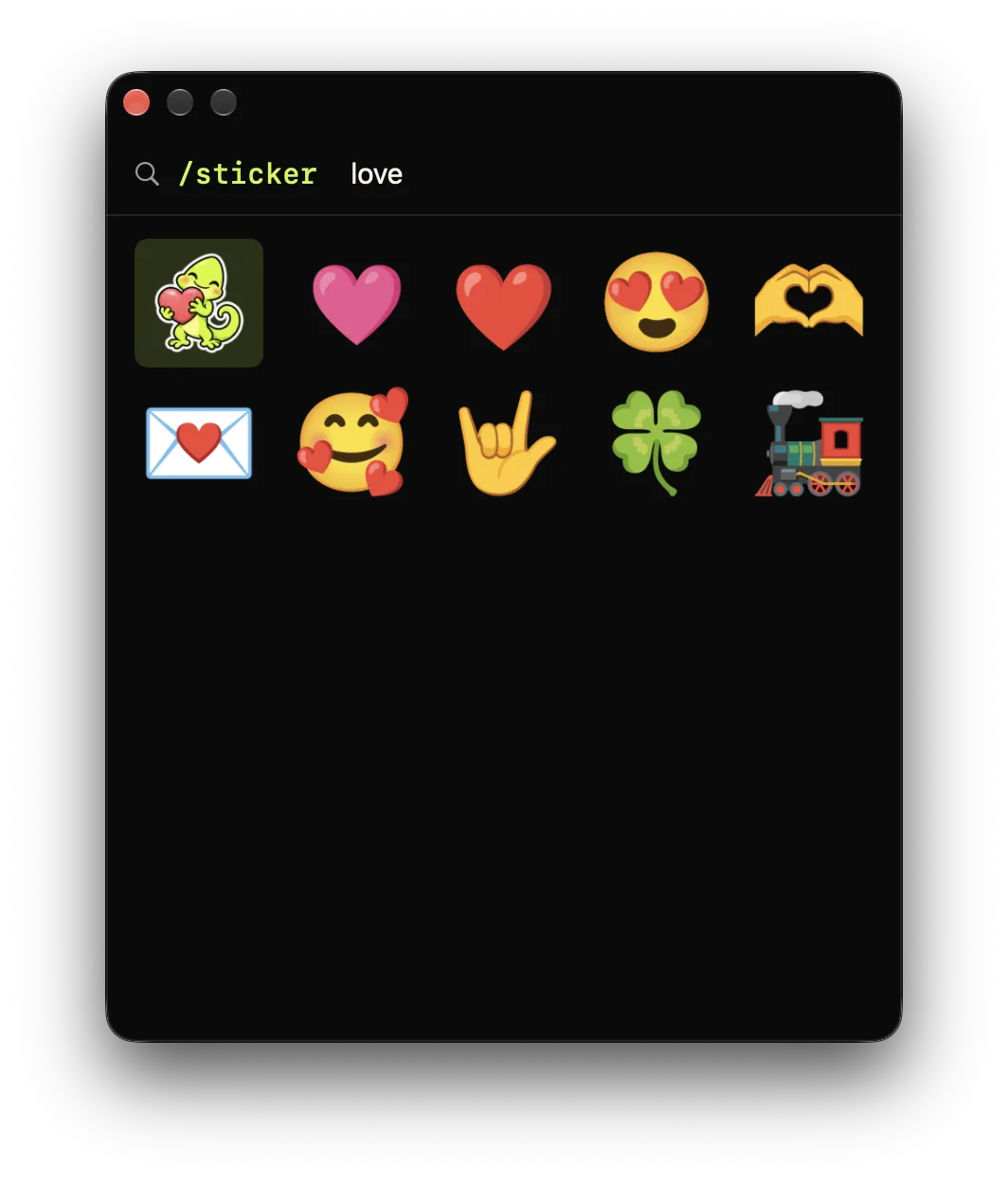
/sticker, search by keyword and pick with the keyboard.It’s a separate mode from emoji autocomplete, so it doesn’t interfere with your :emoji: shortcuts. The /sticker command is its own trigger, independent of the colon key you use for emoji, and it’s separate again from /gif. Three distinct tools, one muscle memory, and you can see GIF and sticker search, covered in Features alongside everything else Comoji does.
The keywords are the ones you already know
Search works off the same gemoji alias set Slack, Discord and GitHub use, so the words already in your fingers tend to just work: /sticker tada, /sticker joy, /sticker100. You don’t have to learn a new vocabulary, you search a sticker the way you’d type the emoji.
Static and animated stickers both work
Pick a sticker and Comoji pastes it straight into the compose field. Static stickers go in inline as an image. Animated ones are inserted as a file so the animation is preserved, you’ll see a still thumbnail in the compose field, and it springs to life once the message is sent. Both behave like real iMessage stickers on the other end; your recipient doesn’t need Comoji or anything else installed.
Why a separate picker instead of the native drawer?
Two reasons. First, the iMessage sticker library isn’t accessible to third-party Mac apps, so no utility can reach into the stickers you’ve already collected, that’s a sandbox boundary Apple enforces, not something a tool can work around. Second, the native drawer has no keyword search, which is the whole problem we set out to fix. So Comoji ships its own art: Google’s Noto Animated Emoji set (CC BY 4.0), with keywords derived from those gemoji aliases. It’s a different library than your Memoji and App Store sticker packs, by design, but it’s one you can actually search.
Works wherever you type
The picker is not tied to a chat client. Open it from WhatsApp, Mail, Messages, a browser field, or another app where Comoji is enabled, and the selected artwork is pasted back into that field. You can silence /sticker for particular apps or sites under Preferences › Custom, or disable only this command under Preferences › Shortcuts › Stickers without changing emoji autocomplete.
Which Macs it works on
Comoji runs on macOS 13 Ventura or later, Ventura, Sonoma, Sequoia and the latest macOS 26 Tahoe, on Apple silicon and Intel. The sticker picker relies on the same Accessibility and Input Monitoring permissions as the rest of the app, so once Comoji is set up there’s nothing extra to enable for stickers.
Troubleshooting: /sticker isn’t working
- Is the current app or website disabled?
/stickerfollows the per-app and per-site exclusions in Preferences › Custom. - Check it’s enabled in Preferences › Shortcuts › Stickers.
- Re-check permissions in System Settings › Privacy & Security › Accessibility and Input Monitoring. After a macOS or app update, toggle Comoji off and on in both lists and relaunch.
- A sticker won’t load? A popular set is bundled and works offline; the rest download the first time you use them. If one shows blank, you’re likely offline, reconnect and it’ll fetch and cache.
Does the other person need Comoji?
No. A Comoji sticker arrives as an ordinary image or file attachment, so it shows up for anyone, on iPhone, iPad, Mac, even an Android phone if the thread is over SMS, with nothing installed on their end. It works in group chats too. The usual SMS caveat applies: in a blue-bubble iMessage thread the sticker arrives exactly as you sent it; if a thread falls back to green-bubble SMS, it degrades the way any attachment does over SMS.
How it compares to the native sticker drawer
- Search: the native drawer has none;
/stickeris keyword-first. - Hands: the drawer needs your mouse;
/stickernever leaves the keyboard. - Library: the drawer shows your Memoji and App Store packs (which third-party apps can’t read);
/stickerbrings its own searchable Noto set. They’re complementary, keep using the drawer for your Memoji, reach for/stickerwhen you want to find something fast.
A note on privacy
A popular subset of stickers ships inside the app, so common ones work instantly and offline. The rest are downloaded from Google’s emoji CDN the first time you use them, then cached locally on your Mac. That artwork fetch is the only network call the sticker feature makes, no message contents and no information about you are ever sent. Everything else Comoji does stays entirely on your machine.
Want searchable stickers in iMessage on your Mac? Install Comoji, open a conversation, and type /sticker.
Frequently asked questions
How do I add a sticker in iMessage on a Mac?
Natively, click the App Store icon next to the compose field and pick from the drawer, which has no search. With Comoji installed you type /sticker followed by a keyword, such as /sticker party, arrow to the match and press Return to drop it into the conversation.
Can you search stickers in Messages on a Mac?
The built-in sticker drawer on macOS has no keyword search, so you scroll it with the mouse. Comoji adds a searchable picker: type /sticker and a keyword and the matches narrow as you type, using the same gemoji alias names Slack, Discord and GitHub use.
Why can Comoji not use my existing iMessage sticker packs?
The iMessage sticker library is not accessible to third-party Mac apps; that is a sandbox boundary Apple enforces, so no utility can reach your Memoji or App Store packs. Comoji ships its own searchable art instead, Google’s Noto Animated Emoji set under CC BY 4.0.
Does the person receiving the sticker need anything installed?
No. A Comoji sticker arrives as an ordinary image or file attachment, so it shows up on iPhone, iPad, Mac or Android with nothing installed on their end, in one-to-one and group threads alike. In a blue-bubble iMessage thread it arrives exactly as sent; a green-bubble SMS thread degrades it the way it does any attachment.
Download Comoji free for Mac
Slack- and Discord-style :emoji: autocomplete, everywhere on your Mac. Free.