Comoji 1.4.0: VoiceOver Support and Lizard Stickers
Comoji adds free Slack-style :emoji: autocomplete to every app on your Mac.
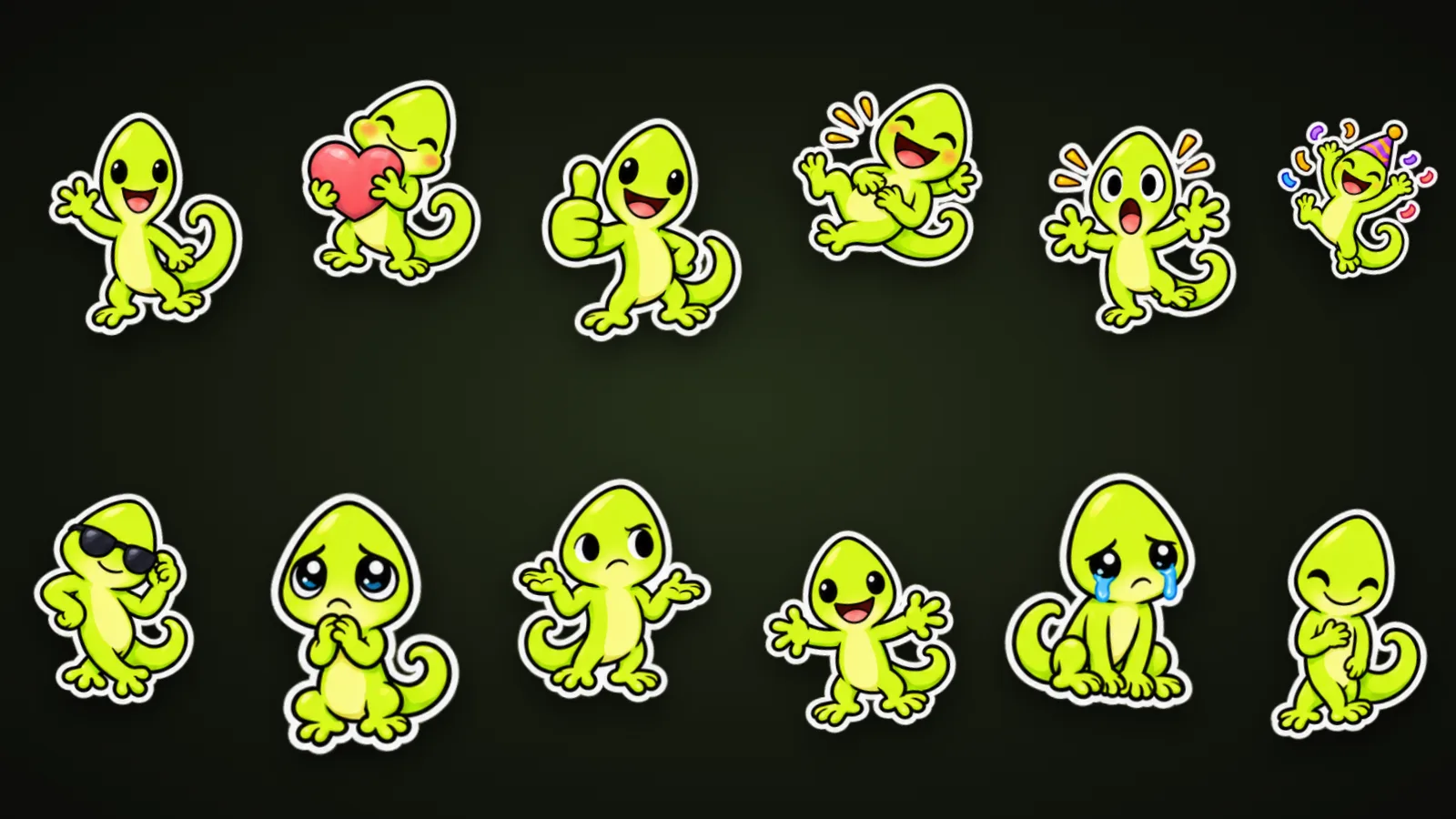
Comoji 1.4.0 is out. The two headline changes pull in different directions: one makes Comoji usable for people who never look at the screen, the other gives you a reason to look at it more. VoiceOver now reads every suggestion and picker aloud, and 20 original stickers of the Comoji lizard join /sticker. Around them, Preferences has been rebuilt from the ground up, with a Help tab that answers most questions before you need to ask.
Comoji now works with VoiceOver
Until this release, the suggestion popup was silent to a screen reader. You could type :fire and a list would appear, but VoiceOver had no idea it was there. Now, with VoiceOver on, Comoji speaks as you type:
- The emoji under the highlight, by name, as soon as the list appears and each time you arrow through it.
- Its position in the list, such as “2 of 5”, so you know how many choices are left.
- Its skin tone, when it has one.
- In the
::emoji browser and the/stickerand/gifpickers: what opened, how many results matched your search, and each item as you move to it.
The menu bar icon, its menu, and every control in Preferences are labeled as well, so the whole app can be set up and used without sight. Nothing about the keys changes: arrows move, Return or Tab inserts, Escape dismisses.
Twenty lizard stickers, drawn for Comoji
The green lizard in the Comoji logo has finally been given something to do. Open /sticker and you will find it mixed in among the animated emoji, waving hello, saying thanks, apologizing, celebrating in a party hat, facepalming, shrugging, and fifteen more moods. They are original art made for Comoji, not borrowed from anywhere else.
Search finds them by mood, not by the word lizard: /sticker thanks, /sticker sorry, or /sticker idk brings the matching lizard up beside the emoji that mean the same thing. Each one carries its own keywords in all eight of Comoji’s languages, so /sticker gracias or /sticker ありがとう works too. They ship inside the app, which means they load instantly and work with no connection at all.
A rebuilt Preferences window
Preferences had grown one setting at a time, and it showed. In 1.4.0 the window has been reorganized into clearer tabs, follows your Appearance setting (Light now included), can be resized, and remembers the size you left it at. One thing moved: the list of apps and websites where Comoji stays off now lives under Preferences › Custom, next to your other per-app choices.
First-run setup has moved in too. Instead of a separate window, a new install opens Preferences on the Setup tab, with the test field and Continue in view the whole time you grant the two macOS permissions. The Try it out example now uses the word for lizard in your language, like :lagar in Spanish or :eid in German, so the first thing you type actually matches your keyboard.
Help and About, inside the app
Preferences › Help is new: a short quick start, a reference for every key Comoji listens to, and one-click fixes for the problems people hit most, such as a missing permission or Secure Input blocking the popup. The same material, with screenshots, lives on the site’s help center.
Preferences › About shows your Comoji and macOS versions with a Copy Version Info button. If you ever need to report a bug, paste that into your message and half the back-and-forth disappears. And if Comoji has earned a mention, the bottom of the Preferences sidebar now has a Share Comoji button that posts a link to a social network or copies it.
Smaller fixes worth knowing about
- Typing
:crynow suggests 😢 first, even if you reach for 😭 a lot. Sixty-six other shortcuts that a look-alike emoji also answers to got the same fix: the emoji the name belongs to wins. - A handful of stickers, including heart hands and birthday cake, no longer appear as blank squares in the picker.
- The menu bar menu is regrouped: Supporter, Check for Updates…, and Preferences… sit together, and Test Comoji… is just above Quit.
- The Comoji logo in Preferences stays the same size in Light and Dark.
The complete list, along with every earlier version, is on the release notes page.
Getting the update
Comoji checks for new versions on its own while Keep Comoji up to date is on, and marks the menu bar icon when 1.4.0 is ready; one click on Update to v1.4.0 installs it. To fetch it right now, pick Check for Updates… from the menu. Your aliases, disabled apps, and sticker history all carry over. If you are installing Comoji for the first time, start with the install guide.
Frequently asked questions
Does Comoji support VoiceOver?
Yes, since version 1.4.0. With VoiceOver on, Comoji reads the highlighted suggestion aloud with its position in the list and its skin tone, and the :: emoji browser and the /sticker and /gif pickers announce what opened, how many results matched, and each item as you move to it.
How do I find the Comoji lizard stickers?
Type /sticker followed by a mood, such as /sticker hello, /sticker thanks, or /sticker sorry. The matching lizard sticker appears alongside the animated emoji. Its keywords work in all eight languages Comoji supports.
Do the lizard stickers need an internet connection?
No. All 20 lizard stickers are built into the app, so they load instantly and work offline, even when /gif cannot reach GIPHY.
Where did the disabled apps list go in Comoji 1.4.0?
It moved to Preferences › Custom. Apps and websites you had already turned Comoji off for are carried over unchanged.
Download Comoji free for Mac
Slack- and Discord-style :emoji: autocomplete, everywhere on your Mac. Free.