How to use Comoji
Everything Comoji can do, every key it listens for, every setting, and what to check when something does not work.
Your first emoji in under a minute
If Comoji is not installed yet, follow Install & setup first: it walks through the download and the two macOS permissions. Once both are granted:
- Click into any text field: Messages, Mail, Notes, a browser, anywhere you type.
- Type a colon and a few letters of an emoji name, like
:liz. A small popup of matches opens at your caret. - Press Tab to insert the highlighted match.
:lizbecomes 🦎.
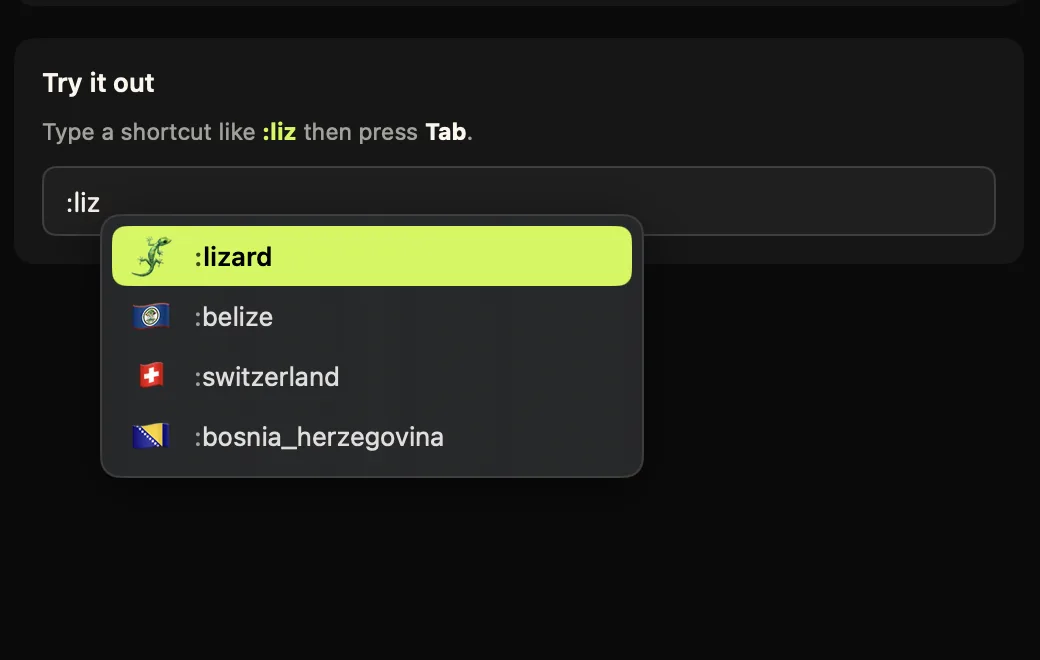
:liz and 🦎 comes up first. Press Tab to insert it.Not sure it is working? Click the Comoji icon in the menu bar and choose Test Comoji…. It opens a test field where you can try a shortcut without sending anything to anyone.
How emoji autocomplete works
Comoji watches for a colon followed by letters, the same :shortcode: style Slack, Discord and GitHub use. As you type, the popup narrows to the emoji whose name, alias or keyword matches. :hea offers ❤️ and 😍, :thu offers 👍.
Matching is forgiving: you do not need the exact name, and emoji you pick often move to the top of the list over time. Comoji also understands emoji keywords in Spanish, Portuguese, French, German, Japanese, Korean and Chinese when your Mac uses one of those languages.
If you already know the exact shortcode, type it with a closing colon, like :house:, and Comoji swaps it for 🏠 immediately, with no popup and no key to press.
A colon in ordinary writing never gets in the way. The popup only opens when a colon starts a new word, so 12:30, http:// and Note: thanks are left alone, and it closes the moment you type a space.
For emoji with skin tones, like 👋 and 👍, Comoji uses the tone you picked in Preferences › Appearance. To use a different tone just once, press ← or → while the popup is open.
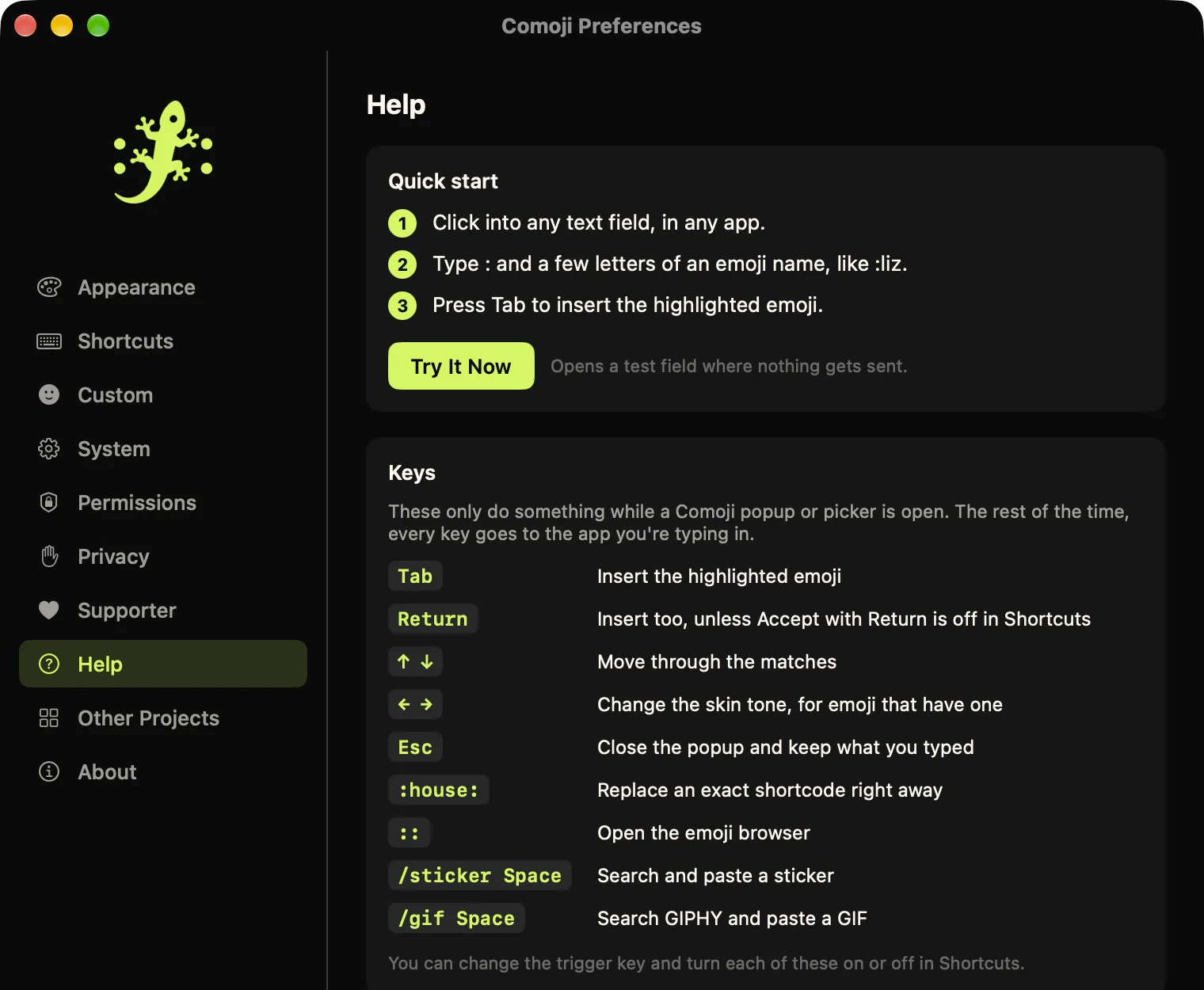
Every key Comoji listens for
These keys only do something while a Comoji popup or picker is open. The rest of the time, every key goes straight to the app you are typing in.
| Key | What it does |
|---|---|
| Tab | Insert the highlighted emoji. |
| Return | Insert the highlighted emoji. You can turn this off in Preferences › Shortcuts if Return should always send your message. |
| ↑ ↓ | Move up and down the list of matches. |
| ← → | Pick a skin tone for the highlighted emoji, when it has one. |
| Esc | Close the popup and keep exactly what you typed. |
| Space | Close the popup and carry on typing. |
:name: | Replace an exact shortcode the moment you type the closing colon. |
:: | Open the emoji browser to look through every emoji. |
/sticker Space | Open the sticker picker. |
/gif Space | Open the GIF picker. |
Changed the trigger key? Everywhere this page shows a colon, use your key instead. If you picked ;, the browser opens on ;; and shortcodes look like ;house;.
The emoji browser
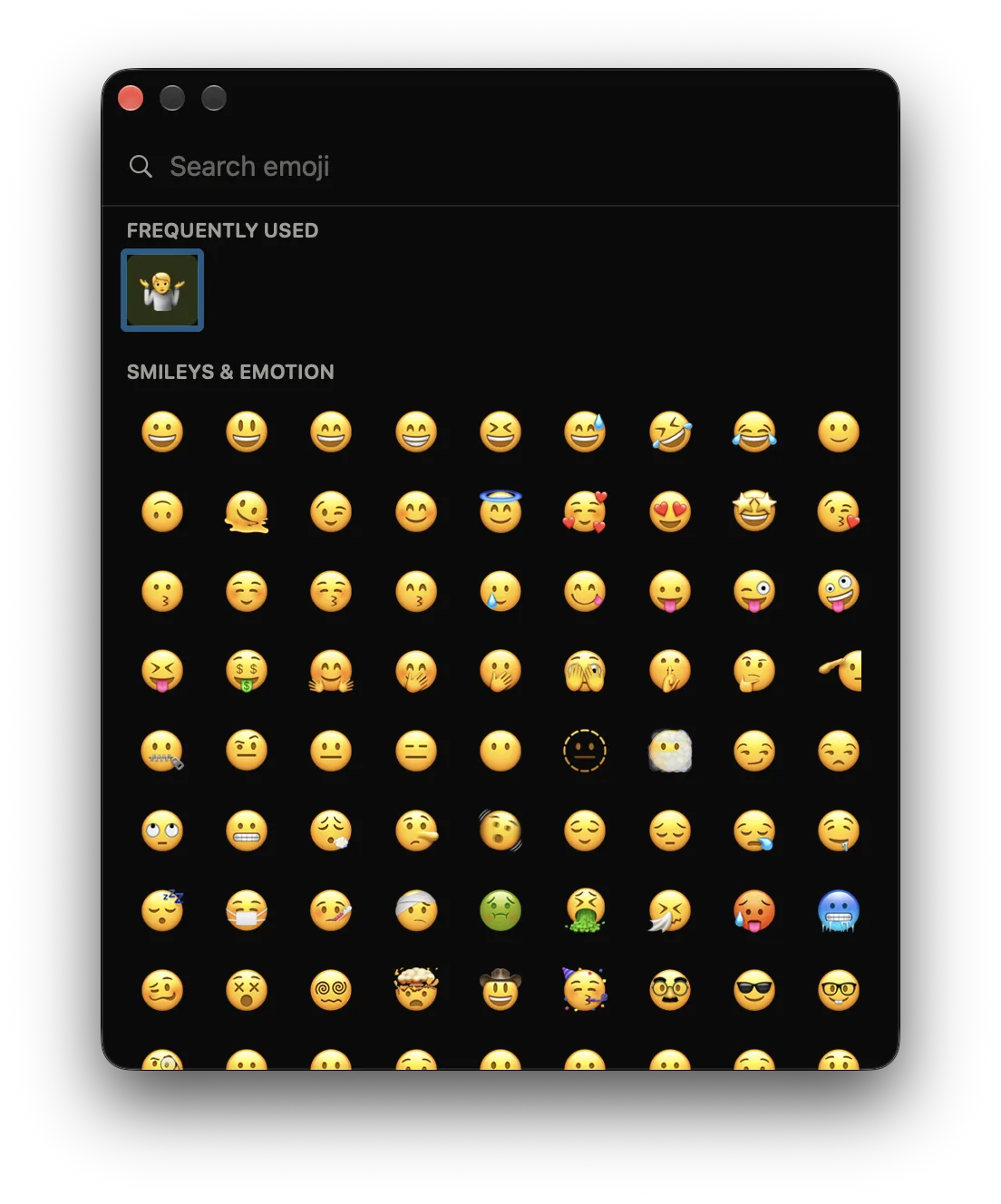
:: to browse every emoji.When you do not know what an emoji is called, type the trigger twice, ::, to open a large window with every emoji, grouped by category, with the ones you use most in a Frequently used row at the top.
Start typing to search; the browser takes your keystrokes while it is open. Use the arrow keys to move around, Return to insert the highlighted emoji into the field you were typing in, or click any emoji. Esc closes it.
You can turn the :: shortcut off in Preferences › Shortcuts.
Stickers and GIFs
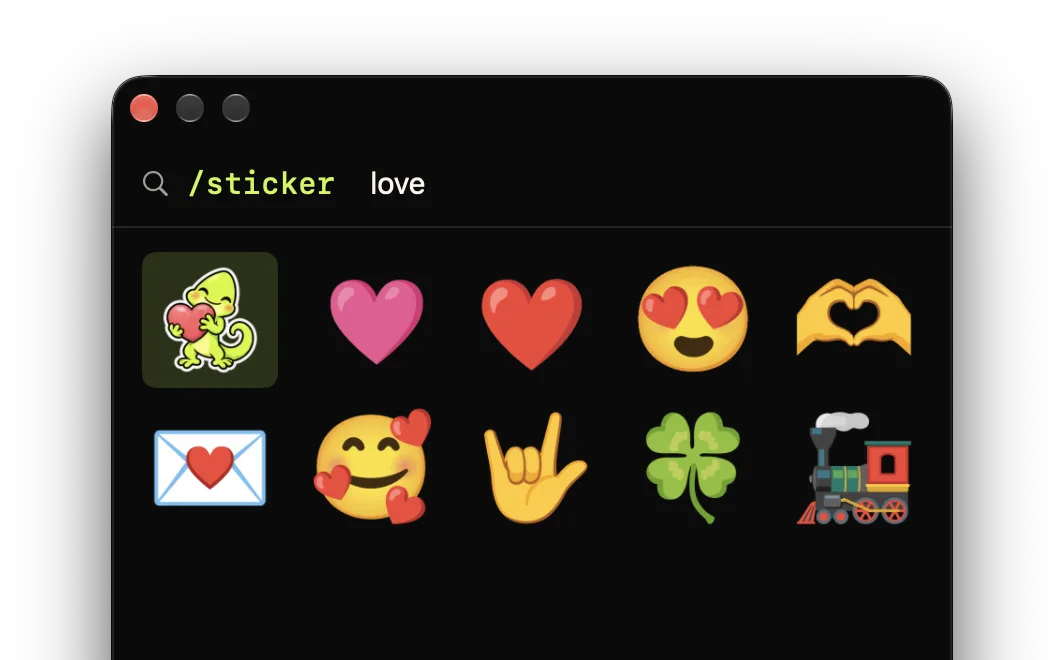
/sticker then love searches the animated stickers.Type /sticker and press Space to open the sticker picker: big, animated emoji artwork from Google’s Noto Animated Emoji set, plus 20 original stickers of the Comoji lizard. Type to search, move with the arrow keys, and press Return or Tab to paste the sticker where you were typing. Esc closes the picker.
Type /gif and press Space to search GIPHY the same way. The GIF is pasted as a file, so it keeps animating in apps like Messages, Slack and Mail.
Both work by pasting, so they need a field that accepts images, such as a chat or email message. A plain-text box will not take them. Comoji puts your clipboard back the way it was a moment after pasting.
The lizard stickers and popular emoji stickers are built into the app. Less common ones download from Google’s emoji CDN the first time you use them and are cached on your Mac after that. For GIFs, what you type in the search box is sent to GIPHY to fetch results; nothing else is. Turn either command off in Preferences › Shortcuts.
A tour of Preferences
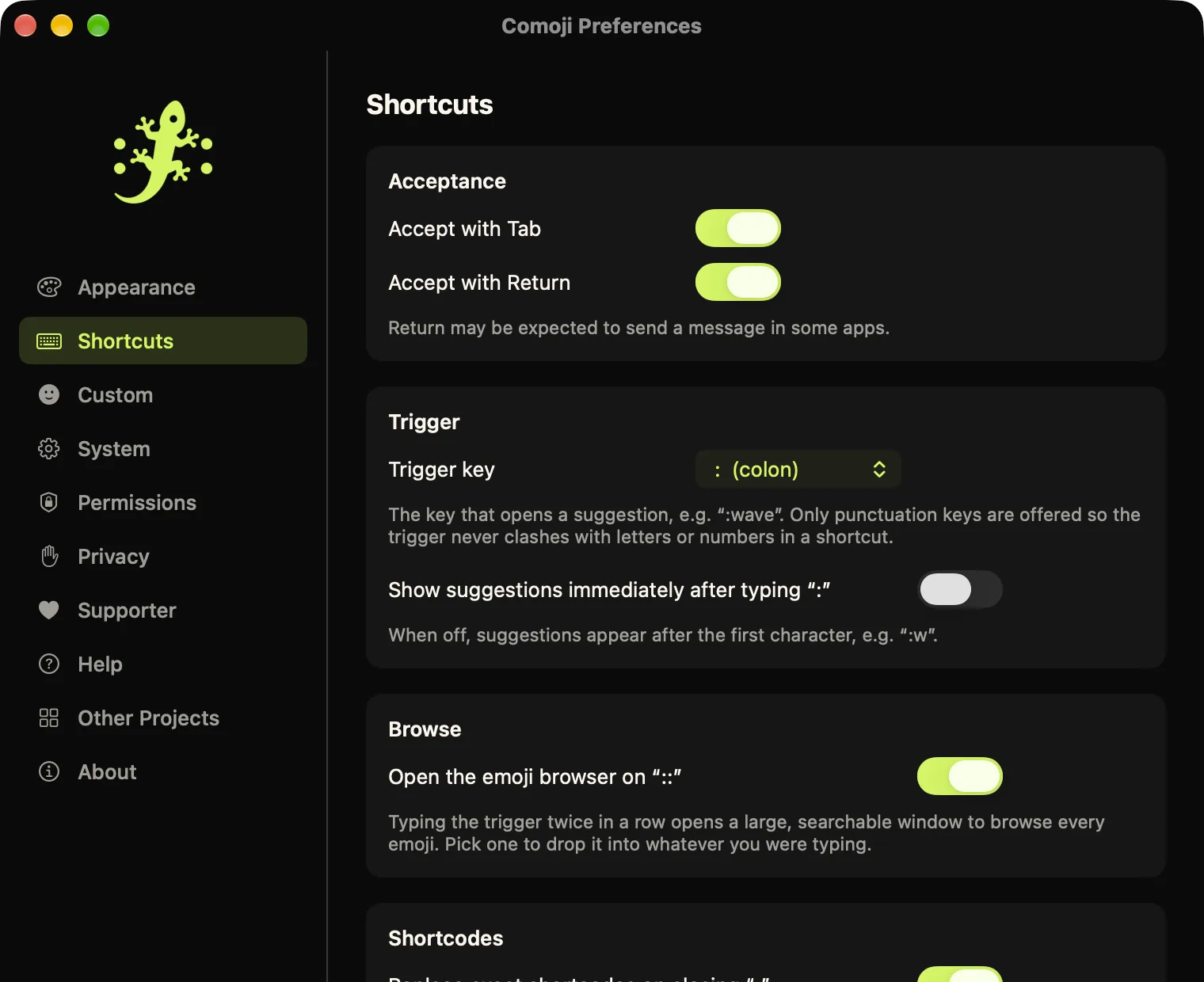
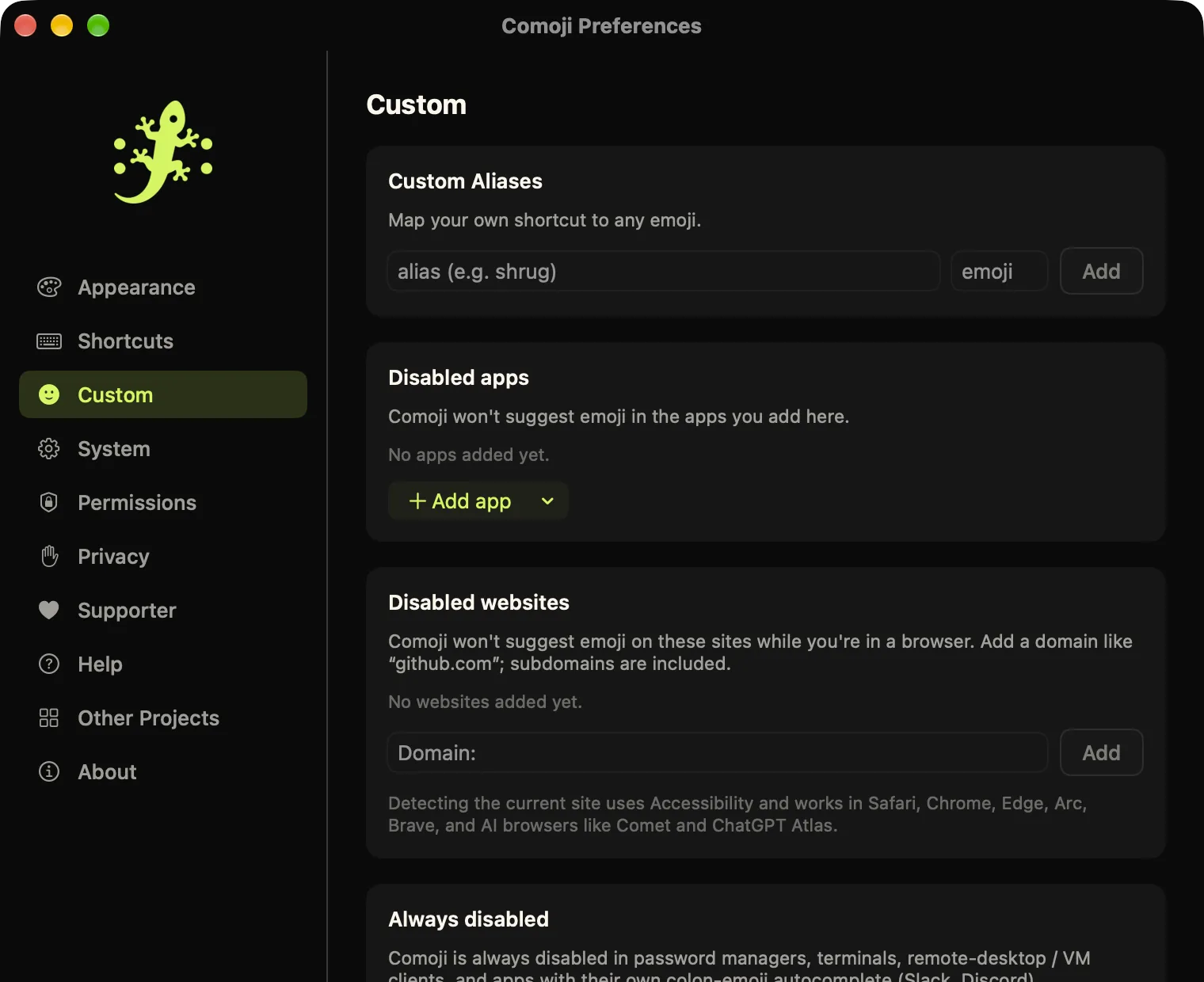
Click the Comoji icon in the menu bar and choose Preferences…. Each tab in the sidebar:
- Appearance
- Light, Dark, or follow your Mac. Your default skin tone. The popup’s highlight color: Comoji green, your Mac’s accent color, a preset, or any custom color, with a live preview.
- Shortcuts
- Whether Tab and Return insert, which key opens a suggestion (colon by default, or
;/\@#~|), whether the popup opens right after the trigger or only after the first letter, the::browser, closing-colon replacement, and the/stickerand/gifcommands.
- Custom
- Your own shortcuts, like
:shrugfor 🤷. Apps and websites where Comoji should stay quiet. The list of apps where it is always off: password managers, terminals, remote desktop and VM apps, and Slack and Discord, which have their own colon autocomplete.
- System
- Turn Comoji on or off, launch it at login, show or hide the menu bar icon, and control automatic updates.
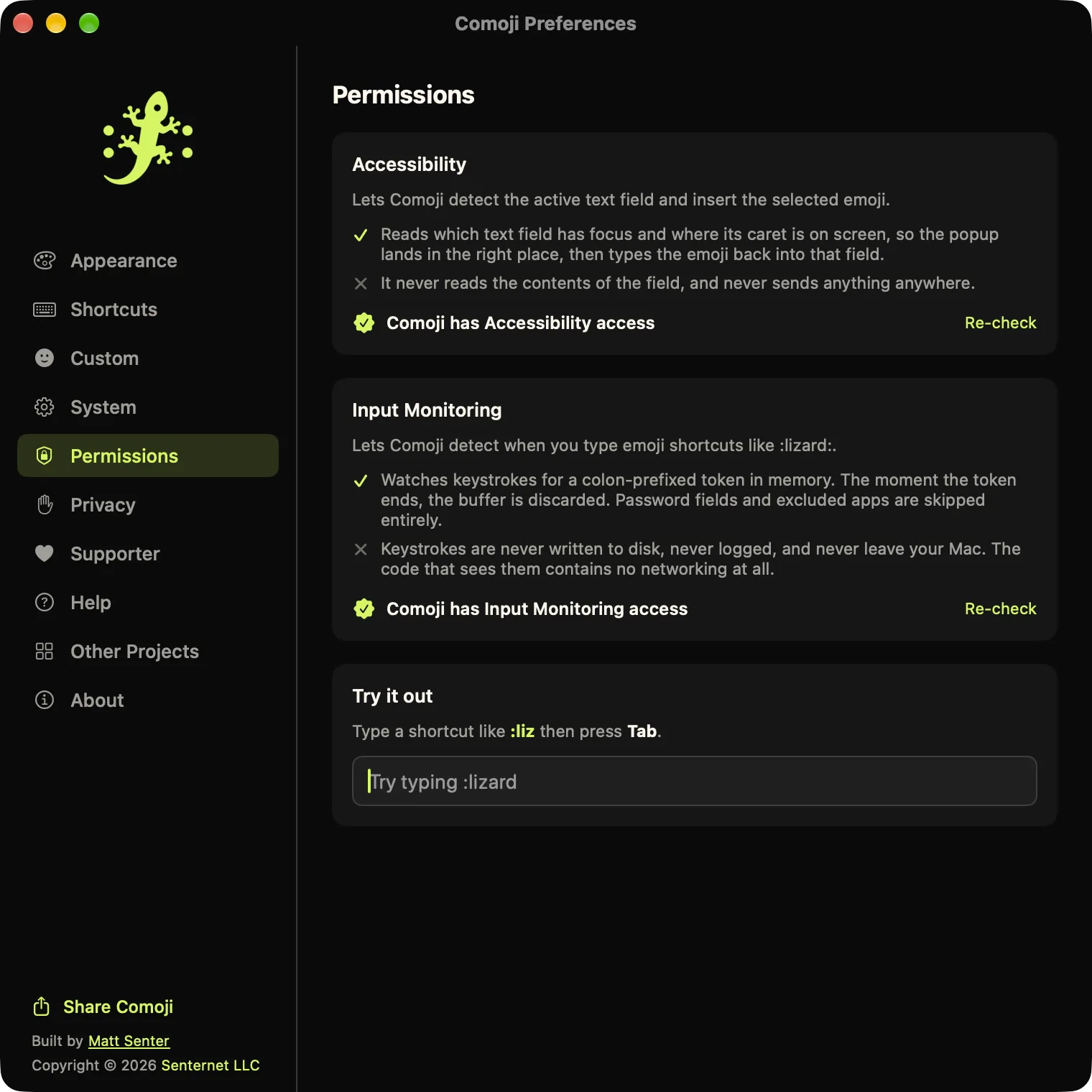
- Permissions
- Whether Accessibility and Input Monitoring are granted, with buttons to request them or open System Settings, plus a Try it out field.
- Privacy
- Every host Comoji ever connects to and why, a link to verify that yourself, and a button to reset the ranking of your most-used emoji.
- Supporter
- Activate or check your Supporter license, which hides promotions for my other apps. Every feature works without it.
- Help
- A short version of this page inside the app, with links back here.
- About
- Your Comoji and macOS versions, with a Copy Version Info button for bug reports, plus update controls and links to this site.
When something does not work
- Nothing happens when I type a colon
- Almost always a permission. Open Preferences › Permissions and check that both Accessibility and Input Monitoring say granted. If one does not, or if both do and it still does nothing, follow the fix on the install page.
- It stopped working everywhere and the icon shows a lock
- Another app has turned on macOS secure input, which hides every keystroke from every app, Comoji included. A password field left focused, or Terminal with Secure Keyboard Entry turned on, are the usual causes. The menu names the app holding it, and secure input on a Mac explains how to release it.
- It works everywhere except one app or website
- Check the disabled apps and websites in Preferences › Custom, and the menu bar icon: if it is dimmed with a slash, the top of the menu says why. Comoji is always off in password managers, terminals, remote desktop apps, and in Slack and Discord, which already autocomplete emoji themselves.
- Pressing Return inserted an emoji instead of sending my message
- Return inserts while the popup is open. Press Space or Esc first to close it, or turn off Accept with Return in Preferences › Shortcuts and use Tab to insert.
- The popup opens when I do not want it
- If you type colons at the start of words a lot (code, chat commands), pick a different trigger key in Preferences › Shortcuts, or add the app where it bothers you in Preferences › Custom. To pause Comoji everywhere, untick Enabled in the menu bar.
- A sticker or GIF did not paste
- The field has to accept pasted images. Message and email bodies do; search boxes, address bars and most form fields do not. Try the same field with an image you copy yourself: if that does not paste either, the field does not take images.
- It worked yesterday and not today
- A macOS or Comoji update can occasionally drop a permission even though the switch still looks on. Remove Comoji from both lists in System Settings › Privacy & Security with the − button, add it back from Applications, and relaunch.
What Comoji sees
Comoji looks at keystrokes only to spot a shortcut, in memory, and forgets them as soon as the shortcut ends. Nothing you type is saved, logged or uploaded, and password fields are skipped entirely. The security page lists every host the app ever contacts and shows how to check that yourself; the privacy policy has the rest.
Uninstall
Choose Quit Comoji from the menu bar icon, drag Comoji from Applications to the Trash, then remove it from Accessibility and Input Monitoring in System Settings › Privacy & Security. That is all there is: no helper, no daemon, no account to close.
Using Comoji: FAQ
- How do I type an emoji with Comoji?
- Type a colon followed by a few letters of the emoji’s name, like :liz, then press Tab to insert the highlighted match. If you know the full shortcode you can type it with a closing colon, like :house:, and it is replaced right away.
- How do I send a sticker or a GIF?
- Type /sticker or /gif in a message, press Space, search, and press Return to paste your pick. The field has to accept images, so it works in chats and email but not in plain-text boxes.
- Can I use a key other than the colon?
- Yes. In Preferences › Shortcuts, set the trigger key to a semicolon, slash, backslash, at sign, hash, tilde or pipe. Every Comoji shortcut then uses that key instead of the colon.
- How do I make my own emoji shortcut?
- Open Preferences › Custom, type an alias such as shrug and the emoji it should insert, and click Add. From then on :shrug offers that emoji alongside the built-in matches.
- How do I turn Comoji off for one app?
- Open Preferences › Custom and add the app under Disabled apps, or add a website domain under Disabled websites to turn it off on just that site in Safari, Chrome, Edge, Arc, Brave and similar browsers.
- Does Comoji work with VoiceOver?
- Yes. With VoiceOver on, Comoji reads the highlighted suggestion aloud as you type, with its position in the list and its skin tone. The :: emoji browser and the /sticker and /gif pickers announce what opened, how many results matched, and each item as you move to it. Every control in Preferences and the menu bar menu is labeled.
Get help from a person
Ask in the Comoji Discord: anyone can join, and it is where bugs get reported and releases are announced first. Supporters can also write to me directly through Contact Support.
See what changed in each version in the release notes.