Free Text Expanders for Mac: Text Replacements vs espanso
Comoji adds free Slack-style :emoji: autocomplete to every app on your Mac.
Set expectations before you read any further, because this is the post where people most often arrive wanting the wrong thing. Comoji is not a general text expander. It expands :emoji: and nothing else: it will not turn omw into “On my way!”, it will not paste your address, and it has no snippet library, variables or scripting. If you need those, the honest answer is a dedicated expander, and the free ones are covered below.
What this guide is actually about is the narrower job: free emoji text replacement on a Mac, the part of expansion where the “library” is 1,800-odd characters nobody wants to enter by hand. Apple’s built-in Text Replacements and the open-source espanso both do it, at a cost in maintenance. Colon autocomplete does it with no list to build at all. Here is how each one behaves, and what to pair with what.
The free general-purpose expanders (and what they cost you)
A text expander watches what you type and swaps a short trigger for a longer replacement: type omw and get “On my way!”, type :fire: and get 🔥. The best-known dedicated apps, TextExpander, PhraseExpress and Keyboard Maestro, are paid, but you do not need to spend anything on a Mac. Two free routes cover almost everyone: Apple’s built-in Text Replacements for simple snippets, and espanso for scriptable, cross-platform expansion. Both handle emoji as a special case of text, which is exactly where they get tedious.
Apple Text Replacements: the free built-in expander
macOS ships a basic text expander for free, and it syncs to your iPhone and iPad over iCloud. It is the right first stop for a small set of snippets you use constantly:
- Open System Settings › Keyboard › Text Replacements (on older macOS it is under Keyboard › Text).
- Click the
+button. - In Replace, type the trigger, e.g.
omwor:fire:. - In With, type the expansion (for an emoji, paste one from the picker you open with
Control-Command-Space). - Press
Return, and repeat for each snippet you want.
The strengths are that it is free, built in, and syncs across your Apple devices, so an omw rule you add on the Mac follows you to your phone. The limits show up fast: there is no autocomplete or preview, you must remember every trigger exactly, and managing more than a few dozen entries in that tiny scrolling list is a chore. For emoji specifically, we go deep on this trade-off in Text Replacements vs. emoji autocomplete, and there is a feature-by-feature table of Comoji vs Apple’s built-in Text Replacements.
espanso: a free, open-source text expander
If you have outgrown Text Replacements and do not want a subscription, espanso is a free, open-source text expander that runs on macOS, Windows, and Linux. You install it (on a Mac, brew install espanso is the usual route) and define your snippets in YAML config files. Because it is config-driven, it does far more than static swaps: dynamic dates, shell command output, clipboard contents, and fill-in-the-blank forms are all in scope, and you can share packages of snippets between machines.
The cost of that power is a learning curve. You edit text files rather than a settings pane, and getting comfortable with the YAML syntax and matching rules takes a little time. For developers and heavy snippet users it is a genuinely capable free alternative to paid expanders; for someone who just wants a few emoji, it is more setup than the job needs.
Where free text expanders slow you down for emoji
Both free options are great at expanding text you have defined. For emoji, where the “library” is 1,800-odd characters you cannot possibly enter by hand, the general-purpose model works against you:
- You have to define every emoji trigger yourself, there is no starting set and no discovery.
- There is no autocomplete or preview, so you must remember each trigger exactly,
:fire:versus:flame:, or nothing happens. - A typo in the trigger fails silently, with no hint why.
- None of them rank by what you actually send or handle skin tones, so your most-used emoji are never surfaced first.
The faster way for emoji: colon autocomplete
For emoji the winning move is not a better trigger list, it is not keeping a list. Autocomplete inverts the model: you type a colon and a few letters, the candidates appear ranked, and you accept the one you meant. Nothing is defined in advance, nothing has to be spelled exactly right, and all 1,800-odd characters are available from the first launch instead of the ten you had the patience to enter.
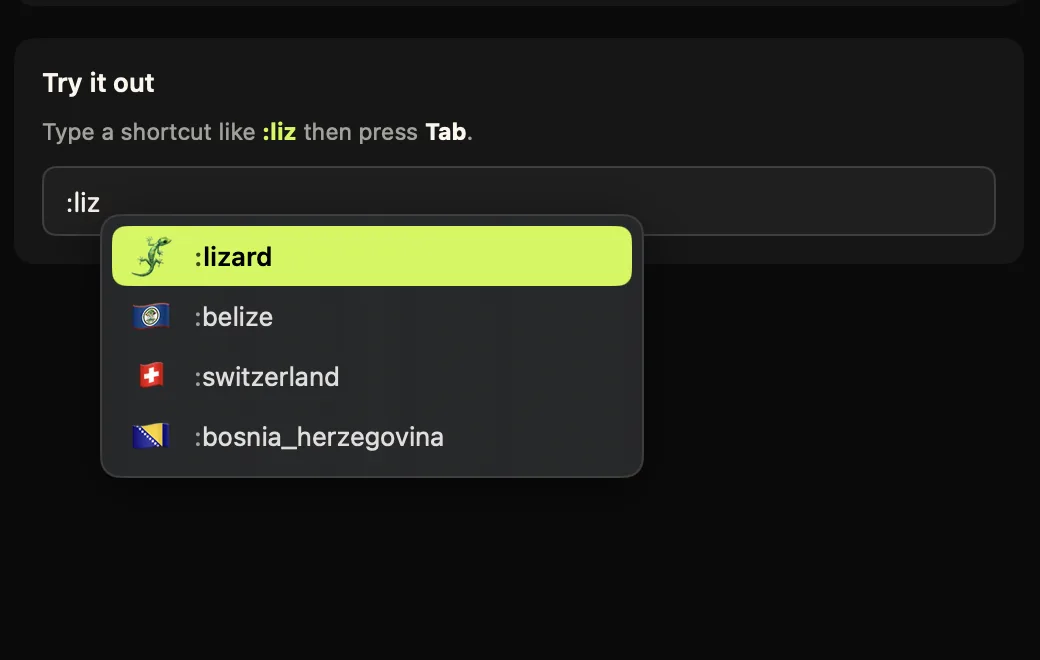
:fire and press Tab, the picker comes to your cursor, no triggers to define in advance.Concretely: :party puts ranked candidates at your caret, Tab accepts, misspelling :parrty shows fewer matches rather than silently failing, and a forgotten name is a double-tap of the trigger away from a searchable grid. Scope is the thing to be clear about, though, and it is deliberately narrow. Emoji, stickers and GIFs, full stop. No snippets, no variables, no dates, no scripts. It sits next to espanso or Text Replacements and takes one job off them; it does not replace either (Comoji is free). For how it compares with the other inline emoji tools, see the best emoji picker for Mac. For changing the trigger key, see the Slack-style emoji shortcuts guide.
Adding it next to your expander
Comoji is a separate install from whatever expander you keep for words, and the two do not fight: espanso and Text Replacements watch for the triggers you defined, Comoji watches for a colon token. Budget about three minutes for the app plus the two macOS permissions; the full walkthrough is on the install and setup page.
Which should you use?
The split is by job, not by preference. Snippets, boilerplate and anything you want mirrored to your iPhone: Apple’s Text Replacements, free and already there. Scriptable expansion with dates, shell output and forms: espanso, free and open source. Emoji: colon autocomplete, because there is no list to build and no trigger to remember. Nearly everyone who types a lot ends up running one expander for words and Comoji for :emoji:, and neither is a substitute for the other. For every built-in way to enter emoji on a Mac, see how to type emoji on a Mac.
So: keep the expander you need for words, and stop hand-defining emoji triggers you will misremember a week later.
Frequently asked questions
How do I set up emoji text replacement on a Mac for free?
Two free routes. In System Settings › Keyboard › Text Replacements, add a trigger such as :fire: and paste the emoji into the With field, repeating for each one. Or install Comoji, which adds colon autocomplete for the full emoji set so you type :fi, see ranked matches, and press Tab with nothing to define in advance.
Is Comoji a text expander?
No. Comoji expands emoji, stickers and GIFs only. It will not expand words, boilerplate or snippets, so it does not replace TextExpander, espanso or Apple Text Replacements. If you need general snippet expansion, keep one of those and let Comoji handle the emoji.
Is there a free alternative to TextExpander on a Mac?
Yes. TextExpander is a paid subscription, but Apple Text Replacements (built into macOS) and espanso (free and open source) both expand snippets at no cost. For emoji, Comoji provides colon autocomplete for the full emoji set without a subscription.
Can macOS Text Replacements expand emoji?
Yes. In System Settings › Keyboard › Text Replacements, add a trigger like :fire: in Replace and paste 🔥 in With. The catch is that you must add each emoji by hand and remember every trigger exactly, with no autocomplete, so it does not scale past a few favorites.
Do I still need a text expander if I use Comoji?
They do different jobs. Comoji handles emoji, stickers, and GIFs with colon and slash shortcuts, but it is not a general text expander, so it will not expand words or boilerplate. Keep Apple Text Replacements or espanso for text snippets and let Comoji handle the emoji.
Download Comoji free for Mac
Slack- and Discord-style :emoji: autocomplete, everywhere on your Mac. Free.