Notion Emoji Shortcut: Type a Colon in Any Block (Mac)
Comoji adds free Slack-style :emoji: autocomplete to every app on your Mac.
Notion is one of the few Mac apps that already gets emoji right: it has a Slack-style :colon menu built in, so dropping a 🎉 or a ✅ into a page is genuinely quick once you know it is there. This guide covers the fast built-in ways to add emoji in Notion on a Mac, whether you use the desktop app or Notion in a browser, and where a colon shortcut that works in every other app too is simply better once you type the same handful of emoji all day.
Short version: in any Notion text block, type a colon and the emoji name, like :rocket, and press Return to insert it. Read on for the parts most people miss, including page icons, and for a shortcut that gives you the same colon habit in every app on your Mac, not just Notion.
The fastest built-in way: the :colon menu
Notion borrowed this straight from chat apps, so if you have ever typed :party in Slack you already know it: start a word with :, keep typing the name, arrow to the emoji you want, and Return inserts it. Same behavior in the desktop app and on the web, and no mouse at any point. Two things stop it firing. The colon has to begin a word rather than land mid-token, and the block has to be editable, so a read-only page or a database view you cannot edit gives you nothing.
Page icons: a different, mouse-driven picker
The emoji you set as a page icon at the top of a Notion page uses a separate picker, not the :colon menu. Hover near the page title, click Add icon, then click the icon to open a panel with an Emoji tab and a search box. Type book or rocket and click the match to set it. This one is mouse-driven, so it is slower than the inline :colon menu, but it is the tool for the icon that sits beside your page title. The same panel also offers uploaded images and Notion’s built-in icon set if you want something other than a standard emoji.
The system picker, for the characters Notion’s menu misses
Notion’s :colon menu only offers emoji. When you want a ™, an arrow, a fraction or an accented letter in a block, fall back to the macOS Emoji & Symbols viewer with Control-Command-Space, then expand it into the full Character Viewer with the icon in its top-right corner. Because a Notion block is an ordinary text field, this works identically in the desktop app and in any browser. If the shortcut does nothing, opening the emoji keyboard on a Mac covers the Globe key, the menu bar, and the Edit menu as alternatives.
Where Notion’s colon menu stops
Notion’s :colon menu is genuinely good, and for the occasional emoji it is all you need. Its limits are about reach and ranking rather than quality:
- It ends at the app boundary. Comment on a Figma file, reply in Gmail, message a colleague, and the same keystrokes produce a literal colon.
- It does not learn. The 🎉 you drop into every project update ranks no higher on the hundredth use than the first, so you type the whole name every time.
- It has no skin-tone memory, so a 👍 you always want in one tone arrives in the default one.
- The page-icon panel is a different tool with different rules, which is why setting an icon feels slower than writing the page.
The faster way: Slack-style colon shortcuts everywhere
You already like the colon model, that is why Notion’s menu feels good. The catch is that it lives inside Notion. Comoji takes the same habit, type a colon and a few letters, :fire, see ranked matches, and accept with Tab, and brings it to every text field on your Mac, including Notion in the desktop app and in Chrome, Safari, or Arc.
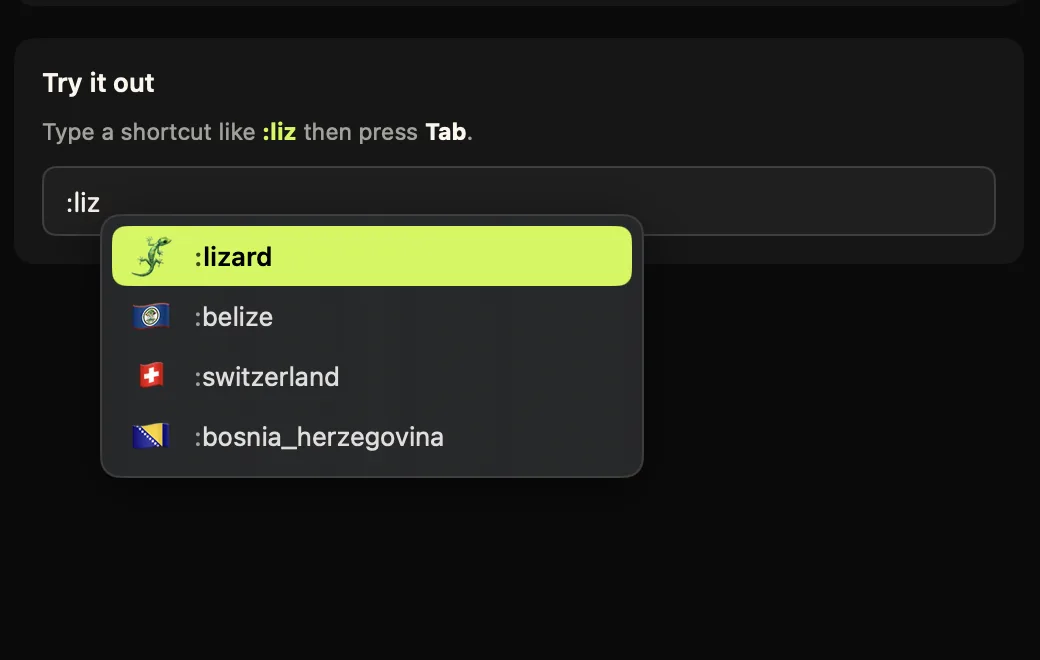
:fire and press Tab, the picker comes to your cursor inside the Notion page.The mechanics will feel familiar because they are Notion’s, extended: type :party in a block, arrow through ranked matches, press Tab or Return. What changes is that the ranking learns from what you send, skin tones stick, and the same keystrokes keep working in the Gmail reply and the Slack message you write about that Notion page. Forgot a name? Double-tap the trigger (:: by default) for a searchable browser of the full set at your cursor. If your muscle memory comes from chat apps, the Slack-style emoji shortcuts guide covers how to change the trigger key, and the popup theme guide covers matching its look to Notion’s.
Getting it running with Notion
Comoji works at the keyboard level rather than as a Notion integration, so there is nothing to connect, authorize or add to your workspace: it behaves the same in the Notion desktop app and in Notion in a browser tab. Install it and grant the two macOS permissions, about three minutes, following the install and setup page.
Which should you use?
Answer it by asking where your writing actually happens. If Notion is where you draft and the rest is reading, the :colon menu is free, native and enough. If Notion is one window among ten, the per-app menu is the problem rather than the solution, and a shortcut that survives the switch is worth the three-minute install. Working in another editor too? The Google Docs emoji shortcut guide covers its own colon shortcut and the @ menu, Comoji is a free download, and how to type emoji on a Mac has the full rundown.
You already type :party in Notion without thinking. The question is only whether that reflex should stop working when you close the tab.
Frequently asked questions
How do I add an emoji in Notion on a Mac?
In any text block, type a colon and the emoji name, such as :rocket, then pick it with the arrow keys and Return. For a page icon, click Add icon near the page title and choose one from the Emoji tab. You can also press Control-Command-Space to use the macOS emoji picker.
What is the colon menu in Notion?
Notion has a built-in Slack-style emoji menu. Type a colon in a text block followed by a name like :party or :check, and a menu of matching emoji appears. Move to the one you want with the arrow keys and press Return to insert it, without leaving the keyboard.
Can I use the same colon emoji shortcuts outside Notion on a Mac?
Notion’s colon menu only works inside Notion. Comoji adds the same Slack-style colon shortcuts to every text field on your Mac, including Notion, Gmail, Messages, and browsers. Type a colon and a few letters, such as :fire, then press Tab to insert the emoji.
Does the emoji stay correct when I share the Notion page?
Yes. Both Notion’s colon menu and Comoji insert standard Unicode emoji, not images, so they render correctly for anyone who opens the page, whether they are on a Mac, a PC, or a phone.
Download Comoji free for Mac
Slack- and Discord-style :emoji: autocomplete, everywhere on your Mac. Free.