Customize the Emoji Popup: Theme and Highlight Color
Comoji adds free Slack-style :emoji: autocomplete to every app on your Mac.
A Comoji user put it plainly: the green looked good on the website, but following them around every app all day was another thing entirely. That is a fair complaint, and it points at something worth saying out loud. An emoji autocomplete popup is not our window. It opens on top of Messages, Mail, Notion, your terminal, someone else’s carefully designed app, dozens of times a day. A thing that shows up that often should not insist on our brand.
So the popup now uses standard macOS materials, follows your Light/Dark setting on its own, and puts the color where you want it rather than where we want it. This guide covers what changed and how to set it.
What the popup looks like now
The suggestion popup is drawn with the same system vibrancy material and label colors macOS uses for its own menus, so it sits on top of other apps the way a native control does. It picks up Light or Dark from your Mac automatically. The only branded thing left is the highlight on the selected row, which is Comoji lime by default and is yours to change. For the short version of what these settings do, see the Appearance settings in Features.
How to change the theme and highlight color
- Open Comoji’s menu bar icon and choose Preferences.
- Select the Appearance tab.
- Under Popup, pick System, Light or Dark. System follows your Mac’s own setting and is the default.
- Under Selection color, pick the highlight for the selected row.
- Changes apply live, and the preview in the pane updates as you go. There is nothing to restart.
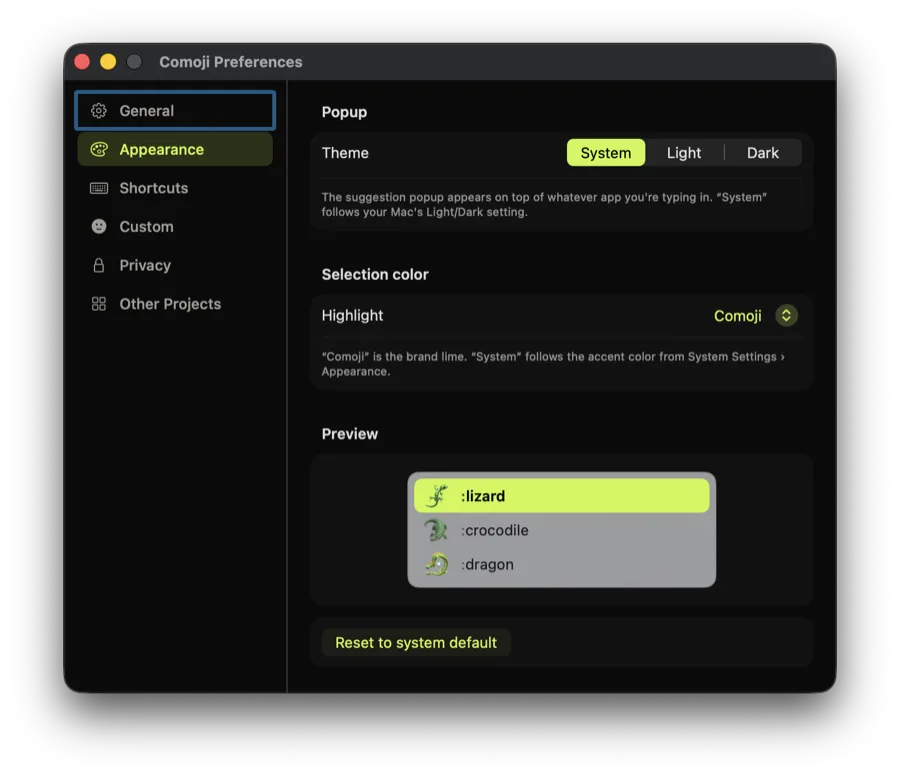
The highlight colors you can pick
The selection highlight is the one place color appears in the popup, so it is the setting most worth having:
- Comoji, the lime green from our icon. This is the default.
- System, your Mac’s own accent color from System Settings › Appearance. Set your Mac to purple and the popup follows.
- Six presets: Blue, Purple, Pink, Red, Orange and Graphite, sampled to sit close to Apple’s own accent palette.
- Custom, any color you like from the standard macOS color picker.
Whichever you choose, the text on the selected row switches between black and white to stay legible, so a pale custom color does not leave you reading white text on a near-white bar.
Why System is not the default
It is a reasonable question, since the rest of the popup follows your Mac. Two small reasons. The lime is how people recognize Comoji at a glance, and unlike the window chrome it is one small swatch rather than the whole surface. And an accent color is a deliberate choice on your Mac, so quietly matching it is a decision better made by you than assumed by us. If you want the match, it is one click away.
If you set this before
Earlier builds shipped an Appearance pane where the System option did not actually work: it always drew the Comoji lime, so System and Comoji were the same color. That is fixed. If you had picked System and wondered why nothing changed, it now genuinely follows your Mac’s accent. If you never opened the pane, you will see the lime default and nothing has changed for you.
The rest of the controls
Appearance sits alongside the other things Comoji lets you tune: a custom trigger key if the colon gets in your way when writing code, per-app and per-website disable lists for the places you want it silent, and the double-tap browser for when a shortcode escapes you. If you are new to the colon syntax itself, start with colon emoji and shortcodes on a Mac.
Comoji is free, Developer ID signed and notarized, and runs on macOS 13 Ventura or later. Everything you type is processed locally, and nothing is uploaded.
Frequently asked questions
How do I change the Comoji popup from dark to light?
Open the Comoji menu bar icon, choose Preferences, then the Appearance tab, and under Popup pick System, Light or Dark. System follows your Mac’s own appearance setting and is the default. Changes apply live and the preview in the pane updates as you go, so there is nothing to restart.
Can the emoji popup use my Mac’s accent color?
Yes. In Preferences › Appearance, set Selection color to System and the highlight on the selected row follows the accent color from System Settings › Appearance. Comoji lime is the default only because it is how people recognize the app at a glance; the match is one click away.
What highlight colors can I choose for the selected row?
Comoji lime (the default), System (your Mac’s accent color), six presets sampled close to Apple’s own palette (Blue, Purple, Pink, Red, Orange and Graphite), or any custom color from the standard macOS color picker. The text on the selected row switches between black and white so a pale custom color stays legible.
I picked System before and the popup stayed green. Why?
Earlier builds shipped an Appearance pane where the System option always drew the Comoji lime, so System and Comoji were the same color. That is fixed: System now genuinely follows your Mac’s accent color. If you never opened the pane, you see the lime default and nothing has changed for you.
Download Comoji free for Mac
Slack- and Discord-style :emoji: autocomplete, everywhere on your Mac. Free.